

If Your MacBook Is Stuck On A Black Screen, Try This
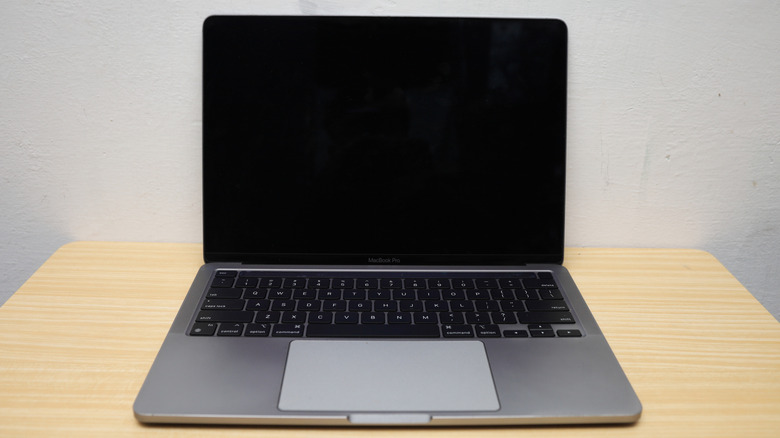
The scariest thing about a MacBook that seems to be stuck on a black screen may not be the possibility that you might need to replace the device with an expensive new model, or that you'd face the hassle of repairing or replacing the display. Instead, you may worry about the security of your data. Recovering that data may be the main priority when troubleshooting the issue, especially if you failed to back it up recently. The good news is that not all cases where a MacBook gets stuck on a black screen involve data loss, though that can happen. Whether it's a MacBook Neo, MacBook Air, or MacBook Pro, there are ways to troubleshoot the issue, including simple fixes that might resolve it. The worst-case scenarios may involve getting professional help.
A MacBook display may be stuck on a black screen because of various problems, including power, software, and hardware issues. Some of these can be addressed by the user without requiring any tools or disassembly. The fixes below apply to both Intel Macs and MacBooks with Apple's M-series processors.
If the display went black right after you turned on the MacBook or logged in, you should try to remember whether the battery was low. Maybe the battery was depleted just as it was powering up or waking from sleep, and instead of turning on, the laptop powered off. There's nothing wrong with the display in this scenario. Connect the MacBook to power via USB-C or MagSafe, let it charge for a few minutes, then try restarting it. If the display works normally, you've fixed the problem. Otherwise, you'll need to continue troubleshooting the issue.
The simple fixes
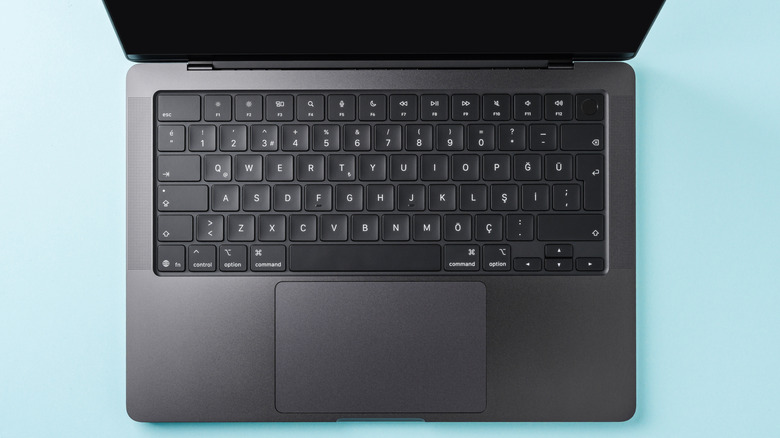
Seeing the light indicator on the charging cable illuminated may be a good sign, as it signals the laptop is getting power. Another way to test whether the laptop is working properly despite the black screen is to press the Caps Lock key on the keyboard. If it lights up, it's also good news, indicating that the logic board and operating system are working. In other words, your data may still be safe. At this point, you may also check the screen brightness to ensure it hasn't been manually set to minimum. The display would appear to be black as a result. Press the F2 key on MacBooks without a Touch Bar, or tap the brightness button on models with a Touch Bar, to increase the screen brightness. If the screen lights up, you've fixed the issue.
If these fixes didn't work and the MacBook appears to be responsive, try connecting it to an external display. This is a key test to run on your laptop before moving on to more complex fixes. If the external display shows your desktop, you may be relieved that your MacBook still works. Here, you may consider backing up your data before trying to fix the MacBook display. The external screen will let you control the MacBook and use it as you normally would.
Users should be aware that more advanced issues with the MacBook's GPU or the logic board may require the involvement of Apple support staff or authorized repair shops. Some MacBooks may have faulty display components, like a display ribbon cable or the backlight, so the display may need to be replaced. Also, software issues that can't be fixed using the options below may require similar assistance.
The more complex solutions
If the external monitor test still fails, you'll have to consider more advanced solutions. You can force a power cycle on the laptop by pressing and holding the power button for 10 seconds. After that, wait for about 30 seconds before pressing the button again to restart the MacBook. This may fix the issue, but if the display stays black, you'll want to reset the SMC (System Management Controller) and the NVRAM.
First, try the SMC reset, which involves pressing a combination of keys on Intel Macs after shutting the notebook down and plugging it in. Press Shift + Control + Option, then press and hold the power button without releasing the other three. Keep pressing the four buttons for about 10 seconds, and then turn on the laptop. On Apple silicon MacBooks, press and hold the power button for about 10 seconds after shutting down the Mac. Wait 10 seconds and then restart the notebook.
You can also reset the NVRAM, but this method is only available on Intel Macs. Like the SMC reset, you'll need to press a combination of keys, but this time you'll do it immediately after turning on the laptop: Option + Command + P + R. Hold the four keys for 20 seconds and release them after hearing the startup chime for the second time (or seeing the Apple logo disappear twice). Finally, Recovery Mode can help you run First Aid on the disk or restore the MacBook, assuming you can see the menu on the display. Restart Intel MacBooks and press Command + R, or hold the power button on Apple Silicon MacBooks until the Options screen appears to enter Recovery Mode.