

What Does The Red Dotted Line Mean On Google Maps?
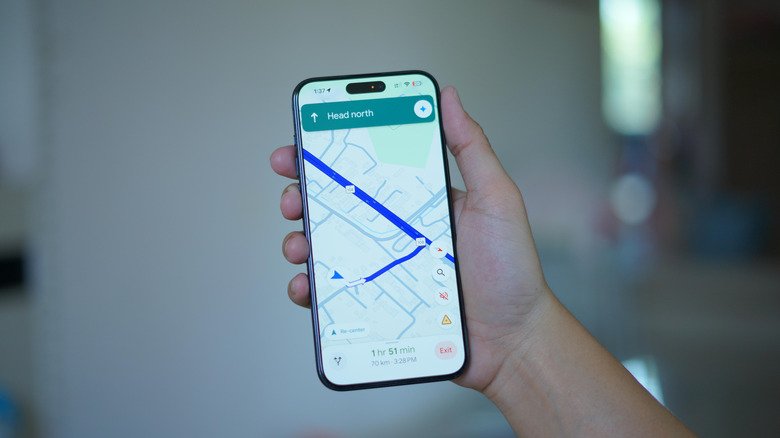
Like any traditional map, Google Maps may display a variety of symbols and notations in its navigation and street views that could mean various things. There are so many indicators, in fact, that you might need a guide to decipher some of the less obvious use-cases. Multi-colored lines and markings, unique icons littering the maps, names, abbreviations — as random as some of them may seem, they all have a very distinct purpose. It's also a way for Maps to stand out from alternatives like Waze, which is simultaneously better and worse in some ways. A common markup that you might see on Google Maps is a red dotted line, which actually has a few different meanings depending on how it's used.
Red dotted lines may appear throughout sections of a city or township. They may also appear in smaller sections on mountains or elevated terrain, or as an overlay on highways and major roads. It's clear, these examples indicate something, but what, exactly? In general, red dotted lines mark boundaries or obstructions, not necessarily physical in nature. For example, they're used to denote the regional and local boundaries of smaller principalities after searching for an individual place. In this support thread, you can see an example of that in action. Red lines reveal the Dothan, Alabama city boundaries. In another thread, a user points out red dotted lines on the edges of a beach, in which case they're used to highlight accessible waterfront areas.
Red dotted lines are also used to highlight ski lifts, select walking or hiking trails, and other public areas like small parks. As for the road and highway markers, they can indicate road closures and may include information about when those roadways are scheduled to reopen .
How to test out the red dotted lines for yourself in Google Maps
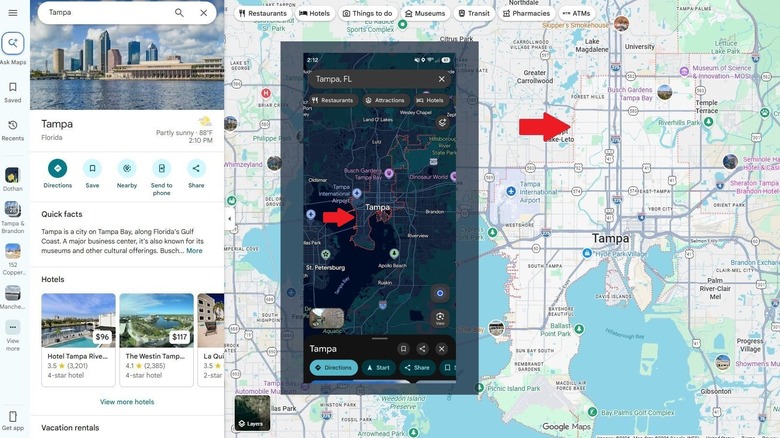
Ignoring some of the other use cases of the red dotted lines — like when they're shown to represent ski lifts or road closures — you can actually test them out for yourself in Google Maps on both desktop and mobile. It's super easy to do, too.
Normally, when you open Google Maps in the default view, you won't see any markings or red dotted lines. But because of how they're used to outline the city limits or outskirts of smaller areas, you can get them to show simply by doing a little search. With Google Maps open, type a town or city name into the search bar. You'll notice in the screenshot above, I did this by searching my local area, using the query "Tampa, Florida." That brings up the city of Tampa, of course, and the red lines which outline the city's boundaries. The red lines will show up on both mobile (in the app) and on desktop. The other red lines will show up when there's a relevant event or need, like if a road is closed somewhere near you.
It's important to remember Google is continually tweaking Google Maps for users, with the ultimate goal to improve the experience. You may see features other users cannot and vice versa, and some stuff won't even show up unless you're logged into your Google Account. In 2026 alone, Google has already added some great new features to Maps. There are quite a few lesser known or hidden Google Maps features you can use to make your navigation better, as well.