

You Should Use Google Maps' Lists Feature More Often - Here's Why
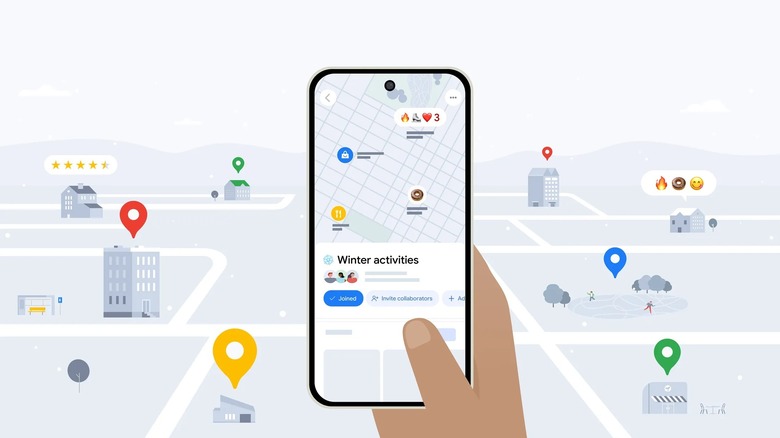
Google Maps is far from being one of the underrated Google apps for Android. In fact, it's among the most-downloaded and best-reviewed apps on the Play Store. But even with how often you use it, there might still be some Google Maps features you're missing out on. One good example is lists.
Google Maps lists are lists of places you're saving for future reference — maybe you want to visit them for the first time, or have been there but are planning on going again. Instead of jotting down all these coffee shops, restaurants, and landmarks in a note or document, you can just add them to your lists right within Google Maps. They will then appear as special icons on the map, which you can easily navigate to when needed.
The lists feature on Google Maps is especially handy when you're planning trips. With all the places saved and viewable on the map, creating your itinerary would be much easier. You can also use lists when you want to go to just one location — like a newly opened restaurant in town or a museum you've never been to before. Whenever you feel like exploring nearby, just open your list of "want to go" places and pick one you want to try out. We'll show you how to set up your own lists and save someone else's list on Google Maps.
How to make your own lists on Google Maps
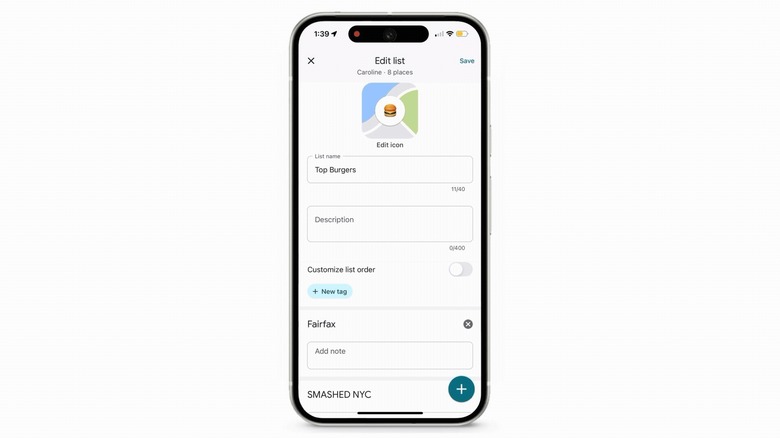
The lists feature is one of the most useful Google Maps settings, and thankfully, it's straightforward to setup. Here's how:
- In Google Maps, go to the You tab.
- Tap New list to create a new list.
- Add a name for your list. You can go with the name of the location you're visiting, such as Japan or NYC.
- Press Choose icon.
- Select a general icon for your list. This makes the list easier to find when you're looking for it in the You tab.
- Hit Save.
With your list ready, you can create sub-categories like Food, Coffee, and Landmark inside this master list for further organization:
- Click the three-dot menu icon in the top-right corner of the list panel.
- Choose Edit list.
- Tap New tag.
- Type a name for your category.
- Select an emoji.
- Repeat the process until you have all your subcategories.
- Press Save.
Now that you have your sub-categories, it's time to add places to the master list:
- Tap Add places.
- Find the place on the map.
- Once added, click the pen icon next to the place.
- Pick one or more of the sub-categories.
- Hit Done.
From here, just keep adding new places until your list is complete. When you exit the You tab, all the places in that list will use the emoji of the master list. But once you open the list from the You tab again, each place will display the emoji of the sub-category it was added to. Unfortunately, the tag feature isn't available for Android or the web app yet. To organize your places into categories with different emojis, you'd have to create a master list for each one. For instance, you'll have master lists named Rome — Food, Rome — Hotel, and Rome — Landmarks. It's inconvenient, but it's a workaround.
How to get lists created by others
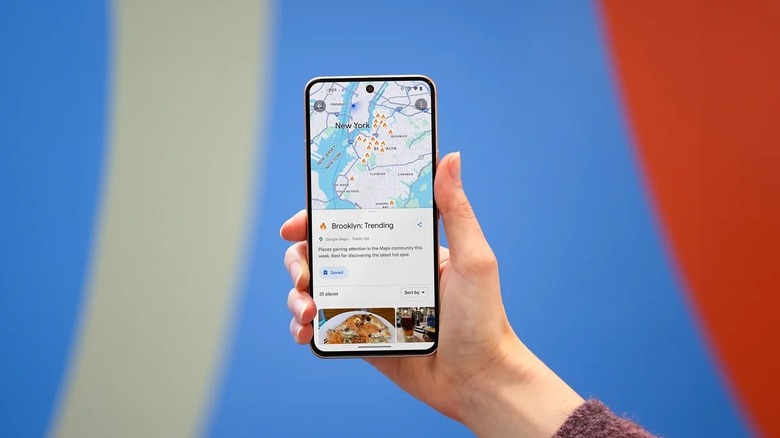
The lists feature on Google Maps, while incredibly useful, can take some time and effort to build yourself. The good news is, Google Maps also allows you to save lists created by other people. This way, you won't have to go through the hassle of adding places yourself, but still get the convenience of using lists on Maps.
There are several ways to find other people's lists on Google Maps. The first — and official — method is by simply looking up a city in Maps. In the search bar, type the city you're planning to visit and hit Enter. A panel with the city details will appear. Scroll down until you get to the Lists in [city name] section. Here, you'll find three lists curated by Google themselves: Trending, Top List, and Local Gems. The Trending list has the most popular hot spots in Maps recently, which get updated every week. The Top List contains the Maps community's favorite places. And finally, the Local Gems are under-the-radar locations you might want to check out. Other than these lists from Google, you might also spot lists from other creators like Viator, OpenTable, and Lonely Planet.
Unfortunately, these per-city lists don't show up in every city across the globe. In that case, you can try looking in third-party Google Maps lists discovery sites like Tony's Lists, Mapita, and mapShare. They feature lists submitted by other people, so you get solid recommendations. Whenever you find a list you like, just open it and hit the Save button. The list will then be saved in the You tab, under a separate "Lists you saved" section. However, you can't edit and add new places to other people's lists. You can only share it or remove it from your lists.