

What Do The Four Dots At The Top Of Your iPhone Mean?
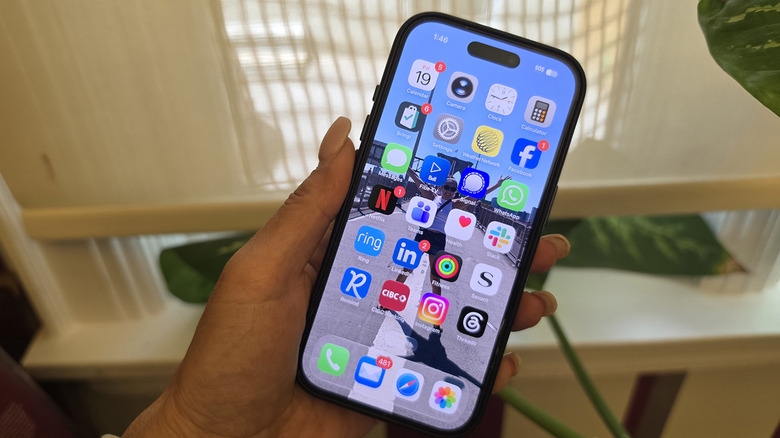
Every iOS, including the latest iOS 27, comes with so many updates and design changes, it's easy to get confused about what symbols mean what. The top right corner of the phone's screen, however, is one of the most important and consistent spots that never changes. It advises of your connection status as well as battery life. Without both these things experiencing favorable conditions, there's not much you can do with the phone.
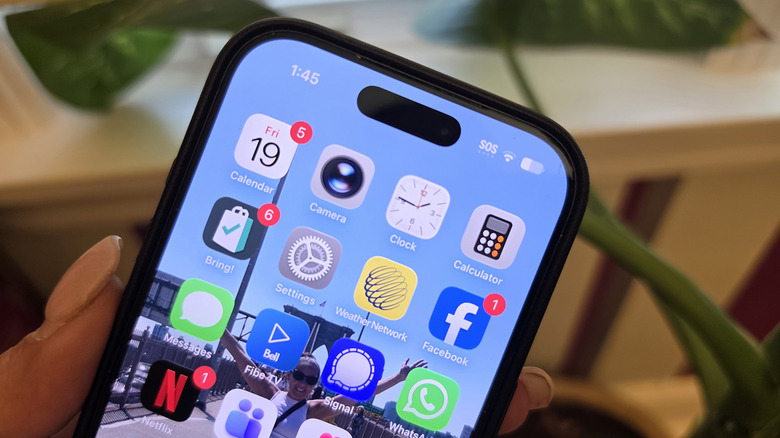
Along with the Wi-Fi symbol and battery indicator, which can appear as a battery icon with a status bar or as a percentage, you may also notice bars or, at times, four dots, beside the Wi-Fi symbol. What do those mean? In the most basic terms, it means wherever you are, you don't have active cellular service.
Don't panic, because if the Wi-Fi symbol is there, it means you at least have Wi-Fi to connect to. But you can't make or receive calls nor send or receive SMS messages, at least not using your cellular connection and data plan. If you see the letters SOS above the dots, it means there's still a signal you can latch onto in case of emergency. From here, the first step is to figure out why these dots are showing up.
When you might see these dots
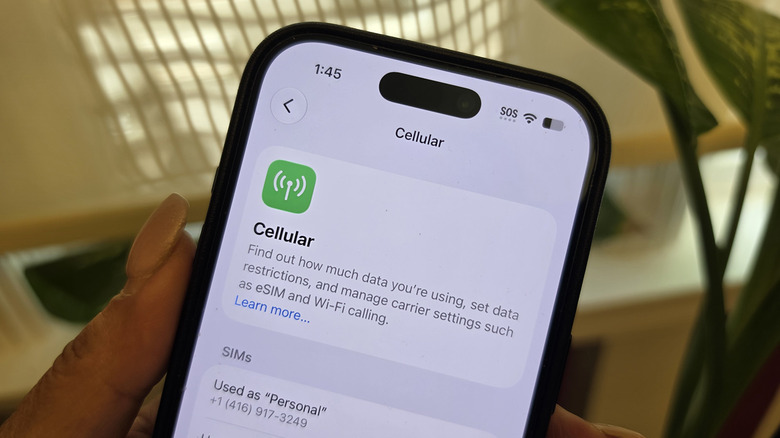
As noted, these dots appear when there's no active cellular service, and thus you cannot make or receive calls or texts. It could happen if you're going through a tunnel or on the subway underground. It could also be because you're in an off-grid area where there's either no cellular signal or, more likely, a spotty signal that comes in and out.
This can happen with a carrier outage as well. If you turn your phone's cellular service off while traveling and haven't yet set up a travel eSIM, or if the phone hasn't yet latched onto the new network, you'll probably see these dots until a signal is acquired. Once you latch back onto a cellular signal, the dots will turn to bars indicating the signal and its strength. The more bars, the stronger the cellular signal. "No service" may also appear. You'll see SOS overtop the dots if emergency calling is still available in that area.
What can be confusing is that if you're using a travel eSIM for data alongside your cellular SIM, or have dual SIMs, you might see four exclamation mark looking icons in place of the bars. The top bars tell you the signal strength of the mobile data SIM, and the dots underneath advise of the strength of the secondary one. This appears on my iPhone, for example, when I use a travel eSIM but don't turn off my primary cellular network.
What to do if you see these dots
The first step is to figure out what's wrong. If you have Wi-Fi, search online to see if the carrier is experiencing outages. If not, move to a different location. Open Settings, put the phone in Airplane Mode, wait 10 seconds, then turn it off and see if this resets things.
Verify your phone line is on, and even if it is, try turning it off and on again. It's the equivalent of unplugging and plugging it back in. If you're traveling, wait a few minutes upon arrival to give the phone a chance to find a network. I notice it can sometimes take several minutes for this to happen. Also, verify that you don't have data roaming off. This shouldn't impact the cellular signal, but you can toggle it on to see if it corrects the issue. Note that doing so means you may be charged roaming fees, depending on your carrier and plan.
Bottom line: if you see these dots, don't panic. If the SOS symbol is there as well, you can still contact emergency services. Setting up emergency SOS features is one of the emergency features you should enable on your iPhone, especially since this can be done even without a cellular signal. Overall, your best bet is to move to a different location, toggle connection settings, restart your phone, and see if any of these help you to find a signal. As a last resort, contact your carrier.