

Increase Your Google Pixel Phone's Display Brightness Using This Simple Trick
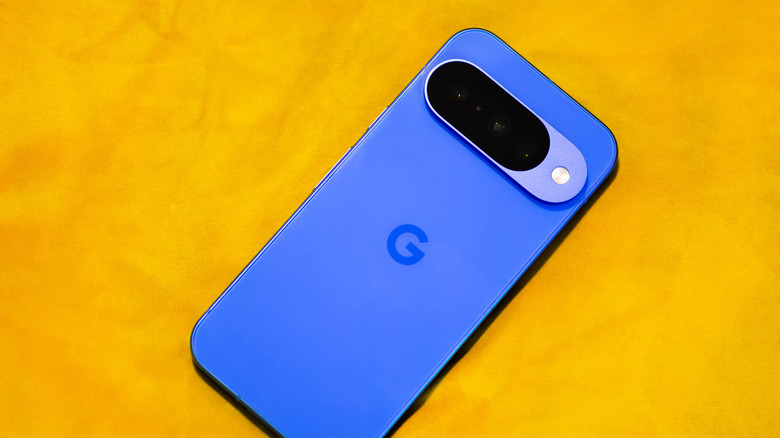
Google's more recent Pixel lineup, like the Google Pixel 10 Pro XL, boasts some of the most vibrant displays on the smartphone market today at up to 3,300 nits, but reaching that peak isn't always easy. For example, you step outside on a beautiful sunny afternoon, trying to read a map for a quick two-mile hike, or you're standing on the sidewalk looking up reviews for a nearby independent bookstore. Instead of a bright screen, you're stuck squinting at a black mirror that's no help at all. While modern Pixels are technically capable of pushing massive amounts of light, they have a feature enabled by default that can limit the brightness potential: adaptive brightness.
Adaptive brightness uses ambient light sensors to automatically adjust your screen's brightness level based on how bright or dim your surroundings are. It's incredibly useful in theory, but in practice, some users have suggested that adaptive brightness dims too aggressively. In fact, it's one of the recommended settings you should change on a new Android phone. So, if you want a more reliable way to access that powerful brightness when you need it most, you'll have to wrestle control away from the software. Fortunately, this is an easy fix, and it doesn't require any fussy hacks — you simply need to flip a single toggle in your phone's settings.
How to take manual control over your Pixel phone's screen

To disable adaptive brightness, swipe down twice from the top of your screen to open the Quick Settings panel, then tap the gear icon. This puts you in your main Settings menu. From there, you'll see the Display & touch section. That menu lets you toggle off the Adaptive Brightness switch. Once that's disabled, you'll have total control over the brightness slider in your notification tray so you can push your phone's brightness to its absolute max whenever you need it.
However, there are some important trade-offs to keep in mind before you leave that slider maxed out all day. First, cranking your screen to peak brightness is one of the fastest ways to drain your phone's battery. Your phone's display requires massive power to push those pixels at maximum luminosity. If you're using this all day, you may find yourself scrambling for a charger long before the evening rolls around. Second, leaving an OLED screen at or near its peak brightness level for long periods puts it at risk of permanent screen burn-in. This is where faint ghost images of your status bar or apps become permanently etched into the display. Google opting to auto-enable adaptive brightness was likely done to protect your battery and screen. So if you want to take back control of that setting, your best course of action is to use peak brightness sparingly. In fact, regulating brightness levels is a way to improve battery life on laptops and other electronics with screens, too.