

4 Cool Ways To Use The Button On Samsung's S Pen
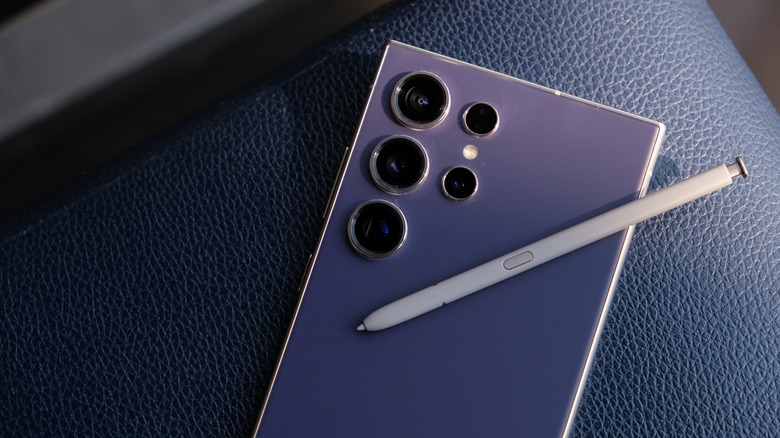
A phone or tablet stylus, when used right, can add a lot of extra, convenient functionality to a device. Take Samsung's titular S Pen, the somewhat exclusive stylus designed for its Galaxy phones and tablets. Originally popularized by the first Samsung Galaxy Note in 2011, it has been continually upgraded and bundled with various devices over the years. Samsung packs it with one of the best tablets for note-taking, the Galaxy Tab S9 FE, among some of its other models. More recently, it was made available with the Galaxy S25 Ultra and Galaxy S26 Ultra smartphones.
Perhaps one of the coolest features is that supported devices instantly recognize when you eject the S Pen. If you've never used one, it tucks into a port on the device. That alone makes it highly useful, as the stylus goes everywhere your phone goes and you don't need to carry anything extra.
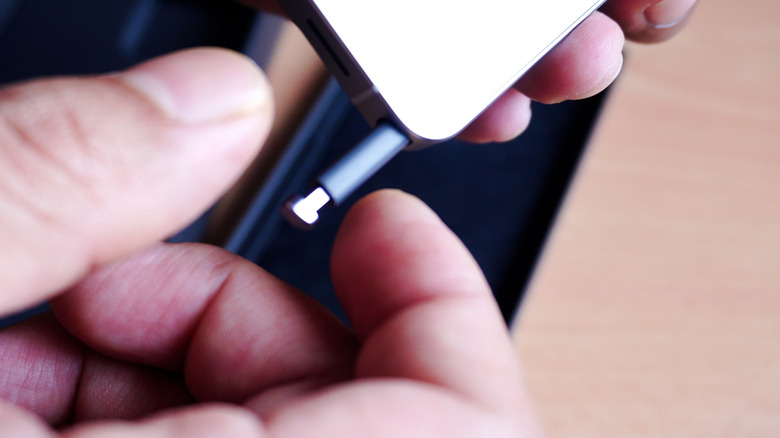
To undock the S-Pen, press gently on the back tip; once removed, the device will vibrate. The phone automatically recognizes it's detached and opens either a note-taking app or a small menu with S-Pen-specific tools. You can also customize what happens with the S Pen in the device settings. Even if you own a Samsung device that came with one, there are some really useful S-Pen features you might not know about, especially those added by the stylus buttons. The stylus has a dedicated button on the body, and the back tip also serves as a clicky-style button.
Start a quick note with the screen off
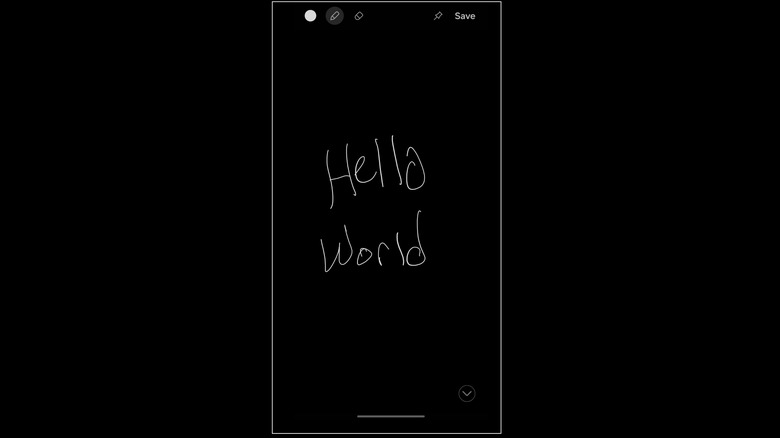
If you remove the S Pen, the device will automatically recognize that, yes, but there may be times when you're already holding the stylus while the screen is off. For example, if you're in class or a meeting and it times out while you're paying attention to the speaker. You can use the S Pen to quickly jot down notes in this instance without ever touching the phone or buttons on the phone.
Granted, you have to lower the S Pen close to the screen, seeing as there's no Bluetooth connection, so keep that in mind. With the screen off, hover the S Pen over the device and press the dedicated button. You'll see a small ripple-like animation at the tip of the S Pen, and while the screen stays dark, you should now see icons at the top for adjusting ink or pen functions and a save button at the bottom. Simply start writing a note, and make sure you tap "save" when you're done, or you can lose all your work. The note will be saved to the Samsung Notes app if you need to find it later.
Erase sketches or notes
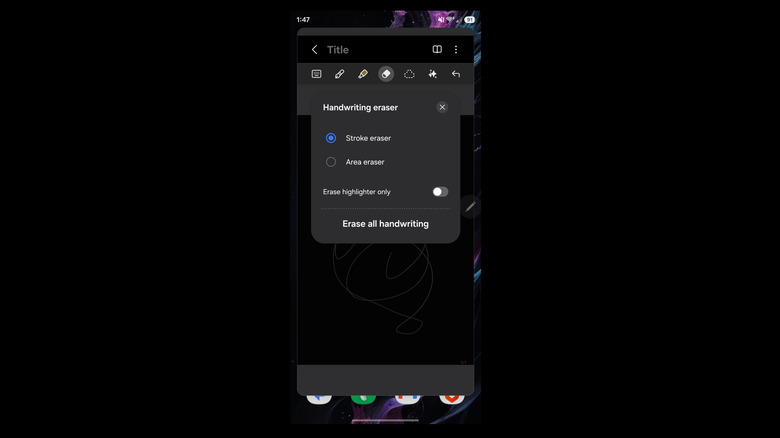
If you're using the S Pen to draw or take notes in a compatible app, like Samsung Notes, you can also use the button to instantly access an eraser. That saves you a little time, as you don't have to pop into the app menu and fiddle with the controls if you've made a mistake. Bear in mind that it's very easy to clear everything at once with this method, since the default eraser is the stroke eraser. Pay attention to the way you interact if you don't want to get rid of the entire piece.
Activating it is pretty easy. With an app open, like Samsung Notes, ensure the stylus is close to the screen. If you're already sketching or writing, you're probably doing that already, and then press and hold the button. The icon should change to the eraser. Keep holding the button and move the cursor or tip over the last contiguous line you want to erase.
You can adjust eraser settings within the app before using the stylus. For example, in Samsung Notes you can change to an area eraser, which clears the selected cursor area, versus the stroke eraser, which removes an entire stroke or line at once.
Start a fresh note anytime while the screen is on
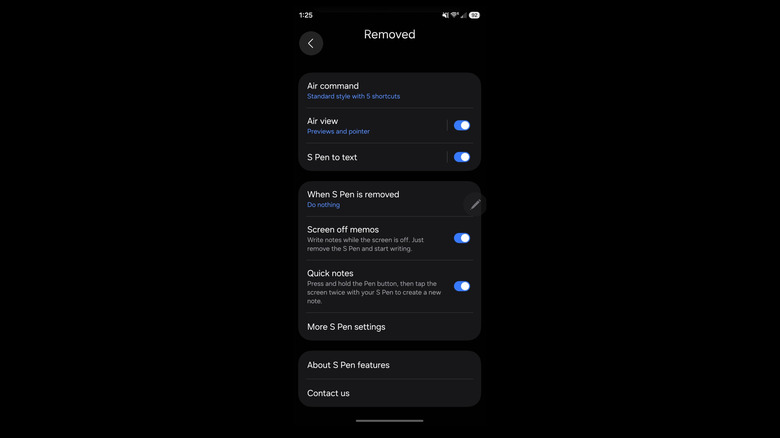
Let's say you're doing something on your phone and want to open a blank note quickly. You can do this even if you have another work-in-progress note open, and you can use your stylus to get it done. From within any app or screen, press and hold the S Pen button, then double-tap the screen with the tip. Doing this will instantly open Samsung Notes and create a new note for you to sketch, write, or edit.
This feature should be enabled by default on devices with an S Pen. But if you want to turn it off, for whatever reason, you can. Navigate to Settings > Advanced Features > S Pen, and you'll see the Quick Notes option, which is precisely what this feature is. Deactivate the toggle to turn the feature off. You can also turn off the Screen Off Memos here if you don't want the device to create notes when the screen is turned off.
Open Air Command shortcuts (if enabled in settings)
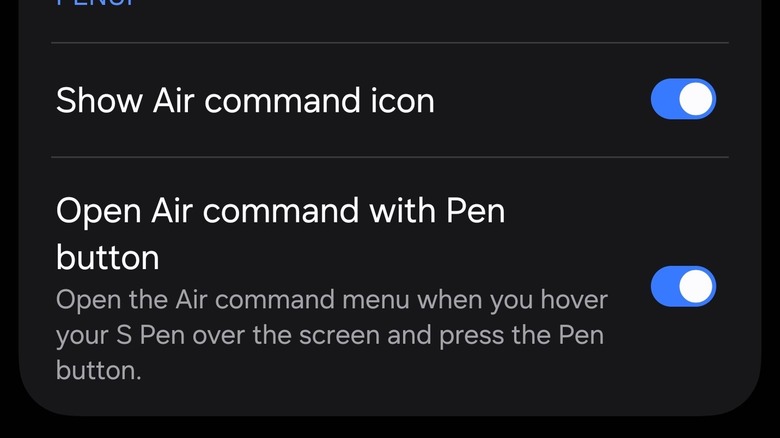
When you remove the S Pen from its port, Samsung Galaxy devices will also show a small pop-up menu on screen related to stylus-friendly apps. By default, this appears as a pencil icon on the side, and tapping it opens the sub-menu. You can customize how this all works and looks in the Samsung settings.
But tucked away in those settings is also an option to open that sub-menu with the S Pen button. That way, when you press the button, the menu opens, and it's a quick, neat way to access your apps rather than manually tapping the icon.
To turn it on, head to Settings > Advanced Features > S Pen > Air Command and tap the toggle next to Open Air Command with Pen Button. Once that's enabled, all you have to do is remove your S Pen, unless it's already in your hands, hold it close to the screen and tap the button to open the Air Command menu.
The latest S-Pens drop Bluetooth support and that matters
Starting with the Galaxy S25 Ultra's release in 2025, Samsung removed Bluetooth functionality from the S Pen, primarily because, as it claims, people didn't use it much. That is a contentious point, as many fans of the S Pen tend to disagree and voiced their opinions when the feature was removed. But the feature removal is relevant because it changes some of the unique ways in which you can use the S Pen on the newest models.
Bluetooth Low Energy (BLE) enabled a more robust feature set, such as the ability to navigate a browser and various apps using the S Pen alone. You could even snap a photo with the stylus — its removal was a shock to me when I jumped from the S22 Ultra to the S25 Ultra. Samsung now recommends using a paired Galaxy Watch or Galaxy Ring to perform some of these actions, as they can recognize hand gestures and let you interact with the phone(s) that way.
Regardless, all the ways to use the S Pen buttons listed here are available on newer versions of the S Pen, with Bluetooth functions omitted to make way for the latest releases. While the community hoped Bluetooth would return to the S Pen, Samsung has now launched two generations, the S25 and S26 Ultra, without Bluetooth, so it may be gone for good.