

What Does A Flashing Green Light Mean On Your Nintendo Switch Dock?
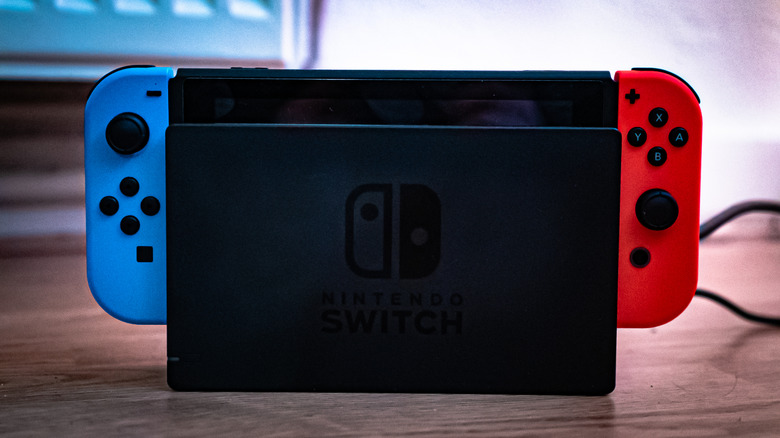
People are still playing the original Nintendo Switch, thanks to its massive library of high-quality exclusives, including "The Legend of Zelda: Breath of the Wild," "Super Mario Odyssey," and "Metroid Prime 4: Beyond," with the latter two games running at a buttery-smooth 60FPS on Nintendo's aging hardware. The Nintendo Switch comes with a dock that lets you play these games on a TV in HD (up to 1080p). This can enhance the gaming experience, which is why it can suck when you dock the Switch, only to get a blinking TV output LED on the front of the dock and a blank TV screen. Normally, the dock's LED will turn solid green when the Switch is running in docked mode. The constant blinking usually means that the Switch and dock are failing to communicate due to several issues, including software glitches, damaged ports, or a faulty AC adapter.
While not necessary to troubleshoot the problem, having a spare dock and AC adapter can help isolate the culprit quickly. For instance, if the light still blinks after inserting the Switch into a different dock, it's the console. If it works normally, the issue lies with the first dock or the AC adapter. If you try all the troubleshooting steps below and the issue persists, there might be a bigger hardware fault at play. If the Switch and accessories are still under warranty, you can send them to Nintendo for servicing.
Troubleshooting the Switch console
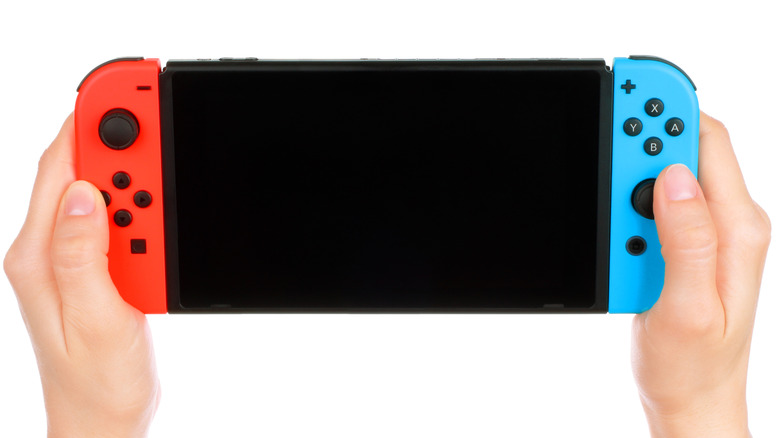
The first thing you should do is inspect the Switch's charging port. That's where a YouTuber who runs a channel called Reviews for Nerds found a bent pin when he bought a used Nintendo Switch that was experiencing a blinking TV output LED in docked mode. After straightening out the pin with a metal spudger, the blinking problem went away. If that's the issue with your Switch and you can confidently fix it, go right ahead. If not, or if you notice more severe signs of port damage, the Switch needs to be serviced by Nintendo or a Switch hardware professional.
If the port checks out, the issue could be software-related. Restarting the Switch can fix any temporary software glitches that have accumulated over time. To do that, press the power button on the top-left corner of the Switch for three seconds or until the power menu appears. Afterward, select Power > Restart. Power it on again, dock it, and see if the problem persists.
If it does, another thing you can try is updating the system software to see if Nintendo has implemented a fix. You will need to connect the Switch to the internet to download the update. Go to System Settings > Internet > Internet Settings and select the Wi-Fi network you want to connect to. Select "Connect to This Network" and enter the password. Afterward, go to System Settings > System > System Update and select "Update" if an update is available.
Troubleshooting the dock and AC adapter
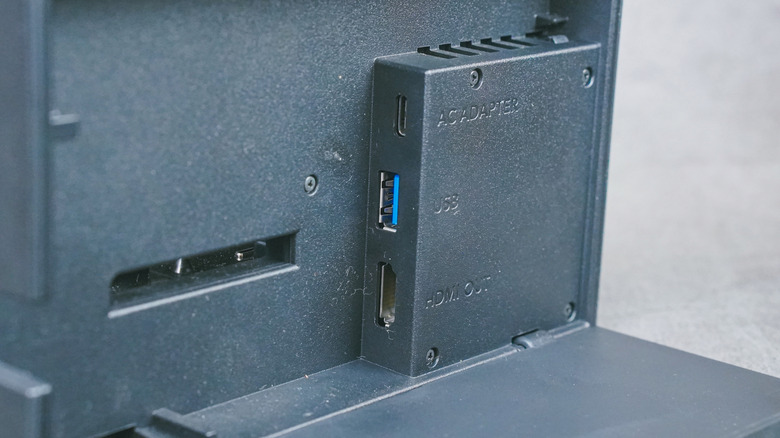
First, ensure that the Switch and AC adapter fit snugly into their respective ports. If they fit perfectly but the blinking continues, unplug everything and inspect the ports. Be sure to look for any bent pins that you can straighten or signs of damage that require the dock to be sent off for repairs.
If everything looks fine, try connecting a different adapter to the dock when the Switch is docked to see if the light still blinks. Ensure you're using an original Switch adapter with the model number HAC-002 (this will be written underneath the adapter). If the other adapter works, then you've found the culprit.
If you don't have a spare adapter, start by power-cycling the one you have. Disconnect it from the Switch and the wall outlet, then wait 30 seconds. Plug everything back in, power on the Switch, and see if that fixed the blinking LED light problem. Inspect the Switch power adapter for any damage, such as fraying, exposed wires, cracks, or burnt pins.