

Why Google Maps Says 'Preview' Instead Of 'Start' – And How To Fix It
If you have ever opened Google Maps for navigation only to find a Preview option instead of Start, you are not alone. And it's not an issue with Google Maps or your smartphone either, even if it seems so. There are several reasons for this, but it ultimately comes down to a missing starting point, Google Maps being unable to access your precise location, or your current location not aligning with the chosen route.
The most common reason Google Maps shows Preview instead of Start is that you haven't selected an initial or start location. While Google Maps usually picks the start location automatically, there are times when it doesn't, and as a result, you don't see the Start button. Apart from that, if Google Maps doesn't have access to your phone's location, it will show the Preview option instead of Start. You can fix this quickly by reconfiguring the app permissions.
Lastly, there are even cases where Google Maps doesn't show the Start option despite both the start location and destination being selected correctly and all permissions being granted. This happens when Google Maps detects that your location isn't the starting point of the selected route or anywhere along it. This isn't a glitch or an error, but part of how Google Maps functions. It only lets you preview the selected route when you are not on it. So before you switch to Waze from Google Maps over this issue, keep in mind that there is usually an easy fix.
Get the Start button back in Google Maps
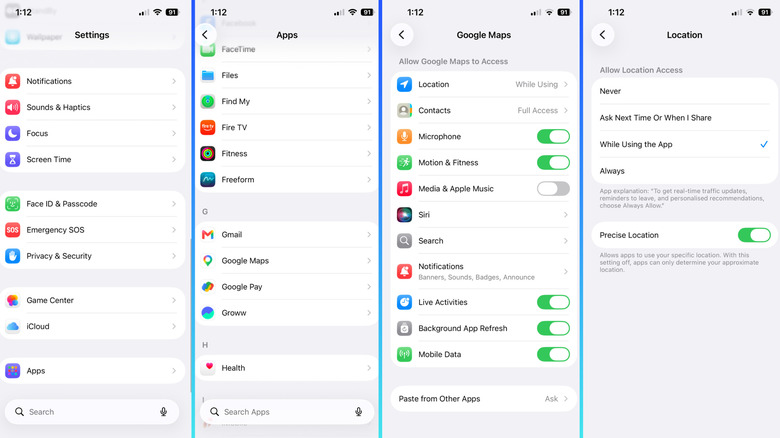
To get the Start button in Google Maps, the first thing you need to do is select a starting point that ideally matches your current location. When either of those — your current location or a starting point — is unavailable, Google Maps will show Preview instead of Start. To make sure you have those bases covered, tap "Choose starting point" after picking a destination, and then select "Your location" from the top. If the issue persists, make sure Google Maps has access to your device's location. When you first installed Google Maps, or first ran it if the app came pre-installed, Google Maps should have asked for access to your phone's location. In case you didn't allow it at the time, you can do so now.
On Android smartphones, open Settings, go into Apps, select Google Maps from the list, choose Permissions, tap Location, and either pick "Allow all the time" or "Allow only while using the app." Also, make sure the "Use precise location" toggle is enabled. On iPhones, launch Settings, tap Apps, select Google Maps, choose Location, and pick either "While Using the App" or Always. And, as was the case with Android, enable the toggle for Precise Location. That's it. One of these fixes should help you get Google Maps working the way you expect again on both iPhone and Android in no time.