

Here's How To Easily Record Your Samsung Phone Screen
Screen recording on your Android phone might sound like another run-of-the-mill feature with little use. That is until you need to capture a special video call with your long-distance friend, show tech support the exact error that appears on your device, or create a tutorial for your grandma on how to change her wallpaper. Suddenly, screen recording becomes less of a mundane feature and more of a must-have.
Thankfully, modern Samsung Galaxy phones come complete with a built-in screen recorder ready for use whenever. It does more than just record your screen, though. It also allows you to draw on the screen during the recording, show a selfie video on the screen, and even choose only a portion of the screen to capture. This partial screen recording option is actually one of the coolest new features Samsung recently added to your Galaxy phone. But unlike full-screen recordings, partial screen recordings don't support displaying a PiP selfie video or annotating the screen.
Your Samsung Galaxy's screen recorder is pretty accessible and intuitive. Here's how to use it.
How to use Samsung's built-in screen recorder
Screen recording on your Galaxy phone is easy to do from the Quick Settings panel. Here's how:
- Pull up what you want to screen record. It might be an app, a website, or just your home screen.
- Open the Quick Settings panel by swiping down from the top of the screen.
- Tap on the Screen recorder tile. If you can't immediately see it, expand the controls panel or edit the Quick Settings to add it.
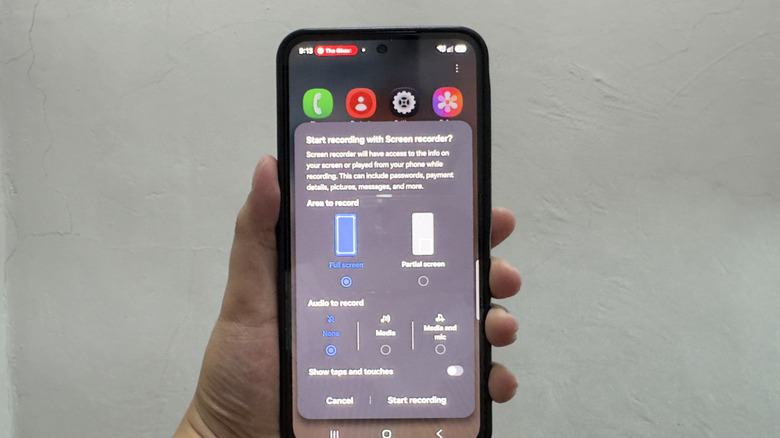
- Choose your screen recorder configuration, including the area to record (full screen or partial screen), audio to record (none, media, or media and mic), and whether to show taps and touches.
- Once you're ready, hit Start recording.
If you selected partial screen, you need to adjust the recording frame to your preferred size. Then, press, hold, and drag the white circle to reposition the frame before pressing Record. Keep in mind that you can't change the selected area during the recording. If you went with full screen, you'll automatically see the three-second countdown after starting the recording.
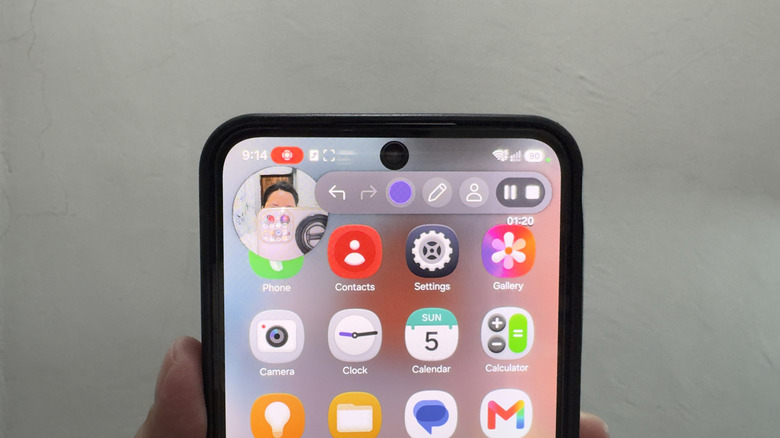
While recording in full screen, you can also draw on the screen by selecting the pen icon. Feel free to change the line color and line width to your liking. If you want to be in the screen recording, simply press the person icon in the floating menu. This adds a selfie video overlay in the recording, which, by the way, is one of the useful Samsung Galaxy features missing from the Pixel (until Android 17 came along). You can easily drag and drop the selfie video anywhere on the screen.
How to change default screen recording settings on your Galaxy phone
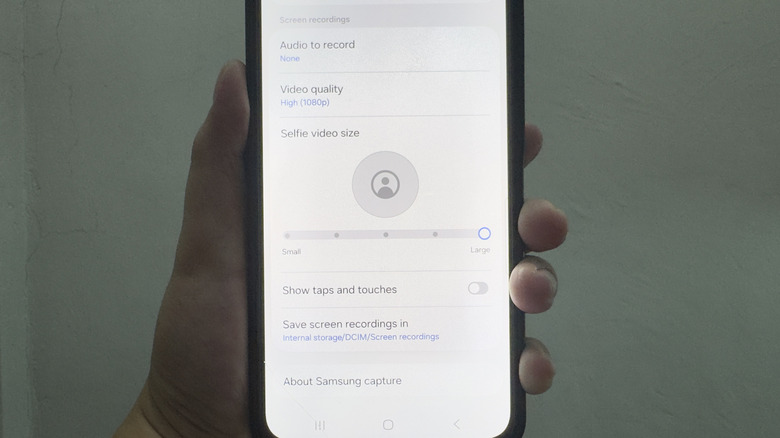
Every time you start a screen recording, you'll be prompted to choose preferred settings. One of the things you may not have known your Samsung phone could do is to let you customize the default screen recording settings, so you can start a recording fast. To edit the default settings for your Samsung's screen recorder, follow these steps:
In the Settings, open Advanced features.
- Go to Screenshots and screen recordings.
- To set what audio the screen recording captures, tap "Audio to record" under Screen recordings and switch from None to your preferred option (Media or Media and mic).
- To select a new video quality, tap Video quality and pick between High (1080p), Medium (720p), and Low (480p).
- To resize the selfie video for full-screen recordings, drag the slider from small to large.
- To stop showing taps and touches in the recordings, toggle off Show taps and touches.
- To change where your screen recordings are saved, open "Save screen recordings in" and choose a new folder. By default, your screen recordings are saved in your Internal Storage under DCIM > Screen recordings.
When you start a screen recording on your Samsung, you'll still get the setup prompt. But you can skip setting it up and go right to hitting the start button.