

5 Ways To Improve Download Speeds On Your Steam Deck
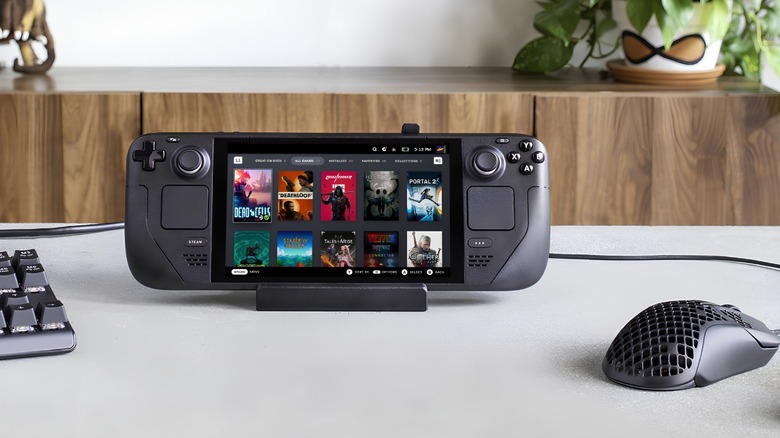
Valve's Steam Deck hits the sweet spot of performance vs. price when it comes to portable PC gaming. Aside from Steam Deck price hikes due in part to the worldwide RAM and storage shortages thanks to AI datacenter orders, these popular devices are also known for Wi-Fi download speed issues when digging into a user's back catalogue. Installing massive modern titles can result in server bottlenecks, leaving gamers stuck staring at a slow download progress bar regardless of Wi-Fi speeds. The majority of the hardware itself is brilliant, especially the OLED model, but it's out-of-the-box SteamOS limits and default network configurations have a habit of strangling a user's available bandwidth.
Fortunately, gamers don't need to live with sluggish download and upload speeds. The Steam Deck operates on a Linux operating system, known as SteamOS, meaning users can take control of their Steam Deck's to eliminate Wi-Fi speed traps, which goes for the LED and OLED models. Thanks to the flexibility of Linux, it's just a case of making some adjustments alongside optional hardware additions to drastically cut down wait times.
This doesn't mean user's need to be a master of terminal commands either, it's about removing artificial software restrictions, improving how Steam Deck communicates with routers, and force your system to use your full internet capacity. Here's five easy ways to get the most out of a Wi-Fi connection on a Steam Deck wherever someone decides to play.
Remove bandwidth limits
Many Steam Deck users experience slow downloads simply because SteamOS artificially caps its network traffic by default. It features a built-in download manager designed to prevent web traffic from overwhelming the processor during gameplay, but this safeguard often throttles a user's connection even when a Steam Deck is completely idle. It's time to get rid of this restriction, and here's how.
Press the Steam button on the front of the Steam Deck and head to system settings. From there, scroll down to the "Downloads" tab and locate the option labeled "Limit Download Speeds". Toggle this feature on, then once SteamOS prompts to enter a maximum rate, any download value over 1,000 can force the console to bypass its standard firmware restrictions. Sometimes this doesn't work, so I'd highly recommend putting a ridiculous number like 10,000,000.
Altering the maximum download rate is the user telling SteamOS and Steam Deck to use every bit of available bandwidth from a user's router or network. It takes less than a minute to execute, with it being a reversible process should gamers encounter any stability issues. However, adjusting these interface parameters will not fix a slow connection if a player's internet subscription package is slow, or if a low-tier MicroSD card is bottlenecking data transfer speeds as a download is carried out.
Enable developer options
If resetting the default bandwidth limit doesn't do the trick, it might be the aggressive battery-saving protocol built into the Steam Deck's architecture. It automatically cuts power to its internal network card to extend a gamer's mobile playtime, but this power-saving measure severely cripples Wi-Fi speeds during massive game downloads and updates. Player's can force the Steam Deck to deliver a constant stream of power to the network component by unlocking the developer menu.
Open the settings menu again, select the "System" tab, and turn on the toggle for "Enable Developer Mode". Once this feature is activated, back out using the "B" button and scroll all the way down to the bottom of the side menu to find the new "Developer" options tab. Click into this and locate the entry titled "Enable Wi-Fi Power Management", and switch it off. The Steam Deck will then prompt for a quick system reboot to apply the new power profile, so make sure to click "yes".
Once SteamOS boots back up, the network card will get unthrottled power regardless of the current battery status. Steam Deck owners across the board have reported this significantly boosts download speeds, in one case from 7 MB/s to an astounding 400 MB/s.
Network configurations in desktop mode
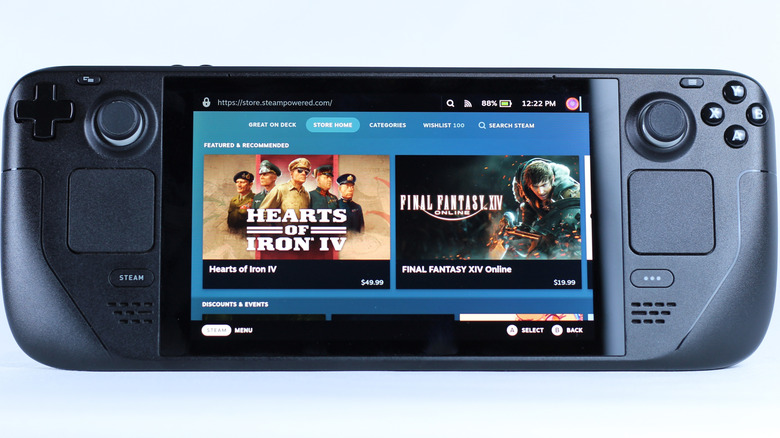
Because Valve built SteamOS on a custom Linux framework, Steam Deck has a hidden traditional computer desktop beneath its standard gaming interface for those who didn't know. Swapping to this alternative environment allows user's to bypass the simplified gaming settings menu and directly rewrite Steam Deck's network configuration files to avoid wireless interference.
Hold from the Steam Deck physical power button until the menu appears, select "Power" then "Switch to Desktop". Once the traditional Linux environment has loaded up, click the Wi-Fi icon on the bottom right taskbar, find the desired network, click the left trackpad to bring up the contextual sub-menu, and select "Configure Wi-Fi Settings". Now we need to optimize the Wi-Fi connection, start by navigating to the main Wi-Fi menu then find the BSSID options field and restrict the wireless setting to wlan0. Next, open the "iPv4" options tab, change the system protocol layout to "Auto", and enter 8.8.8.8 into the "Other DNS" box to route web traffic through public servers.
Finally, save the changes and restart the Steam Deck to boot back into the usual gaming mode. These manual adjustments force the network card to target data packets more efficiently, which is more effective on older LCD models that lack the advanced, interference-resistant wireless chips found inside newer models.
Use a wired connection in docked mode
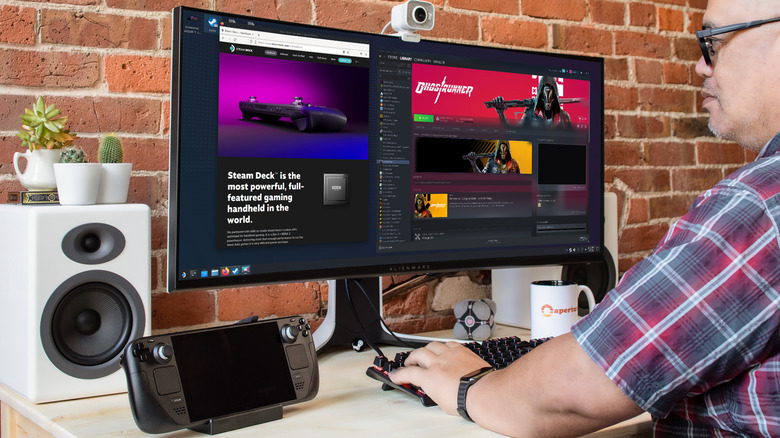
When players need to do some bulk downloading and updating, nothing beats an ethernet cable and port. Wi-Fi signals are inherently vulnerable to physical blockages, radio interference, and distance degradation. Trying to install a massive title is always going to be quicker by skipping Wi-Fi connections and using a wired network connection for the best speeds possible.
Because Steam Deck only has a USB-C port on the top of its frame, we're obviously not going to be able to plug an Ethernet cable directly into the handheld. Instead, there's plenty of dock and USB-C hub solutions that feature a dedicated and built in RJ45 Ethernet port. Making sure to grab a stable desk dock also makes it far easier to connect peripherals like controllers, keyboards, mice, and monitors when wanting to use a Steam Deck as a desktop PC, organizing files, or following steps in this guide.
Using a wired connection for big downloads isolates a player's internet connection from outside interference, something that Wi-Fi is yet to overcome. Plus, a hardwired connection guarantees that the Steam Deck is getting the best connection possible from a router and internet service plan. Of course this isn't a practical solution for gaming on the go, but waiting to get home and dock a Steam Deck for big updates will always be the most efficient method.
Install the latest updates
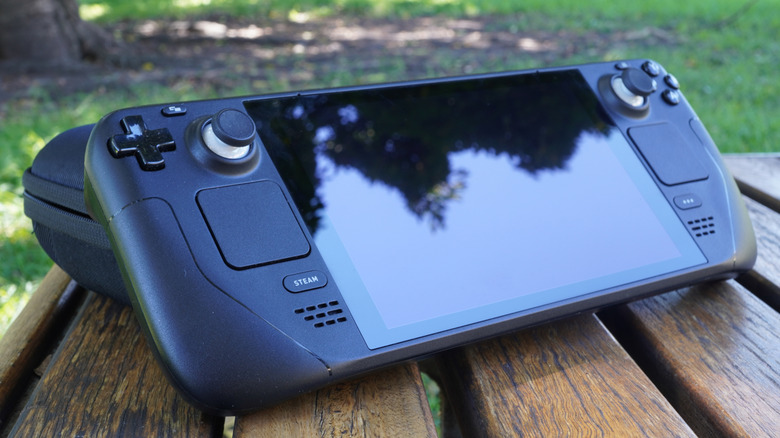
Slow downloads aren't always down to user settings or poor router placement. In some cases, a core operating system bug and cause a Steam Deck to miscommunicate with modern routers, forcing network hardware to perform at outdated slow speeds. The good news is that Valve regularly updates SteamOS to combat this with official system patches for Steam Deck.
A good example of this is SteamOS update 3.8.14, a hotfix to specifically address Wi-Fi speed limit issues on certain routers that advertise incorrect MCS requirements. This is how a router communicates the level of Wi-Fi to connected devices and distributes bandwidth, such as Wi-Fi 6 and Wi-Fi 7. Previously, Steam Deck was bottlenecking its own intake speeds to maintain a strong wireless connection.
The software patch completely eliminated this automated slowdown, allowing Steam Decks to maintain maximum transfer speeds during large downloads. To check if a Steam Deck has the latest updates, just open the settings menu, go to the system tab and check for any pending updates. For users who want the latest patches before they roll out to the general public, change the system update channel to "Beta" or "Preview". But be warned that these patches can be buggy and introduce new issues to a Steam Deck.