

5 iPhone Shortcuts Perfect For Busy Mornings
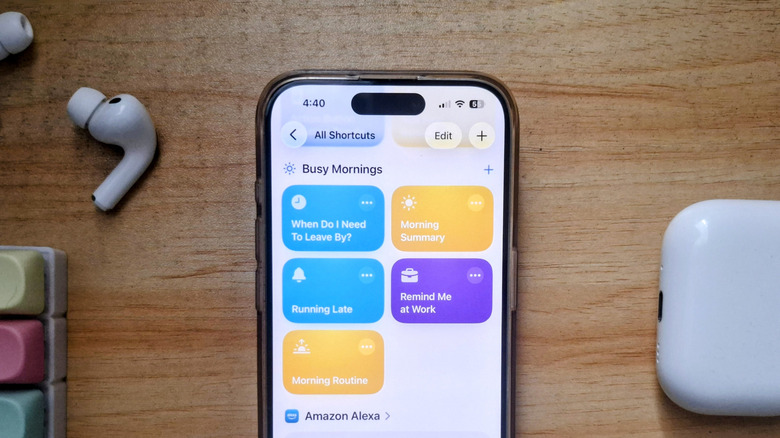
It's an all-too-familiar scene — you wake up to your alarm; spend some time on your phone to read your emails, find a good playlist, check the weather, and review your daily commute; and then rush through the rest of your routine, so you can head out before you're late. If this is you every single morning, you've probably wondered whether there's an easier way to do things. Well, there actually is: with the help of iPhone's Shortcuts app.
You probably already know Shortcuts as the iPhone's most versatile app. It's typically used for things like turning off orientation lock for certain apps or changing your wallpaper automatically every day. But it can also serve as a handy assistant, automating tasks to make your busy mornings much more seamless. Sure, Shortcuts does look too overwhelming to use, but don't worry — one of the best iOS 27 features coming to your iPhone this fall offers a more intuitive way to create custom shortcuts using Apple Intelligence. It lets you simply describe exactly what you want the shortcut to achieve. From there, Apple Intelligence will work its magic to generate the shortcut without much input on your end.
Until then, here are some iPhone Shortcuts already available in the app, plus one we built ourselves, to help you save those precious minutes every morning.
Get a simplified list of the weather and your agenda for the day
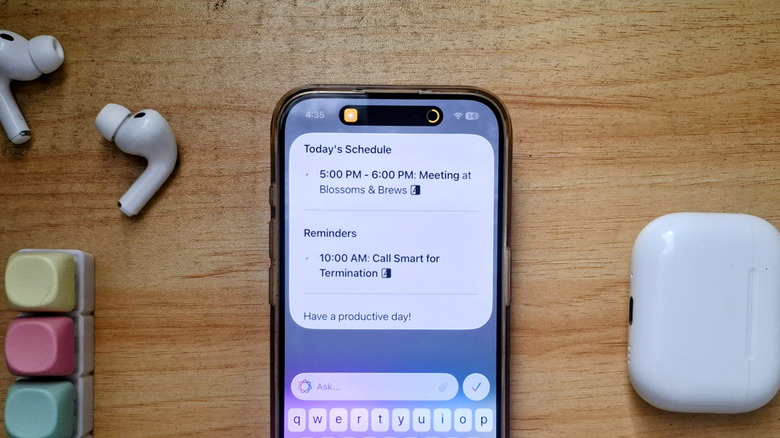
You already know you have a busy day ahead, but it's such a hassle to look at your calendar and to-do list in the morning. To avoid that inconvenience while still staying on top of your schedule, try the Morning Summary shortcut in the iPhone Shortcuts app. This shows you three important details: calendar events scheduled for today, pending reminders due today or already overdue, and the weather at your current location, including conditions, high and low temperatures, and humidity.
The Morning Summary shortcut then uses Apple Intelligence to display these details as a neat bullet list that pops up when you run it. To add the Morning Summary shortcut to your shortcuts library, follow these steps:
- Launch the Shortcuts app.
- Go to the Gallery tab at the bottom.
- Under the Apple Intelligence section, tap on Morning Summary.
- Press Add Shortcut.
From here, you can then go to the Library tab and run the shortcut by tapping on it. It will take about two to three seconds for the details to be generated and the popup to appear on your screen. Keep in mind that you need to be connected to the internet to run this shortcut. Otherwise, you'll get an error saying it can't detect your current location for the weather report. That said, it's best to run the Morning Summary shortcut when you're still at home and connected to the Wi-Fi.
Know exactly when to leave for work
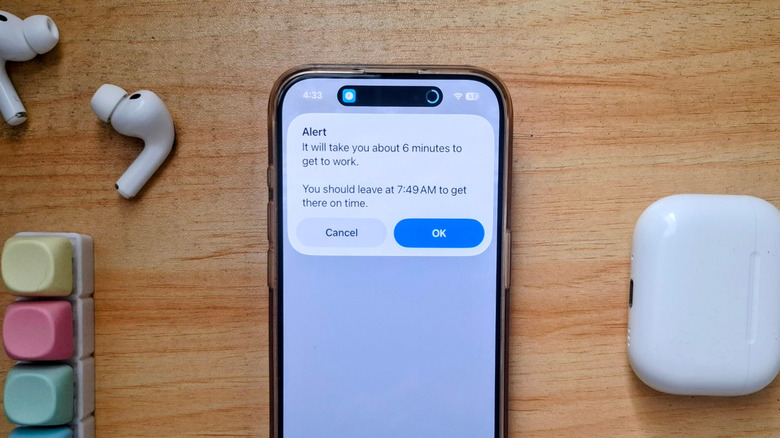
Every weekday, your morning routine usually involves checking your navigation app to see how long your commute to work will take, then calculating when you should leave the house to get to your desk on time. While it sounds simple enough, it's still another manual task you have to check off your to-do list in the morning. Well, you can just automate it with the When Do I Need To Leave By shortcut.
This is one of those iOS Shortcuts you didn't know you needed but will make a huge difference in your busy mornings. What it does is get the estimated travel time from your home to your work location, add an extra five minutes for walking from the parking area to your desk, and then tell you what time to leave. By default, it assumes your work starts at 9 a.m., but you can adjust it during the setup. Here's how to configure the When Do I Need To Leave By iPhone shortcut:
- In the Shortcuts app, head over to Gallery.
- Search for When Do I Need To Leave By.
- Tap on the search result.
- Press Set Up Shortcut.
- Select Skip Setup.
- Go to the Library tab.
- Press the three horizontal dots on the When Do I Need To Leave By shortcut tile.
- Under the first Street Address, enter your home address details.
- Under the second Street Address, type your office address.
- Next to the Specified Date entry, change 9 a.m. to your start time.
You can then exit the shortcut and try running it. A pop-up will appear showing how long it will take you to reach your office and when you should leave.
Inform your boss and colleagues that you're running late to an event
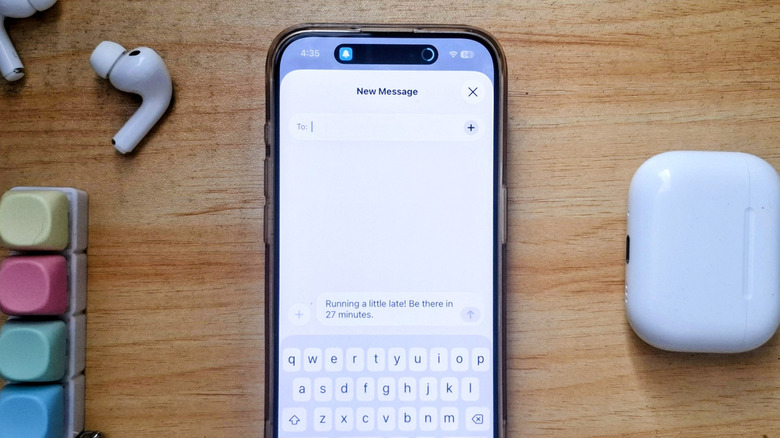
When you're already late and rushing through the door in the morning, the last thing you'd think to do is text your boss or colleagues your estimated time of arrival (ETA). Doing so will only take a few minutes, especially since you'd need to enter the event location in Maps, check the travel time, and then switch to Messages to send the text. Thankfully, there's an iPhone shortcut that can automate this task and save you time.
Aptly called Running Late, this shortcut helps you quickly send your ETA to your recipients of choice. It reviews your calendar for scheduled events for the day, extracts the location from each event, checks the travel time, and sends a text saying you're running late and will arrive in X minutes. It's very easy to use since the shortcut itself doesn't require any setup. Just make sure your calendar events come with a specified location. Otherwise, the shortcut will throw an error. Follow these steps to run it:
- Go to Shortcuts.
- In the Gallery tab, search for Running Late.
- Select the search result.
- Tap on Add Shortcut.
- Run the shortcut from the Library tab.
- If you have multiple events for the day, pick which one you're running late to.
- Allow the necessary permissions.
- In the Message panel that opens, enter your recipients.
- Edit the text to your liking.
- Hit Send.
If you're always sending your "running late" texts to the same contacts, you can edit the iPhone shortcut and pre-select your recipients. That way, when you run the shortcut, you won't be prompted to input them. You can also tweak what the text says from the shortcut editor.
Get reminders when you arrive at work
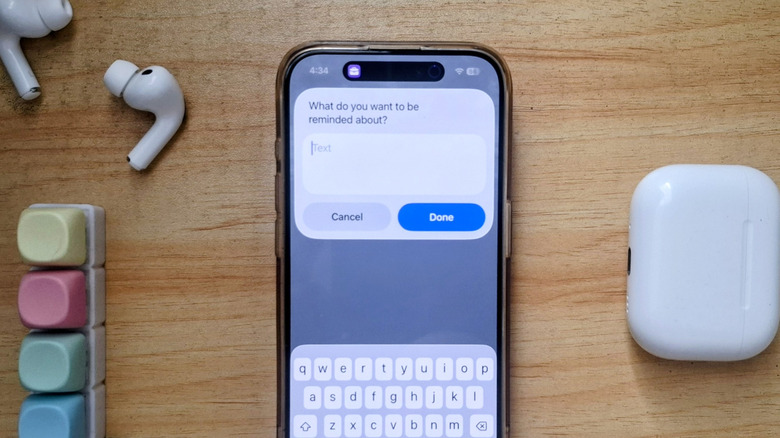
Sometimes, while you're going through the motions of your morning routine, you realize there's a task you have to do as soon as you get to work. But just the basic reminders won't do. It's more effective to use one of the iPhone Reminders app's hidden features: location triggers. Location triggers automatically send you a reminder when you arrive or leave a certain area, making sure you see it exactly when you really need to.
Unfortunately, setting up location-based reminders can take a lot of tapping on your phone. You have to type the reminder itself, enable Location, enter your work address, and set it to Arriving before you can even save the reminder. If you're looking for a quicker way to create location-based reminders during your busy mornings, check out the Remind Me at Work iPhone shortcut. It's a pre-made shortcut in the Shortcuts app that sets up your location-based reminder with a single tap. Follow this guide to use this shortcut:
- Navigate to the Gallery tab in the Shortcuts app.
- Type "remind me at" in the search bar.
- Choose Remind Me at Work.
- Tap on Set Up Shortcut.
- Hit Skip Setup.
- Select the Library tab.
- Edit the Remind Me at Work shortcut.
- Under Street Address, type your complete office address.
Now, when you run the iPhone shortcut, all you need to do is type what you want to be reminded of. You can then go about the rest of your morning. Once you're 328 feet (100 meters) from your office, you'll receive the reminder.
Automate the start of your day
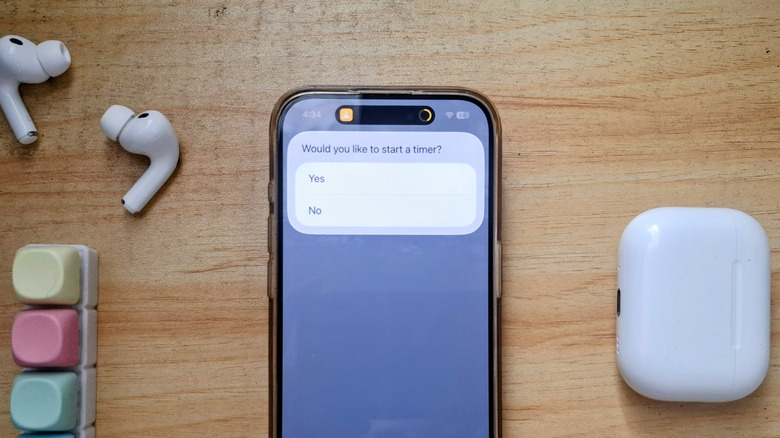
If your mornings usually begin with setting a coffee timer, playing your morning playlist, and checking your email for messages, it's a good idea to use an iPhone shortcut to save yourself the hassle. You'll spend less time tapping away on your phone and more time actually getting things done. However, the Shortcuts app doesn't come with a pre-made shortcut that combines those actions, so we created one instead.
The Morning Routine shortcut automates the start of your morning routine. Once activated, it asks you whether you want to start a timer and for how long, plays your chosen playlist, and launches your app of choice. The timer doesn't necessarily need to be for brewing your coffee. You can also use it to meditate or start a workout.
Unlike pre-made shortcuts, though, the process of adding Morning Routine to your library is a bit different. Follow this guide to get the shortcut and set it up:
- Open this Morning Routine link from your iPhone.
- Tap on Add Shortcut to copy it to your Shortcuts Library.
- From the Library tab, edit the Morning Routine shortcut.
- In the Set Media volume action, select 50%.
- Adjust the volume to your preferred level.
- In the Play Music action, tap on Music.
- Choose your own morning playlist.
- In the Open App action at the very bottom, press App.
- Pick the app you want to open when you run the shortcut.
Once done, you're free to run the shortcut.