

How Many Monitors Can You Connect To A MacBook Pro?
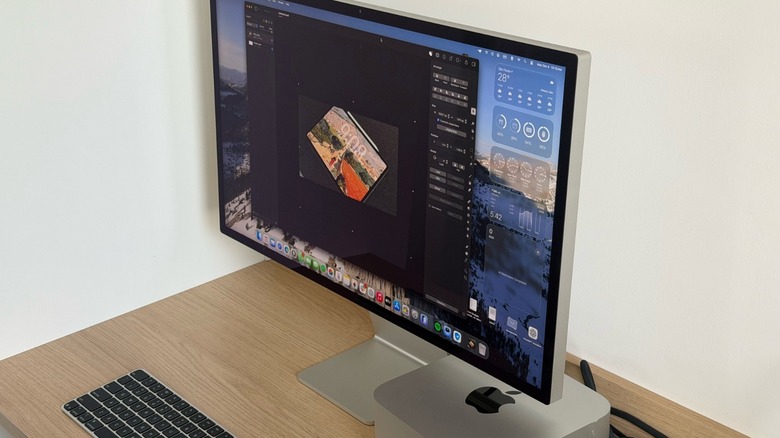
The MacBook Pro offers one of the best displays in the laptop market. It's sharp, crisp, bright, and color-accurate. However, that doesn't mean the 14-inch or 16-inch options available on current models are enough to satisfy all customers. This is why Apple, like many other computer manufacturers, offers support for multiple external displays. While you can check how many displays an Intel Mac can support on the Apple website, we're taking into account Apple silicon models, ranging from the M1 MacBook Pro released in late 2020 to the M5 Max MacBook Pro released in early 2026. That said, the answer could vary from one 6K display to supporting up to four monitors with that resolution at once, depending on your Mac.
Still, depending on the resolution, you might be limited in the number of displays you can connect. For example, the M5 Max MacBook Pro can connect to one display up to native 8K resolution at 60 Hz, 5K at 120 Hz, or 4K at 240 Hz over Thunderbolt or HDMI. However, if you want to connect four external displays, Apple limits them to 6K at 60 Hz or 4K at 144 Hz over Thunderbolt or HDMI. For the M5 Pro, Apple limits it to up to three external displays at 6K at 60 Hz. You can check exactly which model you have and how many external monitors you can connect here.
What are the best monitors for the MacBook Pro?
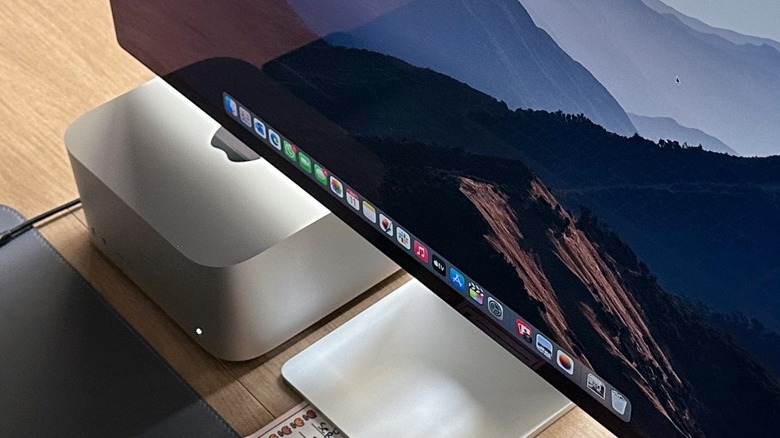
There's a fairly large market for MacBook Pro external displays. While third-party display makers can make screens as good as Apple's, few match the Studio Display or the Studio Display XDR when it comes to overall image quality, speakers, webcam, and connectivity. With Apple refreshing its Studio Display lineup early in 2026, the company released two 27-inch options. The regular Studio Display features a 12 MP Center Stage camera, Thunderbolt 5 connectivity, 30% deeper bass, and support for up to four Studio Displays connected together (each with a built-in A19 processor).
For the Studio Display XDR, Apple improved some aspects of the discontinued Pro Display XDR while removing some of its perks. With a 27-inch mini-LED panel, Apple finally adds a 120 Hz refresh rate and up to 2,000-nit peak HDR brightness. With Adaptive Sync, this monitor's refresh rate ranges from 47 Hz to 120 Hz. It also supports a 12 MP Center Stage camera with Desk View, Thunderbolt 5 connectivity, up to 140W of charging power, and an A19 Pro chip to handle all the display's processing.
That said, if you don't want to pay the premium for these options, there are other third-party monitors that pair well with your MacBook Pro, such as the BenQ MA270UP, the Innocn 40C1U Ultrawide Monitor, and the Dell S2722QC. All of those meet Apple's criteria for choosing a larger display for your MacBook.
MacBook Pros are very picky with external monitors
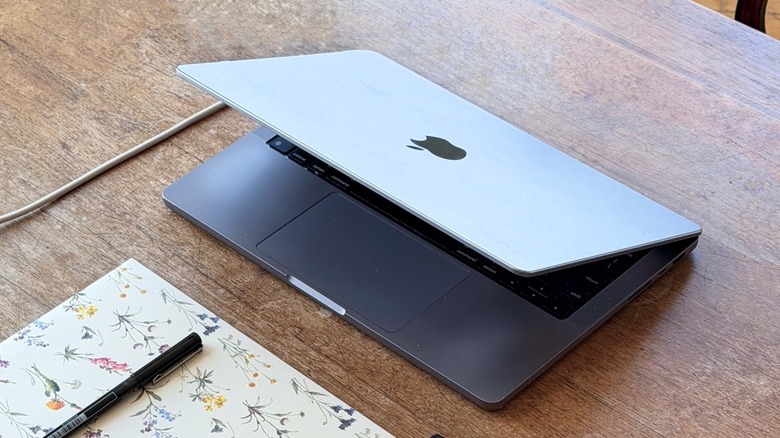
While you don't need to choose the options listed above, be aware that the MacBook Pro is really picky about external monitors. If you go for a Full HD model, the desktop image might look blurry, the colors might not be as accurate, or you'll have to scale down the interface enough that it feels like you're using your small MacBook Pro display.
That said, when you buy a display, you should aim for at least 218 pixels per inch, which is exactly what the 5K Studio Display offers. If you go for a 4K display, then it offers roughly 163 PPI. Because of macOS' 2:1 mapping, it can feel like the interface is a giant 1080p screen, which is not ideal. If you scale down, it also looks off. You also need true Thunderbolt 3, Thunderbolt 4, or even Thunderbolt 5 connectivity, along with a cable that supports those standards. You also need a monitor that explicitly provides at least 85W to 96W power delivery, as the Mac will drain its battery while plugged in if not.
Last but not least, you need to have at least a 60 Hz refresh rate and support for the DCI-P3 color gamut instead of an sRGB-only monitor if you want display quality that's as close as possible to your MacBook Pro's built-in screen.