

4 Disadvantages Of Using Microsoft Word Instead Of Google Docs
If you ask anyone what the best word processor is, the answer will most likely be Microsoft Word. You can create and edit documents, do some advanced formatting, create forms and complex diagrams, spellcheck your text, and even track your changes. If you are using Word for Microsoft 365, in particular, you also get access to cloud features and Copilot, an AI assistant that is integrated into Windows 11 and various Microsoft 365 applications. Word also has numerous plugins available exclusively for it, extending its functionality. It has a long-standing history and a big community that has rendered support for decades. Then there's Google Docs, a worthy contender.
To be clear, this is not about which is better between the two. If we pit them against each other, feature by feature, Word will definitely be the winner. This doesn't automatically mean that Word is better than Google Docs in all scenarios, though. Sometimes people want a word processor that is easier to get into, doesn't paywall the offline desktop experience, is natively cloud-based, and doesn't lead to compatibility issues.
When you consider criteria like this, that's when MS Word starts to show some cracks compared to its competitor. Google Docs, along with Google Sheets and Slides, is one of the reasons Microsoft 365 is not needed for the average user who doesn't require an advanced suite of productivity tools. It does simple document creation and editing well, as well as online collaboration and sharing.
Microsoft Word's Ribbon interface is not beginner-friendly
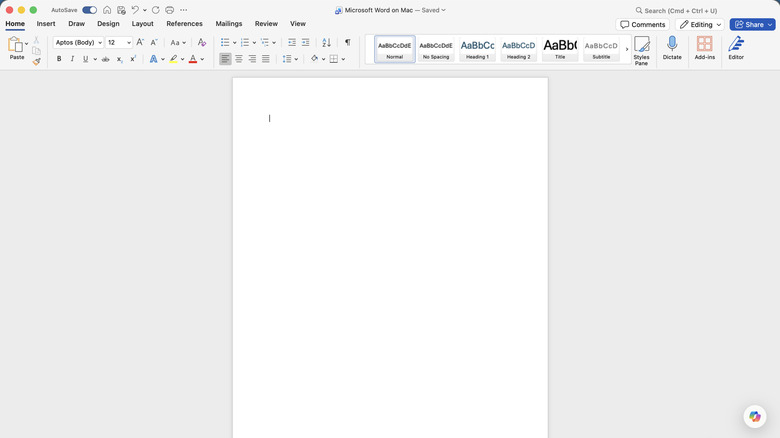
Compared to Google Docs, Microsoft Word is considered to be a more mature and robust app. It has been around since 1983, with Google Docs popping up in 2006. Microsoft has had longer to experiment and pack Word with numerous features, ranging from basic to advanced. And to make all these features easier to find, it introduced the Ribbon interface in 2007, a horizontal bar that groups various related buttons, icons, and menu items into sections. You switch between ribbons using tabs at the top. There's a learning curve to it, with beginners, in particular, finding it overwhelming and unintuitive.
Google Docs features a much simpler interface. There's a menu at the top that intuitively guides users to all the features they need. For example, if you want the formatting options to bold, italicize, and underline your text, it makes more sense to click Format > Text. In Word, you will find these options under the "Home" tab, which is not an obvious name for a tab that houses formatting options. Google Docs also has a toolbar underneath the top menu, with commonly used commands for formatting text. Overall, it's much easier to get around in Google Docs.
No free offline version on desktop
The ability to work completely offline is one of Word's most important features. However, it's locked behind a paywall on the desktop app. You have to purchase either a Microsoft 365 subscription, starting from $9.99 per month, or you pay a one-time fee of $179 for the Office 2024 suite. Both options aren't cheap, especially if you consider the running costs of the subscription. Furthermore, Office 2024 is completely offline, with no cloud features or Copilot.
This is the classic experience for people who prefer to work alone or never want to worry about what happens if a cloud service shuts down. The Microsoft Word mobile app is the only one you can use offline for free (with limited functionality), as Microsoft Word for the web is online only. Google Docs is completely free for personal use, and users can use it offline. It's not as seamless as Word, but the good thing is that it's a one-off setup that can come in handy when you don't have an internet connection.
You will have to download the Google Docs Offline Chrome extension for Chrome and Microsoft Edge. Afterward, you'll be able to create, edit, and view documents offline. When you get back online, the offline files will sync to Google Drive. Furthermore, you have to make the files you created online available offline to be able to view and edit them without an internet connection.
Working in the cloud requires setup
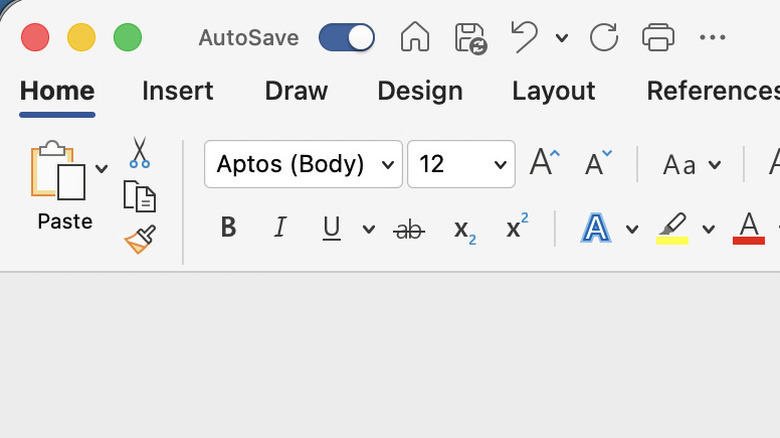
The desktop version of Microsoft Word is primarily known as an offline-first app, while Google Docs is a cloud-first web application. However, Word does have some cloud features — you just need to enable them. Features that become available include autosaving, real-time collaboration, and syncing between devices. The problem is that you have to first upload the document to OneDrive or SharePoint before that can happen. This needs to be done for every file, which can add a little friction to the process if you're someone who wants to take advantage of the cloud features from the get-go.
With Google Docs, the document is automatically synced to the cloud if you created it online. Because of the extra step with Word, you might think it's a good idea to just start working on the document and upload it later to OneDrive, but in the brief window where it's not uploaded, there is a greater risk of losing your work compared to using Google Docs. Since version history is disabled when not uploaded to OneDrive or SharePoint, you have to rely on the app's finicky Document Recovery feature, which might not always restore the latest version you were working on.
Formatting issues when sharing Word documents from different versions
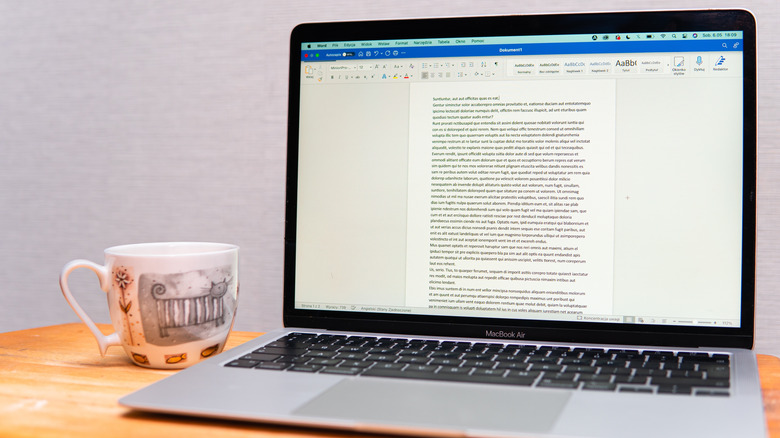
Suppose you create a document in Word for Microsoft 365 and send the document to someone using Word for Office 2021. You can't expect that all the formatting you've done will appear the same on the version they are using. Fonts can be a major problem, especially if you use less common ones that aren't available on the other person's machine. This can make collaboration frustrating (if transferring files between yourselves instead of a real-time collaboration link isn't already tedious). That means you'll have to work within certain constraints to ensure the file can be opened in older versions of Microsoft Word.
If the file is just for viewing, exporting and sending it as a PDF will preserve all the formatting. Google Docs, on the other hand, works the same for everyone. Everyone is always using the same version, and it's always up to date. It doesn't matter what platform they are using, either, since Google Docs is a web app. This means everything will look the same on Windows, Mac, Linux, and even Chromebooks. However, when Google Doc files are downloaded as a DOCX file and opened in Word, users can run into compatibility issues, especially with formatting involving tables, headers, footers, and images.