

How To Check Your iOS Version On iPhone
The iOS version your iPhone is running on might seem like a trivial detail not worth keeping track of, but it's actually a must-know for all sorts of practical reasons. Some essential iPhone apps may not be compatible with certain releases of iOS, so you should check before trying to install something new. It's also important to know what software build you're using to see if the features you need are available for that version. Then, there's troubleshooting your phone. Certain fixes only work for specific software versions, so it's worth checking out before you reach out to customer support.
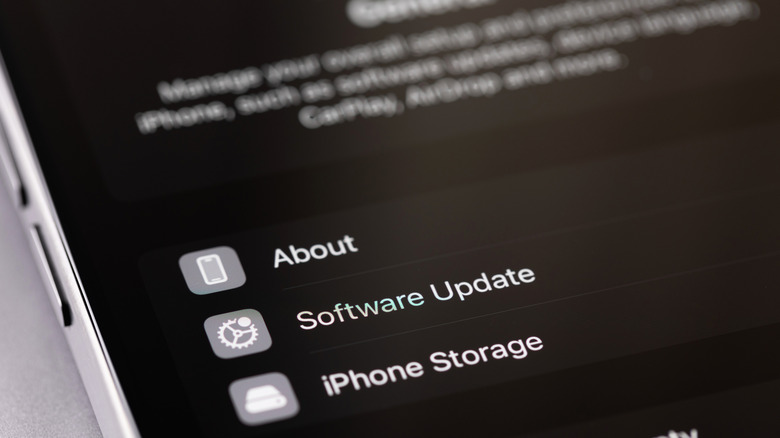
Thankfully, doing so is actually pretty straightforward. The easiest and quickest way to check the iOS version on your iPhone is to go to your Settings app. Then, open General and choose About. Your current iOS version should be listed at the top of the screen, under your iPhone name. You can tap on the iOS version to see what new changes the latest update introduced. You can also see what iOS version your phone's running from your PC or Mac, if the iPhone has been connected to it.
Alternative ways to check the iOS version on your iPhone
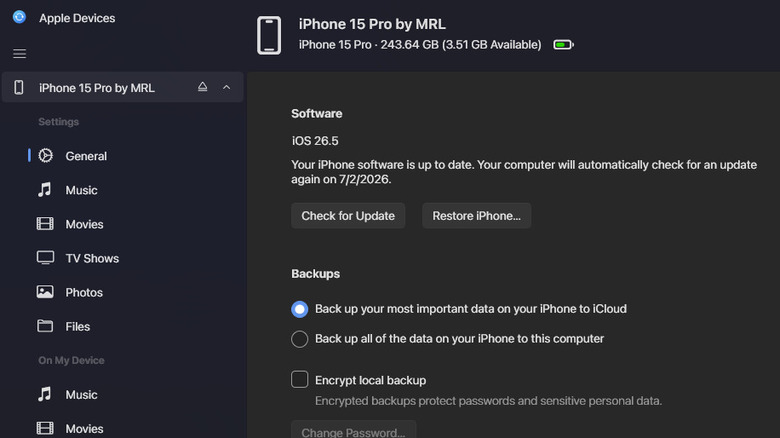
To find your iPhone's software version with a computer, you'll need an app. On macOS Catalina and later, it's Finder, while on macOS Mojave and older versions, it's iTunes. Both are already pre-installed on your computer, so all you need to do is launch them. On Windows, you have to download an app from the Microsoft Store first. Look for Apple Devices (this is the app that replaced iTunes for Windows) and install it. Once your computer is ready, follow these next steps:
- Plug your iPhone into your Mac or PC with a cable. You might need to use a USB adapter, depending on the cable you're using and the available ports on your computer. There are some cheap USB adapters on Amazon that you can buy.
- If you see a prompt on your iPhone, select Trust to allow the computer access to the device.
- When prompted on your Mac, press Allow to allow your iPhone to connect. You won't need to do so on your PC.
- Open the appropriate desktop app.
- In the side panel, click on your iPhone.
- Go to General or Summary.
- Under Software, check what the iOS version is. It will also tell you whether your iPhone is up to date.
In case you can't find your iPhone in Finder/iTunes/Apple Devices, try replacing the cable, plugging the iPhone into a different USB port, and updating the drivers on your PC.