

What Do The Numbers Under Google Pixel Quick Settings Mean?
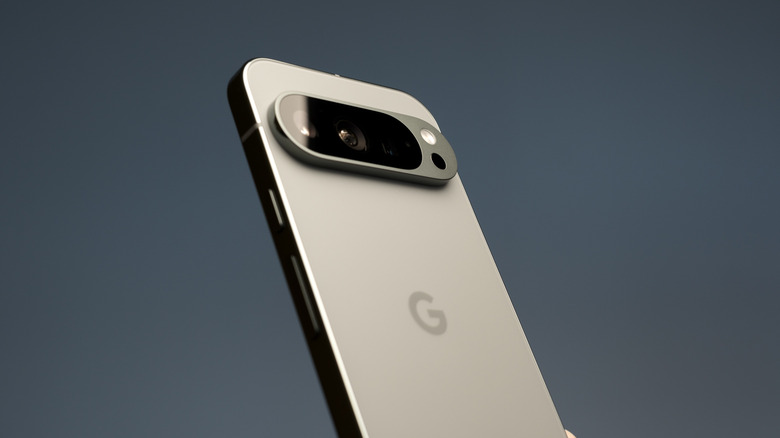
A lot of information can be accessed through your quick settings panel on your Google Pixel phone. This is where you can see your notifications, your network connection, Pixel display brightness, your modes, alarms, and even your Google Wallet. The idea is that you can use these sliders and toggles as utility-based shortcuts. But if you expand your quick settings panel by swiping down, a bunch of numbers with a few letters might appear below the pills. These values represent your Android build number, or build ID. It provides quick information about your device without needing to check your settings.
The Android build number indicates which Android version you are on; the first two letters identify your device's OS version. Android 17, for example, has CP. The next two letter/numbers is the code or family branch. The middle string of numbers is the date code (linked to the security patch); the first two are the year, followed by the month and date of your installed software. The ending digits are the incremental ID, which may be unique to the build released on that date and can indicate whether there are variations across global and carrier-locked phones.
The Android build number in the quick panel requires developer mode
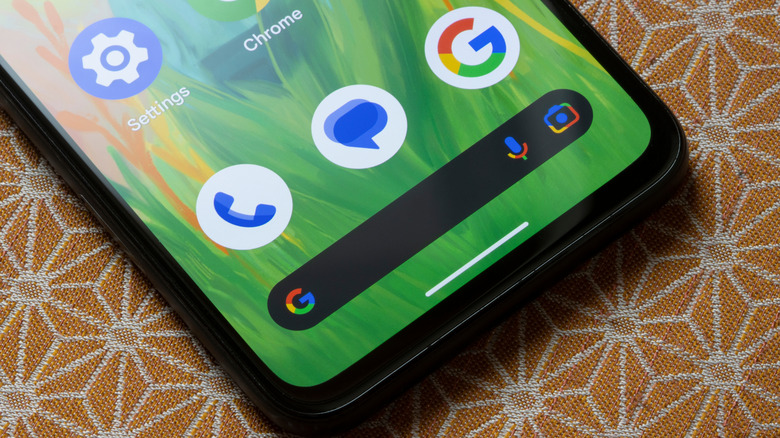
Having the Android build number on hand is sometimes useful, since you will know exactly which version of the software you're running, in case you want to know whether you're on a stable release or a beta version, or if you prefer to save it as a reference elsewhere. When you see the build number, you can interact directly by long tapping on it. From there, you can choose to share the text directly through your apps or via the quick sharing option. You'll most likely be interested in copying it directly if you're reporting a bug on a specific beta or build.
That being said, the Android build number does not show up by default in the Pixel quick settings. You have to enable developer mode to see it. If you find the Android build number distracting, you can disable developer mode in your settings. To do that, open your settings, scroll down, and tap "System," then navigate to the Advanced header, and choose "Developer options." At the top of the Developer options, tap "Use developer options" to turn it off. Once you do, the numbers below the quick settings panel should disappear. You can return to the "About phone" menu and tap "Build number" seven times re-enable developer mode if you wish to see it again or otherwise gain the many great perks developer settings offer.