

Why Does Your Google Maps Go Into Night Mode During Daytime?
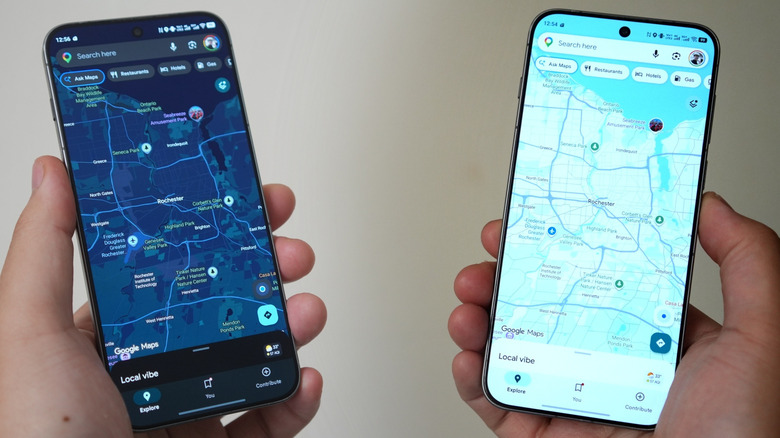
Google Maps has a ton of useful features, with more new Maps features being added all the time. However, if you're using it to help you navigate through a long night's drive, you might be thankful for the existence of its dark theme, or "night mode" if you're using Android Auto or Apple CarPlay. You get the same lookup tools, traffic alerts, and turn-by-turn directions, but without blinding yourself every time you glance over for an update. Plus, if you're running the app off your phone and it's not plugged in, those muted colors on your OLED display can actually translate to a longer-lasting charge.
Whatever the case may be, there will always be some people who prefer keeping Maps on light mode or night mode all the time, and they've set up their app to behave accordingly. Some light mode sojourners, however, may be puzzled when their screen sometimes flips over to night mode all of a sudden.
There are a couple of common reasons as to why that happens. For some, it might be a hidden setting switch they haven't flipped. For others, it could be due to their phones overheating. There can be a few causes for night mode suddenly triggering, but there are ways to stop night mode in Google Maps from showing up without notice.
Are you sure you're using the correct Night Mode setting?
We know, this is the equivalent of saying "try unplugging it and plugging it back in again." But it's always a good first step and it can help you find some tricky strings that you didn't realize were attached. To set the theme for the general top-down Google Maps view on your phone, tap on your avatar at the top edge of the screen, select Settings, then "App & display," and then Theme.
If you're finding that Google Maps changes its appearance when you have navigation turned on after sunrise or sunset, or while driving through a tunnel (yes, Google Maps knows where in a tunnel you are, even without a GPS connection), you'll again need to tap on your avatar in the Maps app, pick Settings, then Navigation, and scroll down to a section called "Map display." In either case, you can choose to have Maps displayed always in light theme, dark theme, or the same as your device's theme. That last option means if you've set your operating system to switch modes on any sort of schedule, the app will do so too.
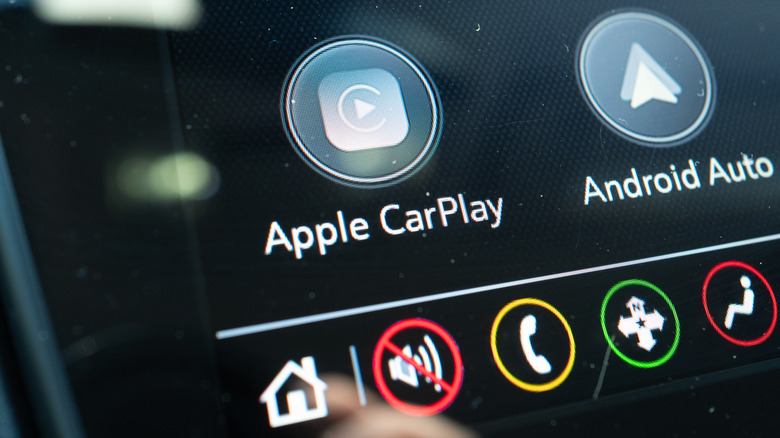
Those who connect their phones to vehicle infotainment systems should also check their system theming settings. On Android Auto, head to Settings, then "Day/Night mode for maps," and choose from Day, Night, or Automatic. In CarPlay, hit Settings, then Appearance to select your mode. Other infotainment vendors may have more specific settings, use a ported version of the Google Maps mobile app and, thus, may rely on different in-app settings. You may need to consult your vehicle manufacturer or system vendor for help.
Why Night Mode turns on when your phone overheats
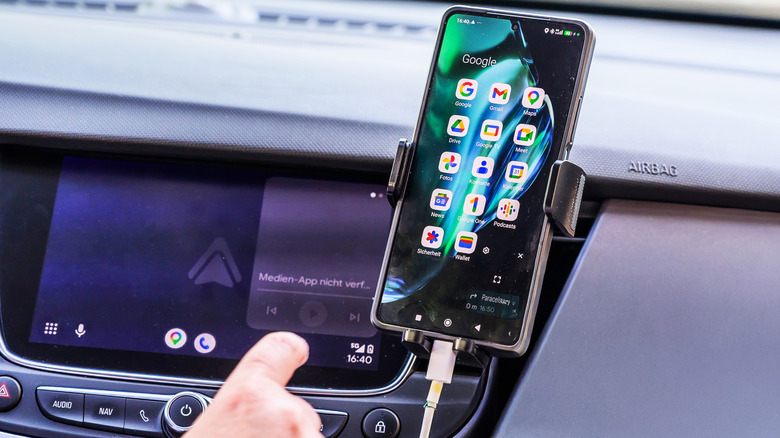
Even with the A/C on at full blast, the summer sun can still blast your dashboard, taking out suction cup accessories and dashcam cable adhesives. If your device is stationed in that strike zone, it may overheat and begin to throttle down its processes. That means cutting down on background activities, lowering your screen's brightness, and turning Night Mode on to save power.
Both Google and Apple allow Android and iOS app developers to adjust their running experiences based on the device's thermal status. In the case of Google Maps, users may see a message pop up in the app, saying that their overheating device needs to cool down and that Maps has automatically switched to dark theme on in order to continue working.
If this is a regular occurrence for you, you should take steps to reduce your device's exposure to heat. This may mean relocating your phone away from the dashboard, perhaps even acquiring a different car mount. In addition to the sun, we've also seen overheating reports where drivers were using wireless chargers to top up their mobile device. Those pads are inefficient and prone to getting toasty, so consider plugging in your device with an old-fashioned cable instead if you need to charge. You may also want to think about removing your phone case to improve heat dissipation as well as your phone's overall battery health.