

4 Disadvantages Of Using An HDMI Splitter
We may receive a commission on purchases made from links.
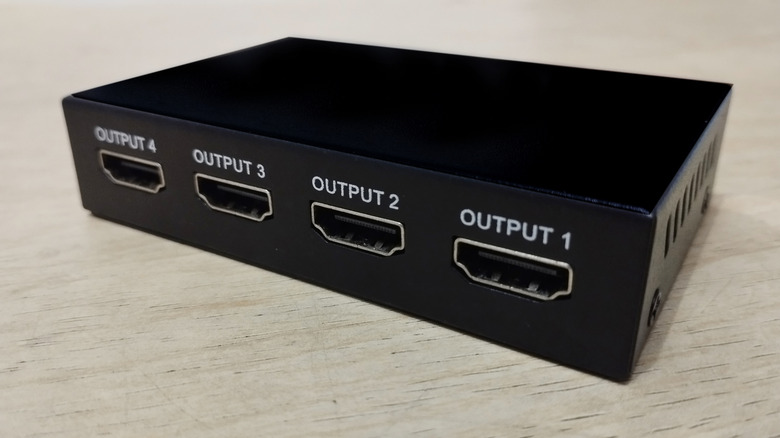
If you need to send an electrical signal to two places simultaneously, like an audio or video signal, a splitter is probably the first thing that comes to mind. The same goes for HDMI splitters: They take the signal from one source and send it to two or more, such as two monitors, or a monitor and TV separately. HDMI splitters are fairly cheap, too, from $7 to $20 or so, depending on what you actually need them to do and how many devices you want to connect. They are also easy to set up — you just plug the splitter in between the source and input devices. You'd think this all makes them one of the best options for multi-display setups, right? Not so fast. There's a good chance a splitter is actually not what you're after.
That's because there are a few disadvantages you're likely to encounter when installing or using one in place of some alternatives. Moreover, there are limitations that you need to be aware of, mainly due to how splitters function and perform. A splitter could actually degrade the signal, resulting in a sub-par experience, for example. Therefore, understanding when and where they're viable options is as important as anything else. That's why you should probably refrain from plugging an HDMI splitter in until you know the rules and have a clear understanding of the disadvantages. Let's explore.
Splitters only duplicate or mirror the signal
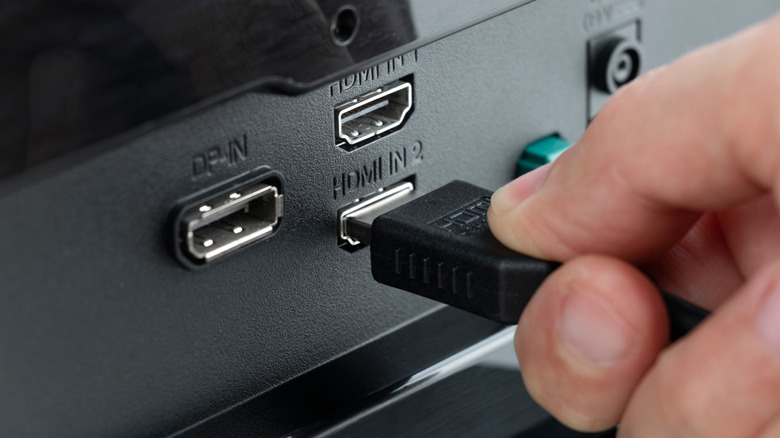
As the name implies, a splitter is designed to take a signal and essentially split it into multiple pathways before sending it along. That means they take a single input signal and split it into two output signals, so you can connect two HDMI displays, TVs, or devices. One important fact to keep in mind is that the signal remains largely as-is, so the multiple outputs are the same signal, mirrored or duplicated. Two connected monitors will show the same exact picture. The desktop is not extended, so you won't get the true multi-monitor feel when connecting multiple computer displays. You also can't use the screens independently when configured this way.
This largely comes in handy if you want to send a signal to two places at once. Maybe you have a projector and a TV, and you want to send your cable signal to both places, so you can have live sports playing on a big wall and a smaller TV. Or maybe you want to send a signal from a Blu-Ray player, game console, or media streaming device to multiple rooms at once — a splitter can do that, too.
Splitters often have a resolution or refresh rate limit
You'll often encounter splitters that set limitations on the resolution, and some may limit refresh rates, as well. If you're working with standard HD devices, that's not as much of a concern, but if you have a 4K TV or want a 4K-quality signal or higher, splitters may not be the best choice for you. This is because basic splitters usually default to the lowest common resolution denominator between your audio and video output devices. Now, many modern splitters easily fix this with downscaling, but the problem remains when it comes to refresh rates.
The bottleneck results in the lowest refresh rates taking over both outputs. For instance, if your HD TV only supports 60Hz, even though the 4K TV might support 120Hz. In other words, you won't be getting the full 120Hz experience you paid for on your main screen. In rare cases, the splitter won't even render the signal to the 4K TV at all, or will only send the signal to one display when you're using displays of different sizes.
Splitters reduce bandwidth and signal quality
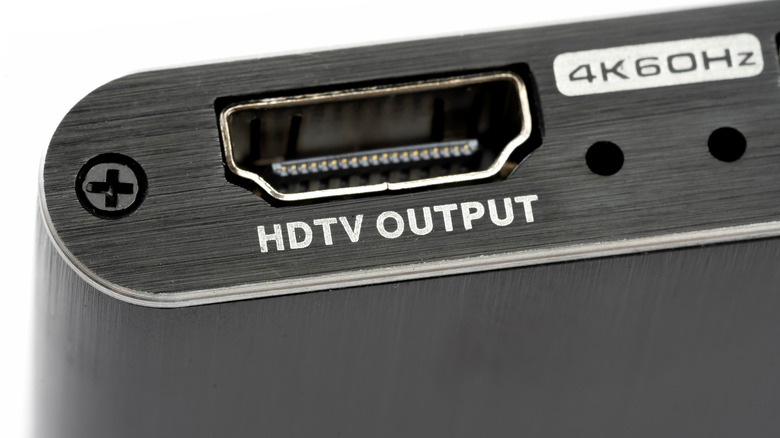
Basic passive splitters — not switches — don't amplify the signal coming in or going out. Instead, they merely duplicate it and then share the signal between its many outputs. HDMI is a digital signal, so the quality isn't degraded in the traditional sense, but the lower quality signal could fail to support high-end signal formats like 4K, or when using modern features such as HDR or VRR (variable refresh rate). This could cause the picture to fail completely because of a signal dropout or exhibit visible artifacts like sparkles and blurring. These problems are also commonly reported with failing or poorly designed HDMI cables.
However, you can get around a lot of this by looking for active splitters or an HDMI switch, which often have their own power source. They are very affordable, and the extra power allows them to maintain audio and video signals as-is, especially for high-end and high-resolution setups.
HDMI splitters don't pass HDCP or copy protection checks
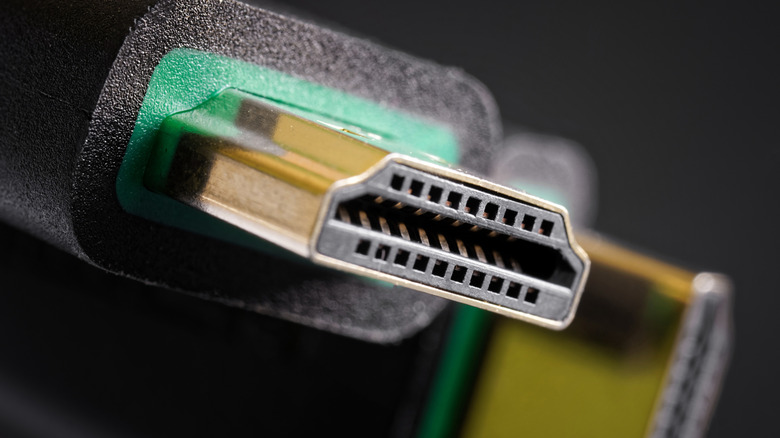
HDMI supports a digital rights management (DRM) system called High-Bandwidth Digital Content Protection or HDCP. When you connect two HDCP-compatible devices, like a TV and a media player, they do a sort of digital "handshake" to verify authenticity and enable signal encryption. The signal being sent, usually from a protected app like Netflix or another service, is encrypted at the source and decrypted by the other device at the other end of the signal.
So, when you put a splitter in the middle of that communication, you're intercepting an encrypted audio or video signal. Some splitters have an HDCP bypass feature, but many of them do not, which means if you're using a device, app, or service that calls for HDCP, the splitter could well break the signal. To find splitters that bypass it, you'll want to explicitly look for said feature when shopping around. If you're wondering if you can use an HDMI splitter with a Roku, or something like it, the short answer is "yes," but you'll need to pay attention to HDCP protocols.
The best alternatives to a standard HDMI splitter
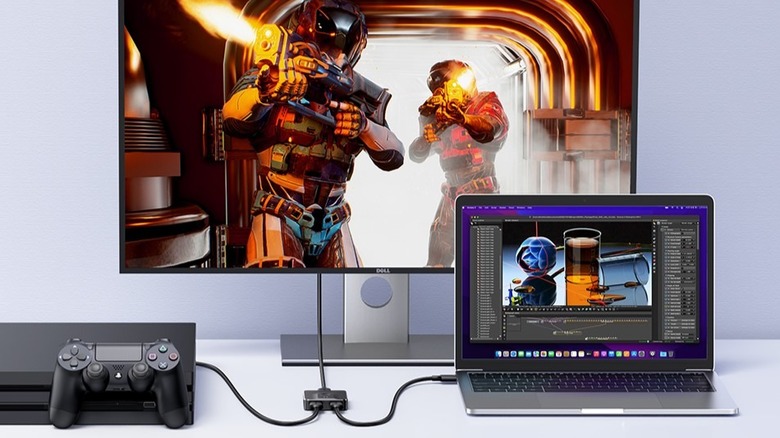
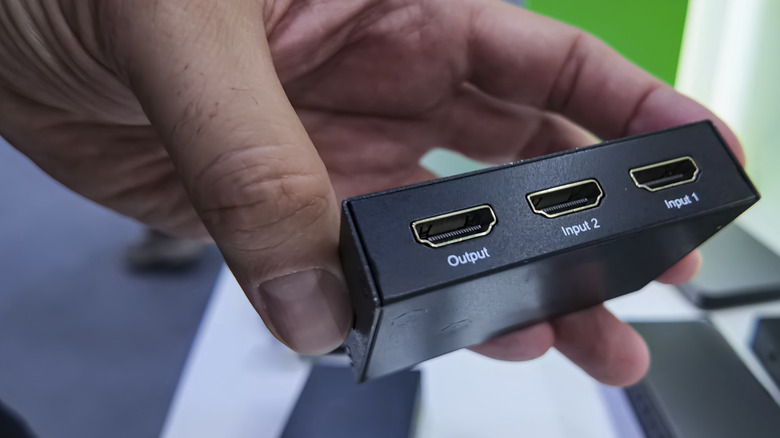
Instead of looking for an HDMI splitter to split the signal, you can opt for a few alternatives, the most obvious of which is an HDMI switch. The terms "switch" and "splitter" are often used interchangeably in the retail and marketing world, which can make things confusing, but they are two very different tools. A switch is an excellent stand-in when you need extra HDMI ports or when you want to send the same signal to multiple displays, but not at the same time.
For example, you could connect a PlayStation 5 and a laptop to the same monitor and swap between them using the switch, choosing which source is active at a given time. HDMI switches are one of the best gadgets to help you tidy up your setup, especially in a living room where you don't want cables cluttering your space. However, low-quality switches can suffer from many of the same problems as a splitter, causing issues with latency, HDCP, frame rate, resolution, and beyond. When shopping, be sure to match the supported resolutions, frame rates, and HDMI versions across all devices as best as you can.
If you want to extend your screen to multiple monitors instead of just duplicating them, use a Multi-Stream Transport (MST) Hub. Your displays will need to support DisplayPort 1.2 with the respective ports available. You could also do the opposite and use an HDMI multiviewer to watch multiple signal feeds on a single display. If you really want to cut down on cable clutter, consolidating cables as much as possible, wireless HDMI adapters can help you achieve that easily.