

Is Your Galaxy S26 Stuck On 'Emergency Calls Only'? There May Be A Solution
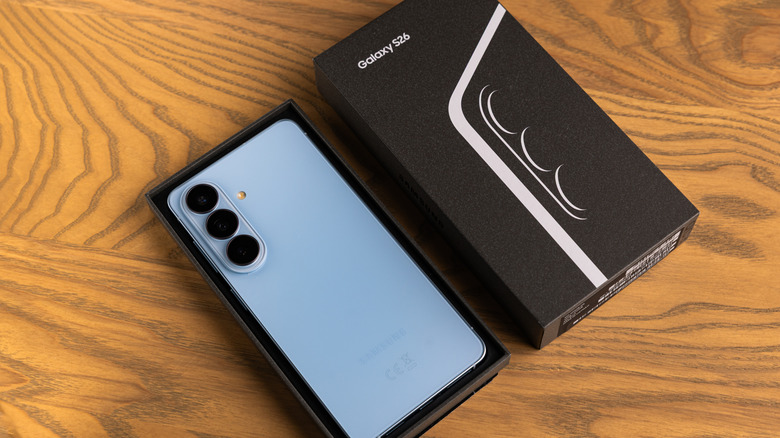
The features in a modern smartphone can make it easy to forget that it's meant for phone calls, including the Samsung Galaxy S26 lineup. Samsung is good for adding features you may not have known were available, but you very likely still need the device to act as a phone. If you find your device saying "Emergency Calls Only," this can be a noticeable problem. Fortunately, there's more than one solution we can show you.
If your phone can only make Emergency calls, it may be due to low signal strength or an issue with your SIM card. A simple restart may fix it; however, there are also ways to check your device for physical damage. There are also a number of options you can try from the device's Settings menu that may help your problem, including checking network settings or resetting certain items.
Considering it may be a signal problem, one quick thing you can try is placing your device in Airplane Mode for 10 seconds and then disabling it. Just slide your finger down the top right of your screen, press the Airplane mode icon, wait, then press it again. It's also a good idea to check for a software update. Open Settings, scroll to Software update, and tap Software update. Select Check for new updates and then tap Download and install if one is available. We can also tell you when the device will stop receiving updates.
Why is my Samsung phone saying Emergency Calls Only?
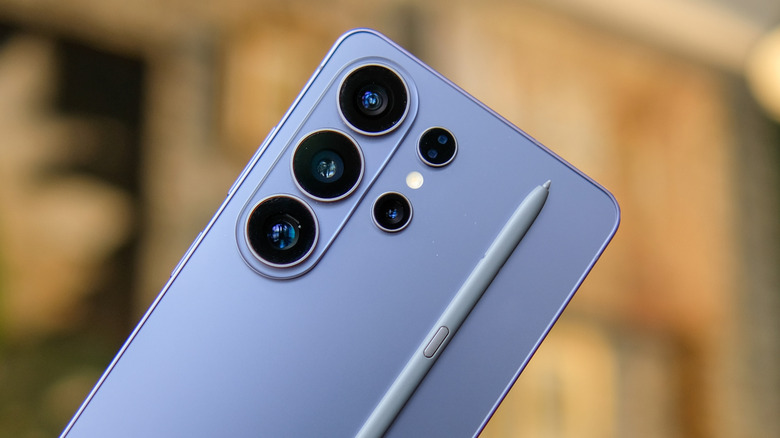
According to Samsung's official support documents, an Emergency Calls Only message means your device is having issues connecting to a carrier network. Start by checking the phone itself – inspect the device for physical damage, such as cracks or scratches. Look for dead pixels to see if the screen is damaged, and check your charging port for any noticeable issues. If the problem is physical, reach out to your cellular provider or the Samsung Support Center. Remember, there are perks to buying a Galaxy phone directly from Samsung.
You can also open your SIM tray on the bottom of your device with an ejector tool to check the Liquid Damage Indicator (LDI) for water damage. The LDI is inside the SIM card port. Be sure to power off the device beforehand. If the device was exposed to water, the LDI will be red, purple, or solid pink. You can also try using the SIM card in a different device. Remember there are some differences between European and American S26 devices.
While the SIM card tray is removed, you can also ensure the card itself is seated properly in the tray by lining it up with the tray's cutout. If you're using an eSIM, open the Settings app, select Connections, then choose SIM Card Manager and make sure it sees your eSIM. Finally, just try tapping the Back button on your device to see if you're trapped on the Emergency call screen.
Software options and a last resort
Though it may be a physical problem, there are also software solutions you can try. First, check your mobile network settings. Open the Settings app, select Connections, then check Mobile networks to ensure you have cellular access. While under Mobile networks, you can also tap Access Point Names to see if you have a connection to your cellular network. Tap Access Point Names under the Mobile Networks option to see if it looks correct. There's also an option to tap the three vertical dots in the right-hand corner and select Reset to default. From the Mobile Networks settings menu, you can also tap Network Operators and ensure Select Automatically is enabled.
One last thing to check under the Mobile Networks settings is Network Mode. Tap Network Mode under the Mobile Networks settings and ensure 5G/LTE/3G/2G (Auto Connect) is selected. You can also reset your network settings, but be aware that this also resets your Wi-Fi and Bluetooth information.
Here are the steps:
-
Open the Settings app.
-
Choose General Management.
-
Select Reset.
-
Tap Reset mobile network settings. You may need to choose which network if you have multiple SIMs/eSIMs
-
Hit Reset settings. You may need to enter your password or PIN.
-
Select Reset.
-
Now choose Reset Wi-Fi and Bluetooth settings.
-
Select Reset settings.
Lastly, you can also open Settings, choose General Management, select Reset, and then tap Reset all settings. Tap Reset settings, then tap Reset to confirm. This wipes all settings on your device, so consider other options beforehand.