

Can You Set Up A Google TV Without Connecting It To The Internet?
With access to over 10,000 apps and an assistant that can help you navigate it all, a Google TV can be a solid choice for those looking for modern television features. Built directly into many smart TVs, Google TV runs off Android TV OS and packs tons of useful features. Apart from all the built-in features, you get access to a host of essential apps on Google TV. Great as it can be for accessing online content, some folks may just want traditional TV services with no web connections. Fortunately, there is an option.
Users should know that there is a way to operate a Google TV without internet, meaning you can use a television with Google TV built-in as just a basic TV. It's just a matter of what you do during the initial setup process. Going this route, you'll still be able to do things you would expect from a traditional television, but you'll also be limiting many of the features. If you find that you ultimately want internet connectivity along with other Google TV features, there is a way to enable the option after setup.
Be aware that reverting a TV that's already set up with Google services isn't as easy. However, there may be some benefits to having no internet on your Google TV, including not needing to rely on a Google account or quickly going through the setup process. It can also ensure your television isn't collecting any of your personal data.
Setting up a Google TV as a basic TV
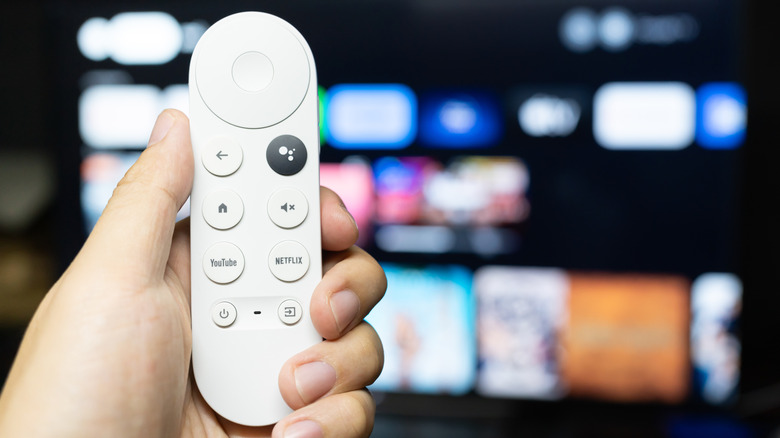
The process for using a Google TV without internet is straightforward. When you first set up your television, you'll be asked a number of questions such as your language and region. Google TV will then ask you to either Set up Google TV or Set up basic TV. Choose Set up basic TV. You won't need to use a Google account, nor will you be able to use the internet.
When set up as a basic TV, your device will still be able to use satellite, TV tuners, antennas, or cable services. You can also use something like a DVD player through the device's inputs. Certain apps may still work, but you cannot install new ones. Anything involving a Google account is also a no-go, and you won't be able to access your Play Library, use the TV's assistant, or cast content to the TV.
You can revert the device to a standard Google TV at any time directly from your Home screen. Search for the Google TV banner and then choose Set up Google TV. You'll be guided through the process. If the TV is already set up as a Google TV, you won't be able to revert it back to a basic TV without performing a factory reset. This involves going to Settings, choosing System, selecting About, and then Factory Reset. This deletes all of your data. If it's just ads you're worried about, remember there is a free app to get rid of them.