

How To Check The Battery Health Of Bluetooth Devices On Your Mac
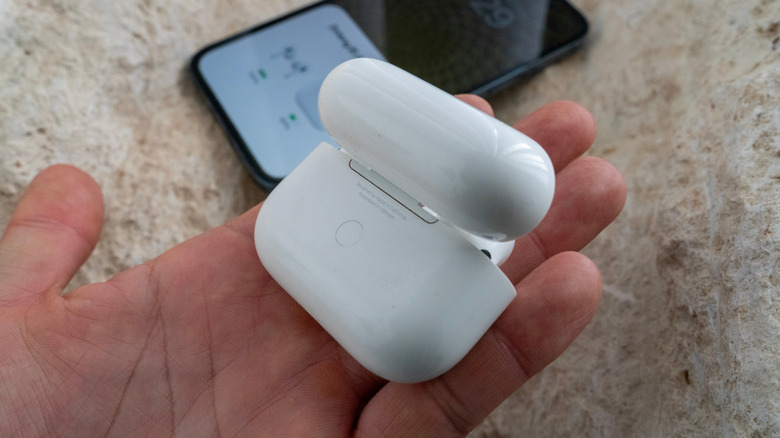
On modern versions of macOS, the fastest way to check the battery level of supported Bluetooth devices (regardless of whether you're incorporating Bluetooth into your smart home or investing in some of the weirdest new Bluetooth gadgets) is via the Bluetooth controls in System Settings, the menu bar, or Control Center.
To get started, open System Settings and go to Bluetooth. Here you can view all your Bluetooth accessories plus a small battery icon or percentage next to each connected device, which gives you an at‑a‑glance view of remaining charge. If you want a persistent, one‑click way to check, add Bluetooth to the menu bar: on macOS Ventura or later, alongside a number of great new macOS features, go to System Settings > Control Center and set Bluetooth to "Show in Menu Bar," then click that icon anytime to see connected devices and their battery percentage. On older versions of macOS, you enable the same icon by opening System Preferences > Bluetooth and checking "Show Bluetooth in menu bar," then hovering over or expanding each device to see its remaining battery.
If you spend most of your time in settings panes anyway, Apple also surfaces per‑device battery information in the relevant sections: you'll find your keyboard's battery level at the bottom of the Keyboard settings window, your mouse in Mouse, and your trackpad in Trackpad. For users who prefer a dashboard‑style overview, adding the Batteries widget to Notification Center or the desktop lets you monitor the charge state of your Mac and supported peripherals in one place without digging into menus.
Go beyond basics for health and unsupported devices
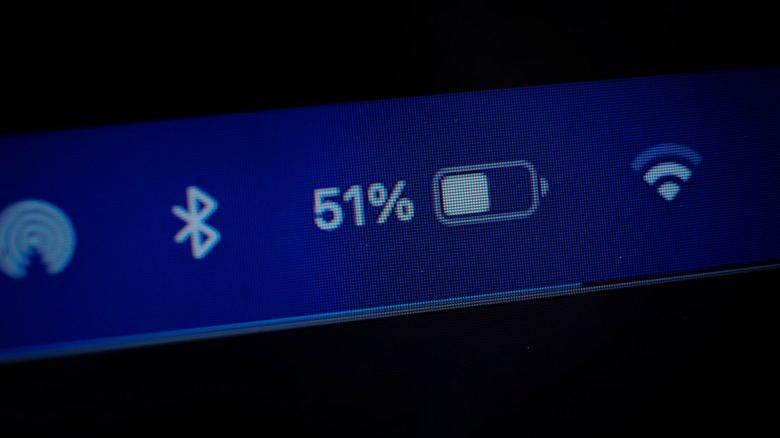
Apple doesn't expose detailed cycle counts or degradation metrics for Bluetooth accessories on macOS, so "battery health" is really inferred from how quickly a device drains and how accurately macOS reports its percentage over weeks or months. If you notice that your Magic Mouse drops from 100% to 20% in a fraction of the time it used to, or the reported percentage jumps around instead of declining smoothly, that's a strong signal the battery cell is wearing out. Checking these indicators regularly helps you spot failing batteries early and avoid dead devices in the middle of a Zoom call or gaming session.
For third‑party accessories that don't show a battery percentage in Apple's menus, you're not completely out of luck. Some vendors ship their own utilities that tie into macOS to expose battery data, such as Logitech's software for specific mice and keyboards. There are also small menu‑bar apps like Magic Battery and similar tools that can display charge levels for a broader range of devices, including Apple input hardware, AirPods, Beats headphones, and even iPhones and iPads, with compact or detailed views and low‑battery notifications that pop up when an accessory hits around 20%. Power users can dig deeper via Terminal using commands based on ioreg to read battery percentage values for some Apple Bluetooth devices directly from the system's hardware registry, which is useful if you want to script alerts or log discharge patterns over time.