

Your TCL TV Can Control Your Smart Home — Here's How
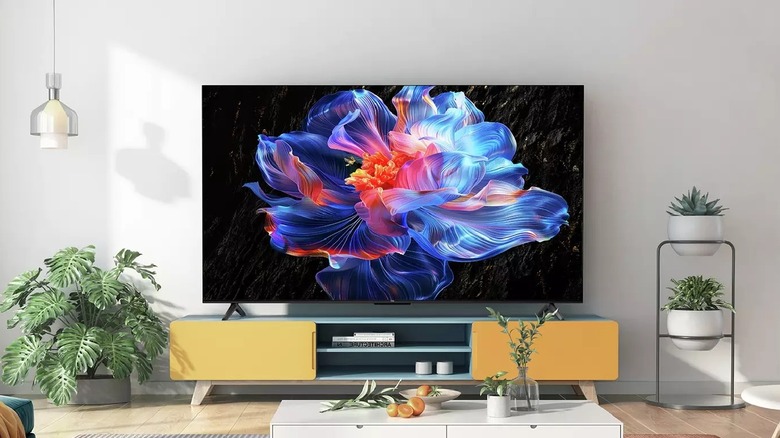
If you own a TCL Google TV, there's a feature you may have been sleeping on: using it to control your smart home. TCL offers a range of smart TVs that come with Google TV — Google's personalized user experience powered by the Android TV operating system — built in, giving users access to Google TV features like Gemini AI, Google Photos screensavers, and personalized recommendations across numerous streaming services.
But your TCL Google TV can also be used as a sort of control center for smart home devices you've connected to Google Home. Through your smart TV's Home Panel feature, you can control and monitor Google Home-compatible smart devices such as vacuums, lights, thermostats, speakers, plugs, TVs, locks, and cameras, turning them on and off and adjusting their settings without having to leave your couch — or even the app you're currently using.
However, before you can use your TCL Google TV to control your smart home, you need to set up the feature. Below, we break down how to set up Home Panel on your TCL TV, how to use it to control and monitor your devices, and which devices are compatible.
How to set up the Home Panel on your TCL Google TV
To set up the Home Panel, you need to have a Google account, and you'll also have to ensure that account is a member or the owner of a home in the Google Home app. In addition, you need to ensure at least one other compatible smart device, aside from your TCL TV, is added to that home's ecosystem, and that your TV is in Standard Mode. Once you've done this, add all the smart devices you want to control via your TCL TV to the home ecosystem via the Google Home app on your mobile device.
Next, you need to ensure the Home Panel feature is enabled for your TV. To do this, navigate to Settings, then Accounts & Sign-in on your TV, then choose your profile. Select Google Home and ensure the Home Panel option is toggled to the enabled position. Note that if you have a smart doorbell added to your smart home ecosystem, you might see a separate option to enable access to it.
With the Home Panel enabled, you can access it by going to your TV's quick settings dashboard through the Settings menu (the gear icon) or by pressing and holding the Home button on your TV remote from within any app, then selecting the Home Panel tile.
How to control your smart home through your TCL Google TV
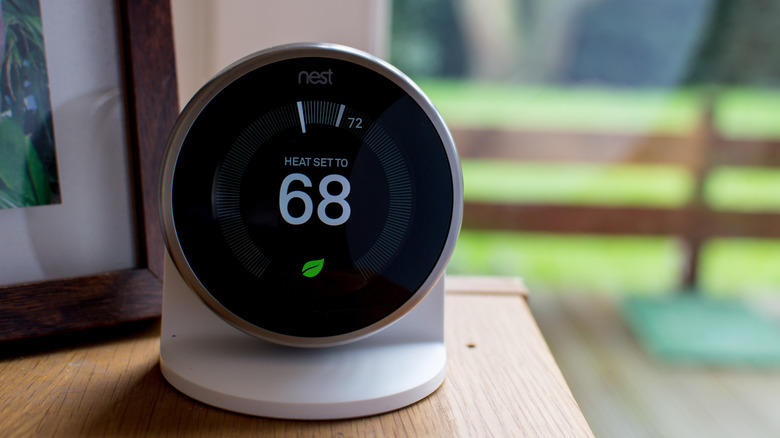
With the Home Panel enabled, you can now view and control compatible smart devices that have been added to your Google Home ecosystem via the app. At the top of the Home Panel screen, your devices will be grouped by type — such as lighting, cameras, and climate — with favorited devices visible under the "Favorites" section. By selecting a device, you can toggle it off and on and adjust available settings, such as the brightness of an integrated smart bulb.
Not all smart devices are compatible with Google Home, and therefore controllable via your TCL Google TV. However, many Google smart home gadgets and Nest smart devices, including Google Home speakers and Nest's smart cameras and doorbells, are compatible.
Outside of Google's own range, many third-party smart devices that support Matter (the universal smart home standard) or are Google Home partners can also be controlled through your TV's Home Panel. This includes devices from Philips Hue, TP-Link, Nanoleaf, Hive, and many more.