

How To Tailor Google Maps' Route Suggestions To Your Needs
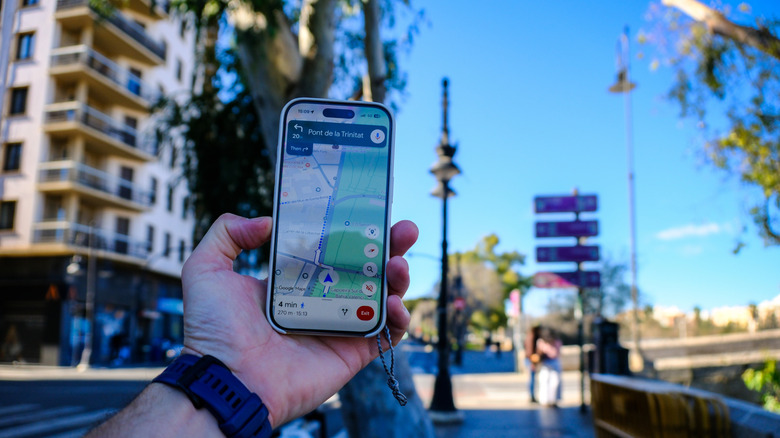
Google Maps is excellent at finding a route quickly, but, among some other common problems, its default suggestions may not always be the ones you actually want. Maybe you're looking to avoid toll roads, skip highways, work around a ferry crossing, or build a trip with several stops along the way. The good news is that Google Maps gives you a handful of simple controls (as well as a bunch of hidden features) that can make its directions fit your routine much better. Once you know where those options live, you can push the app closer to the kind of navigation experience you need.
The easiest place to start is in the directions screen. After entering your starting point and destination, look for route options such as avoiding highways, tolls, or ferries, then compare the alternatives before you begin navigation. On desktop, Google Maps also lets you drag the route line to reshape the path manually, which is useful when you know a preferred road or want to bypass a bad stretch of traffic. If your trip includes multiple errands, add stops to the route so Maps recalculates around your real-world plan instead of a simple point-to-point trip.
Personalize Maps to suit your commute
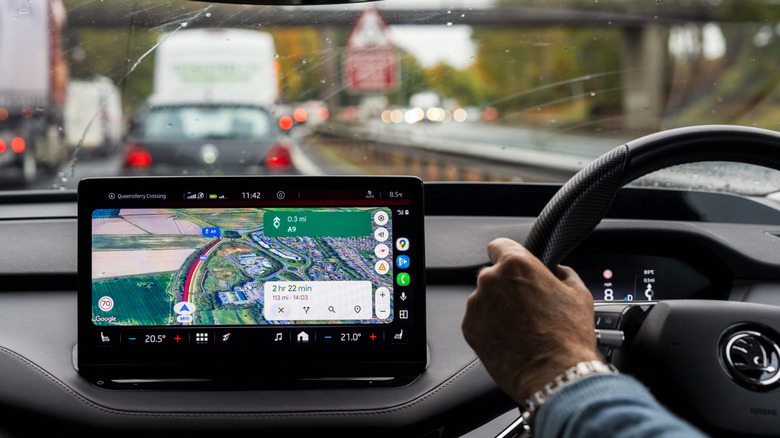
Google Maps can also be made more personal through its settings menu. Navigation preferences, map display choices, voice guidance, and distance units all help the app feel more natural to use, especially if you drive often or switch between regions. Some settings pages also point to vehicle-specific configurations and saved locations, which can make route suggestions feel more relevant over time. The result is a Maps setup that behaves less like a generic navigator and more like a tailored travel assistant.
For everyday use, the smartest approach is to combine your preferences with Google's real-time traffic data. Save your most important places, set your usual avoidances once, and then adjust routes only when a trip calls for it. That gives you the speed of Google's recommendations without losing control over the details that matter most. For a daily commute, save home and work and keep the app configured for your normal driving style. For one-off trips, use stop additions and route dragging on desktop when you want more control than Google's automatic choice provides. And if you drive an electric vehicle, there are some specific features that every EV owner should know about.