

5 Common Problems With Google Maps (And How To Fix Them)
Even if I am an iPhone user, Google Maps is still my go-to app whenever I need directions. Naturally, some may argue over whether or not Apple Maps is better, but I personally prefer Google Maps for its live traffic options and frequent app updates. Convenient as Maps can be, it's not always a perfect app, and some of the problems I've had seem to be things others experience as well. With that in mind, let's take a look at some common Google Maps issues and what can be done about them.
From ensuring a cleaner experience while using the app to exploring options for dealing with some of the more dubious ad experiences the app provides, users should be aware that there are ways to fix some of the more dreadful parts of Google Maps. Some solutions can simply involve changing a setting, but there are also instances where relying on additional resources or even an entirely different app may be the way to go.
Like knowing about some of the hidden Google Maps features that can enhance a trip, solving any of the problems below is likely to provide you with a better overall experience when using the navigational app. Additionally, remember that Google Maps is something you should definitely keep up to date, so remember to check for updates periodically in the Google Play Store or Apple App Store. Who knows, the next update may even eliminate one of these problems.
A cluttered experience
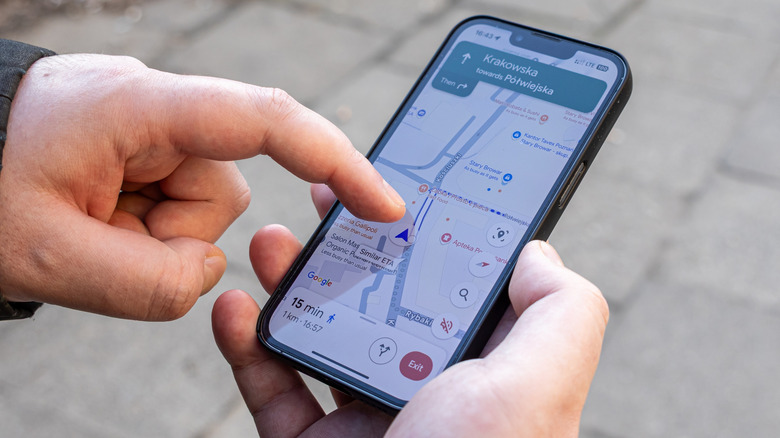
When I'm using navigation, there are really only two pieces of information I personally need: the next step in my directions and my final ETA. Don't get me wrong, traffic updates and other pertinent information are great when I need it, but a lot of what Google provides from its interface clogs my screen. It's also a common problem for users. If you're looking for a more streamlined approach, there are options available.
Those with an iPhone can obviously switch to Apple Maps if they so desire, but Google Maps users can also adjust their map layers to remove certain visual overlays they don't want or need. On either an Android or iPhone, it's just a matter of opening the app and selecting Layers from the top right. You can choose between Default, Satellite, or Terrain views, and you can also tap specific map details such as Traffic, Transit, Street Views, and more to remove them. It may not completely declutter the screen, but it can be useful for removing unwanted information.
While switching navigation apps can be slightly annoying, there's also the option to go with something that has a cleaner overall UI. While research is always good for personal preferences, Google's Waze app is often considered simpler, and there's also Organic Maps in the Google Play Store or Apple App Store, which holds a 4.7-star rating in the latter. While just some small recommendations, they may stop you from questioning what a leaf symbol on Google Maps means while you're driving.
Always choosing fuel-efficient routes
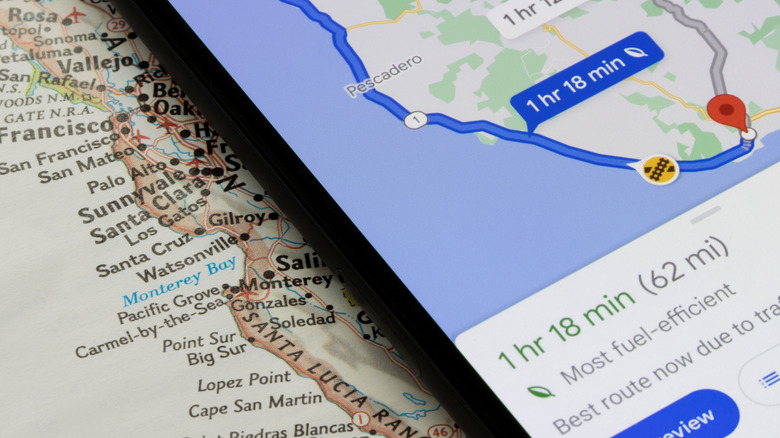
On a recent trip from Akron, Ohio, to Pittsburgh, Pennsylvania, I noticed the drive was taking longer than usual and that Google Maps had taken me off my typical route, opting instead for one about 15 minutes longer. Considering I was just meeting some friends, it wasn't a big deal, but I was still curious as to why I went a different way. Turns out, Google Maps offers fuel-efficient routes that use algorithms to find the most fuel-efficient way to get somewhere.
Depending on where you're going, it may save you some gas and make your drive more efficient, but it may take a bit longer to get there. The algorithm looks for routes with little braking, consistent speed, and stable acceleration. It factors road conditions, route simplicity, and real-time traffic, but it can still be turned off should you want a faster route.
Here are the steps:
-
Open Google Maps.
-
Select your profile icon in the top-right.
-
Choose Settings.
-
Tap Navigation.
-
Scroll to Prefer fuel-efficient routes and disable it.
The thing to remember about this setting is that you may prefer it for some drives, so it's good to remember where it's located. Using Pittsburgh as an example again, I certainly noticed losing 15 minutes on the highway, but I may prefer something more fuel-efficient when driving through the city. Be sure to check all your options when planning a trip, and iPhone users may want to remember that they can set Google Maps as their default navigation app (with a catch).
Too many ads in search results
On more than one occasion, I've found myself searching Google Maps for a place to eat. While it may be great for helping me find somewhere new or a spot I haven't been to in a while, there's no avoiding the fact that the app is filled with sponsored results and promoted pins, making finding organic results extremely difficult. It's not just food, of course, as other types of businesses that don't pay for sponsorship can get buried as well.
To worsen matters, businesses can inflate their reviews with bogus accounts, and it certainly doesn't help that information about a business can be outright incorrect. There's nothing worse than Google Maps telling you somewhere is open only to drive there and discover it isn't. Ads will likely always be there, but you can at least receive better information. One important thing you can do is cross-reference details Google provides with another source.
When searching for businesses, you can always use different apps, but experience may vary. While you can search for establishments with something like Waze, Apple Maps, or even these free Google Maps alternatives, be aware that Apple Maps and Waze also allow paid search results. It may be swapping one problem with another, but one may provide better intel. Google has stated it's working on slaying phony reviews and dubious business profiles with the help of its artificial intelligence agent Gemini, but doing additional research on an establishment may be in your best interest.
Notification overload
Having Google Maps notify you during navigation is obviously important, but the app can also send a variety of other notifications that may pop up even when you're not using it. Recently, the app asked me to leave a review for a restaurant the moment I sat down, which I had no interest in doing. It may even ask you to add photos for places you visited or even just ask you some questions about an establishment.
While contributing information may improve the experience for others, you may get tired of constantly seeing these notifications. Fortunately, there is something you can do about it. It's a pretty easy process: just open the Google Maps app, select your profile icon at the top, then tap Settings. Go to Notifications to enable or disable many of the options Google provides.
The ability to disable certain notifications may be a feature you're missing out on, as it can definitely make for a more peaceful experience when you're not using the app. However, one that may be worth keeping around is the Traffic updates when not using Maps notification, as you never know when a familiar route may suddenly change due to a crash or construction. The ability to select which notifications stick around is a definite plus, but be sure to double-check exactly what you're disabling or enabling to keep your navigation experience optimal.
Bad public transit directions
Even if Google Maps got a huge update to public transportation navigation in September 2025, some folks may still find it difficult to navigate. When I visited Chicago for the second time in June 2026, I ended up getting lost during a train transfer, which isn't an uncommon experience for other users. However, the best solution for this issue may be to use an app that focuses exclusively on public transport.
While we're not necessarily recommending a specific app, users should be aware that there are other options available beyond Google. Just as some examples, the Transit app focuses entirely on public transport. It's free and available on the Google Play Store and Apple App Store, and it has a 4.6-star rating on Apple's App Store. Citymapper, with a 4.8-star rating on the Google Play Store, has the same device availability and may be a useful alternative.
When exploring new regions with Google Maps, it may be a good idea to download any maps you plan to use offline. This can be especially beneficial, as it helps mitigate the risk of being caught without Wi-Fi or cellular service. From Google Maps on Android, just search for a location, swipe right on the placesheet (the new page) and select More. Then choose Download offline map and hit download. Follow the same steps on an iPhone, but tap the name or address of a place rather than swiping right on the placesheet.