

Your Google Maps Edits Aren't Always Private - Here's Why
Google Maps is one of the best travel apps around, providing live traffic updates and real-time GPS navigation, alongside other underrated Google Maps features. However, it's also useful for finding new businesses and places to visit, displaying important information such as opening hours, contact details, images, and reviews. Google uses a mixture of satellite imagery, third-party sources, and contributions from governments to create its maps and data — with the information regularly updated. Sometimes, though, a new business or location can be missed, or the details of a Google Maps location can change or simply be incorrect. Fortunately, in certain countries and regions, Google Maps users can suggest new public locations, such as hotels and restaurants, to add to the map or make potential edits to attributes of listed places to add missing information or fix inaccuracies. Should Google accept a user's submission, the details become public.
However, Google Maps also offers a private labels feature that allows you to mark an address or location on the map that is only visible to you, making it useful for pinpointing places you frequently visit — and perhaps need directions to — but don't want made publicly visible to everyone, such as a private residence. But while these labels are invisible to others, they're not entirely private, as Google can use this information to create personalized ads and recommendations for you. Below, we break down how to create private labels in Google Maps, how private these labels really are, and what information you should avoid sharing.
What are private labels in Google Maps?
Private labels are markers you can add to Google Maps that only you can see. This is particularly useful if you want to mark a location that you frequently visit, such as a friend's address, but don't want it to be publicly viewable.
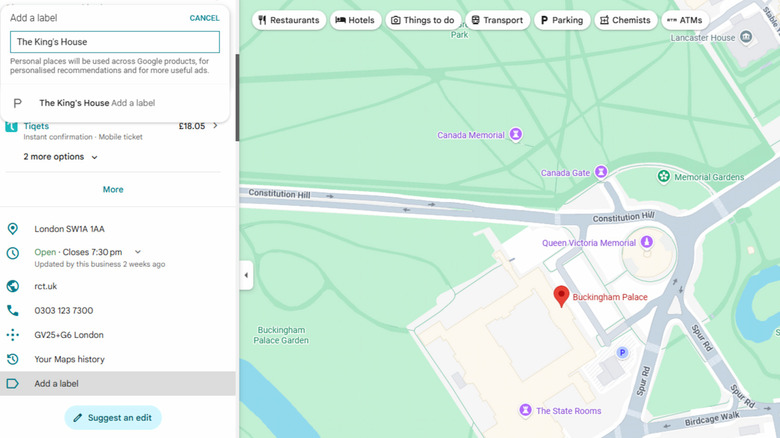
To add a private label to a location, sign into Google Maps on your mobile device or desktop, search for the address you want to add a label to, and select "Add a label" from the listing information — on mobile, the button is on the same row as the "Directions" option, and on desktop, it's on the left. Don't confuse adding a label with the "Save" button (label icon), used to make Google Maps lists. This then brings up a text box into which you can enter a place name, like "Sally's House." This place name will appear on your map, in your search suggestions, and in Google Photos, but not to anyone else.
However, while this label is private, text under the "Add a label" text box warns that "personal places will be used across Google products, for personalized recommendations and for more useful ads." In addition, if you select "Add a missing place" instead, or select "Suggest edits" under the listing information, the information and location you submit will become public if accepted by Google, as they are technically contributions — and there's no way to cancel a pending addition or edit, only to mark a location as "non-existent" once live. So, avoid including any personal information, such as full names and phone numbers, in your label, edits, or suggestions.