

Why Is Your TCL TV Light Blinking?
TV brands like Samsung, LG, and Sony have been industry leaders over multiple decades, but that doesn't mean you shouldn't consider any other manufacturers when you're shopping for a new TV. When it comes to picture quality, performance, and how much cash you're doling out, TCL makes the grade in more ways than one. TCL TVs are often praised for their cheap pricing, and the company's 4K LED lineup has multiple models and sizes to choose from.
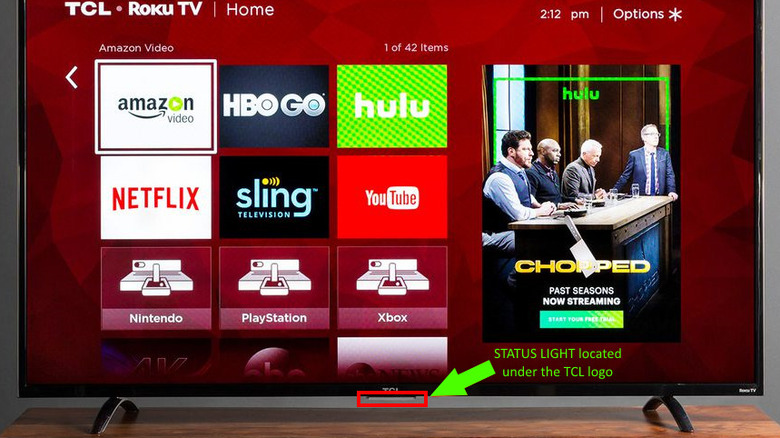
TCL doesn't have its own smart TV platform or user interface; instead, the company licenses the use of software like Android TV, Roku OS, and Fire OS for apps and smart home controls. You'll also find an LED status light on the front of most TCL TVs (below the TCL logo), regardless of the OS your model uses. The LED is used to communicate various power states and internal processes, and most of the time, a slow pulsing blink will indicate that your TV is simply processing the last command it received.
However, if your TCL TV's status light is rapidly blinking, it might mean that your TV is either installing an update or it's throwing an error code. If it's the former, your TV should just restart once the update is fully installed. If it doesn't stop blinking, you may have a problem on your hands.
A rapidly blinking red light usually isn't a good sign in the world of TVs
If your TCL TV's status light won't stop blinking, the manufacturer recommends restarting your TV, and so do we. To do so, boot up the TV and use your remote to open Settings > System > Power > System restart. Alternatively, you can just unplug the TV for about 30 seconds, and then plug it back in. Fire up the set again if it doesn't boot automatically, and cross your fingers that the blinking light is gone. If it didn't go away, we hope its manufacturer's warranty still covers your TV, because it's probably time to contact TCL.
Fortunately, a hard reset is often all it takes to clear a majority of bugs and glitches from a smart TV, but it's not an end-all, be-all strategy. If you're outside of your TV's limited warranty, it may still be worth talking with TCL to see if they can help you diagnose what the issue could be. Depending on who you speak with, they may even be able to help you order parts and/or schedule a technician for an at-home repair. (If you bought an extended warranty from a retailer like Best Buy, use that coverage instead.)
Blinking or not, your TCL's status light is an important part of your TV-watching experience. It can also be disabled on most TCL TVs by going to Settings > System > LED indicator > Off. This means you won't see the status light — be it solid or blinking — at all, regardless of your TV's power state and received commands.