

Background Notifications Can Have A Big Effect On Your Smartwatch Battery

So, you're excited to put on your new smartwatch and get going with your regular daily activities. But then you realize the battery is depleting much faster than the specs indicate it should, or even more quickly than other users have noted in real-world scenarios. What's going on? Is something wrong with the wearable, or is there something you're doing that's draining the battery faster than it should be? There are lots of tips to help extend the life of your smartwatch battery, from Samsung models to Apple Watches. And one of them includes eliminating unnecessary background notifications.
Even when you're not actively looking at your smartwatch or fiddling with it to check your daily activity, start a workout, pay for an item, or navigate using a built-in maps app, it's performing various background actions relating to the apps you use. It could be reminder alerts, continuous health metric tracking, and the device receiving other notifications from your connected phone. Background notifications in particular are a bigger drain on a smartwatch battery than you might realize.
Background notifications eat up battery
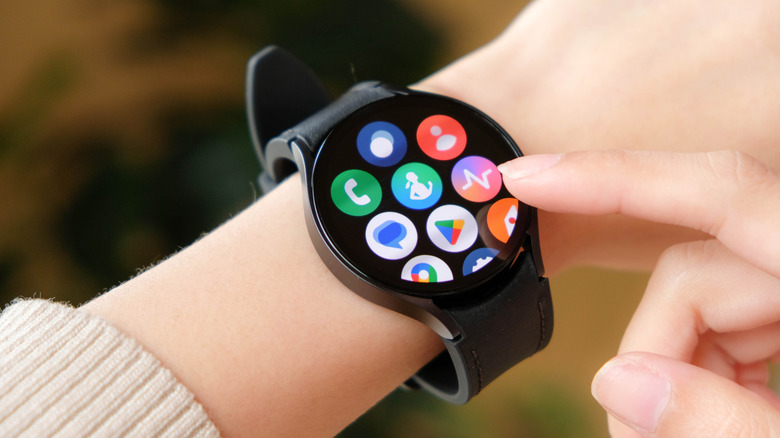
There are many smartwatch features that can drain your battery. You'll notice, for example, that if you use GPS for things like outdoor runs or navigation, it drains the battery pretty quickly. In fact, any smartwatch with built-in GPS will list both the standard battery life and the reduced average battery life with GPS enabled. If you use an always-on display and crank the brightness up high, this eats into the battery, too. But background notifications are one of the lesser-known battery hogs.
If you have apps running in the background on your smartwatch, they constantly drawing resources to keep running and use your precious battery life in the process. They might be alerts, notifications from your connected phone, vibrations, app syncing, and more. They might also be health-related apps that don't necessarily need to be running 24/7. For example, heart rate could be set to 24/7, whereas you might be fine only logging your heart rate during workouts and when you run a manual scan. Blood oxygen measurements can also happen in the background constantly unless you adjust this setting. The same goes for smartwatches that track things like stress. But it could also be other apps you have synced that you forgot about and are constantly sending notifications you don't need.
How to reduce battery drain from background notifications

General tips to reduce battery drain include reducing screen brightness, turning off the always-on display, choosing darker colored watch face themes, and using power-saving modes when available. For background notifications specifically, Samsung advises that some apps consume more battery power than others, so limit syncing to only the apps you need the most and close background apps you aren't using. Check the smartwatch's companion app, including from brands like Apple, Samsung, Garmin, and any of the underrated smartwatch brands, to see what apps are sending notifications and alerts. You might see the list is longer than you realize. With Samsung smartwatches, you can even change it from automatically showing notification details to not displaying them if the watch screen is off.
Samsung also notes that apps that aren't up to date may contain bugs that use more battery, so it's crucial to keep the apps you do use updated at all times. Finally, even with apps you want to have running tasks in the background, like monitoring your heart rate, avoid animated watch faces that update constantly with widgets and complications to show the data. They consume more battery life than a standard, static face. Reducing background notifications may be one of the easiest ways to extend battery life that you never even considered could be eating into it so much in the first place.