

4 Useful Accessories Every Multi-Monitor User Needs
We may receive a commission on purchases made from links.
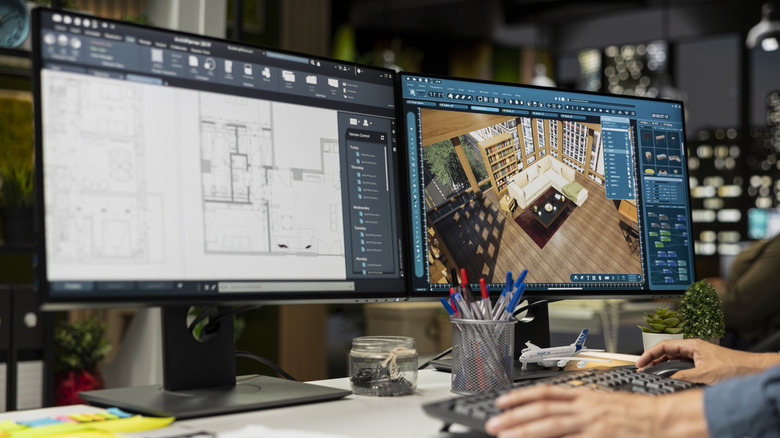
Having multiple monitors can be a massive boon to workflows and productivity, with users able to manage multiple windows and programs on separate screens. A version of dual displays goes back as far as IBM's 5150 PC, which could support a color and monochrome display, but the latter was limited to text display only. The Apple Macintosh II and Mac Plus had dual monitor support in the more modern sense, with the machines sharing space between the two screens.
We've come a long way from then, or from having to run three PCs at once for an ultrawide screen mode of 1993's "Doom." Almost every operating system supports at least dual monitors, with some of the work done on Windows 11, for example, being built around "remembering" the window layout if it's switched back to a single screen.
However, there are some problems that can be solved by adding a few accessories, including products that will help with freeing up desk space and power protection. Combine these with our essential tips and tricks for dual monitor users, and you'll find your setup greatly improved.
Monitor arms
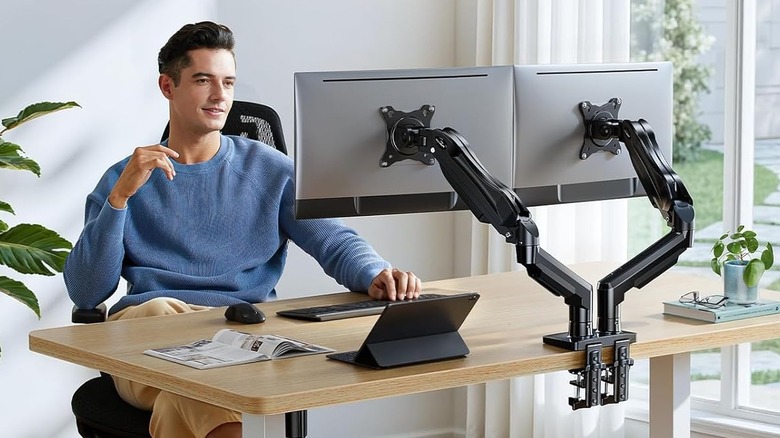
There's nothing better than clearing space off your desk, but how about permanently? Most modern monitors will come with a stand that takes up quite a bit of room, and having two potentially competing dual-monitor stands demanding space can start to impact your work. Our best recommendation is to invest in monitor arms, which will scoop your monitors off the desk into a permanent floating position.
As most monitors come with stands, they generally will also come with a VESA mount on the back. Newer monitors will come with a slot-in system for the stand, which is where you'll find the VESA mounting points, but cheaper or older models will often sport these on the back of the outer casing. Just ensure that you get a monitor arm that can support your screen's weight, and for more "extreme" or larger monitors, it might be worth investigating mounting it on a wall instead.
Not only are you decluttering the desk, but you're also making it far easier on yourself when it comes to the most dreaded task: plugging something new into the monitor. Do you know how helpful it is to just swing a monitor to the side to access the back or under panel? It'll also be far easier to get your monitor vertical if your workflow demands it. For a dual monitor setup, one of Amazon's top-reviewed is the Huanuo, with users reporting good build quality and ease of setup. If you're looking for more recommendations, check out our list of the top five monitor arms you can purchase.
USB Hub
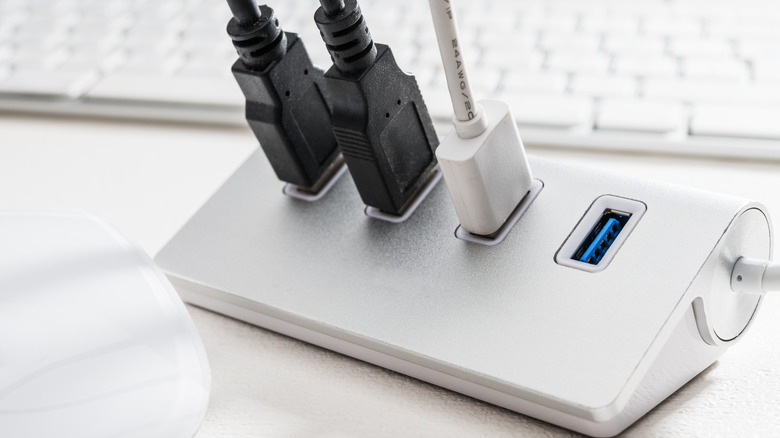
Even if the monitors are on arms, sometimes the USB ports on the hubs embedded into gaming or more feature-rich monitors can be a little lacking. AOC Gaming's Q27G4ZD, for instance, only holds two additional USB ports. Grabbing a USB hub or dock will obviously expand your inputs and outputs, but it will also make life far easier.
Your dual-or-more monitors can be routed through the USB hub itself, rather than directly into the PC. This frees up two USB ports on your main machine while activating additional hubs on your monitors. One option is the JSAUX OmniCase, a USB dock that sports its own HDMI ports, multiple USB ports, SD and microSD card slots, and Ethernet.
For those who just need additional USB ports, any of the budget brands on Amazon should suffice, but for a known brand, Anker has a solid offering at $26. It holds a 4.5-star rating on Amazon, with 4,467 reviews, at the time of this writing. It comes with all the ports you want, including three USB-A, but it also supports both SD card sizes, which makes it perfect for those in video or photography workflows.
The USB connection between the hub on the monitor and the PC will often be USB 3.0, with some USB-equipped monitors now sporting USB 3.2 or above. This is great, as it means your transfer speeds between the two hubs and the PC won't be impacted all too much, unless you pack on data-transfer-heavy devices to the connection.
USB switch
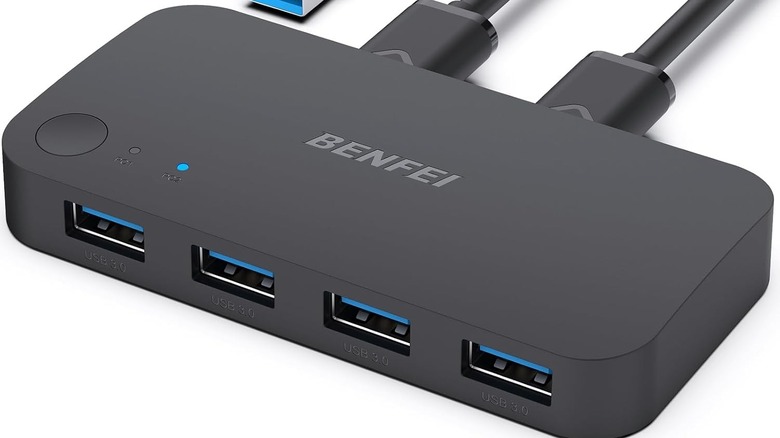
A USB switch will be a killer option for those who pilot two different machines across their multi-monitor setup. Usually, you'd see something like a "KVM" (Keyboard, Video, and Mouse) recommended, but we don't need to send video over, just the USB inputs. This is great for those of us who switch between Windows, Linux, and macOS for the more creative side of things.
A USB Switch can redirect the USB signals from one device to another at the touch of a button. These are relatively inexpensive, with a highly praised Amazon product being the BENFEI USB Switch, which usually runs for about $17. Rather than overhauling your entire setup for a KVM, this will sit neatly between your two devices, offering six USB-A ports to expand your setup further.
Alternatively, you can get the UGreen USB 3.2 switch, which supports two different PCs and offers three USB-C ports alongside four USB-A ports for full flexibility.
Both options are wall-powered as well, so your devices won't be feeding it power or complain if you decide to overload it. We recommend this more for peripherals like the mouse and keyboard instead of storage, which the switch could potentially damage during switching. If you're planning on using this with storage, be sure to safely unmount the drive before doing so.
Surge protector power strip
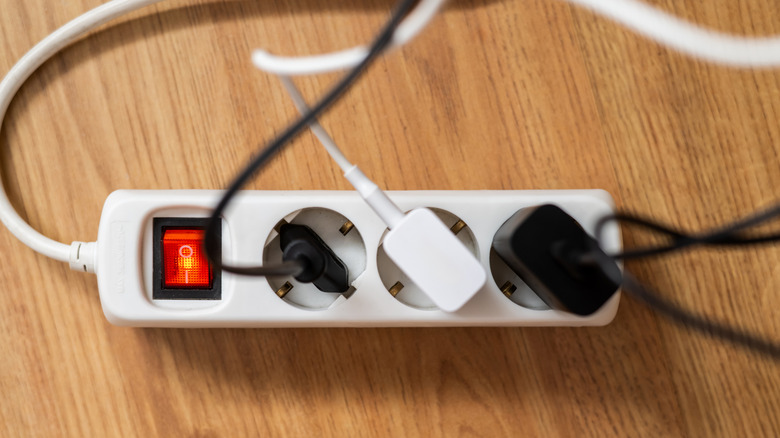
It seems daft to include a power strip on here, but it's one of the aspects of owning or piloting more than one monitor that people forget about: Plug sockets are prime real estate. Monitors, especially once you start approaching a collection of three or more, can also start to add up in price, so it's best to ensure your roster of screens is protected. A surge protector strip will be your best protection against any random spikes in power, which could very easily impact your monitors, or even break them.
Rather than overloading the strip that will have your PC and other peripherals connected to it, this will result in a much safer experience overall. Our recommendation here is to simply follow the crowd, especially on sites with reviews from the public. Our top recommendation is the Belkin Surge Protector, which holds a hefty amount of feedback — a 4.6-star rating across 5,540 reviews. This is your bare-bones power strip, but customers seem happy with just how simple it is.
For those with a need for surge protection and a desire for a few extra frills, another highly rated power strip is from Yishu. Instead of retaining the standard, rectangular power strip shape, it is more compact, and it places additional outlets along the rim. Included in these are four USB ports and two USB-A and USB-C, rated at 3A/5V — enough to charge some lower-powered devices.
How we chose these products

The article was put together by leveraging the author's experience working within the tech space, along with third-party information from the web. This was predominantly collected from Amazon and other storefront customer reviews, and using social media platforms like YouTube to aid in other opinions. YouTube videos were used to verify how some products functioned between devices.
Hardware chosen was intended to be as easy to use as possible, without introducing products that require caveats or other tutorials. This meant eliminating usual multi-monitor recommendations like KVMs. Online video reviews that earn a commission were excluded from analysis. Pricing wasn't taken into consideration for this article, as these items haven't been impacted by various AI-induced price crisis in tech just yet.