

What Does The D Symbol Next To A USB Port Mean?
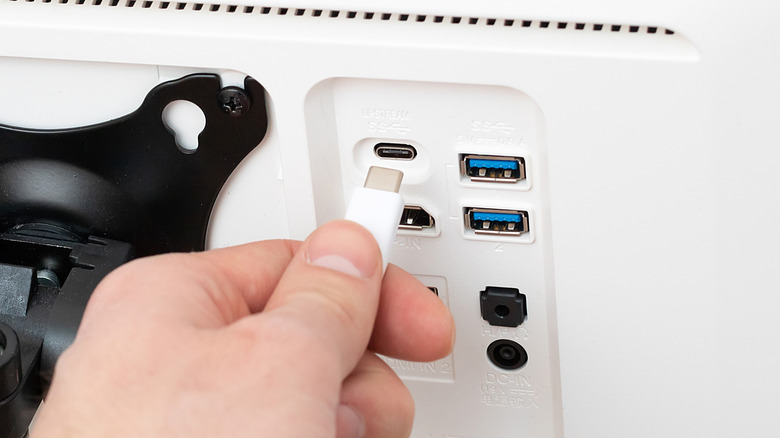
There are many versions of USB ports in use, from standard High-Speed 2.0, usually indicated by the established trident logo, to SuperSpeed — with an "SS" — and USB-C with PD, often indicated by a battery icon. USB symbols or logos tend to be fairly simple. For most USB variations, the standard trident is modified slightly, like adding a "5" or a "20" to tell you the max bandwidth supported, or adding a lightning bolt to signify fast charging. But one symbol that might seem a little odd when you encounter it is the letter "D." The logo is actually the outline of the letter "D" with a small letter "p" inside. It's telling you that the USB port supports DisplayPort Alternative Mode, allowing for video connections, not unlike an HDMI or mini HDMI port.
The USB-C connector, upgraded to great effect for faster transfers and higher power delivery, can do a lot of neat things. Combining several uses into a single port is one of those, so you don't have to keep swapping cables. DisplayPort Alt Mode is an extension of that, basically turning a USB-C port, with the capability, into a DisplayPort so you can use a single cable to connect portable or external monitors with native high-definition audio and video signals. That cable can also charge or power devices, and transfer data at high speeds.
Standard USB-C can only be used to transfer data or charge, so if you're looking to connect an external monitor or display to your devices, the D symbol (or DP symbol, really) is what you want to look for. Thunderbolt, with a lightning bolt symbol, and USB4 ports also support DisplayPort Alt Mode.
What is USB-C with DisplayPort Alternative Mode used for?
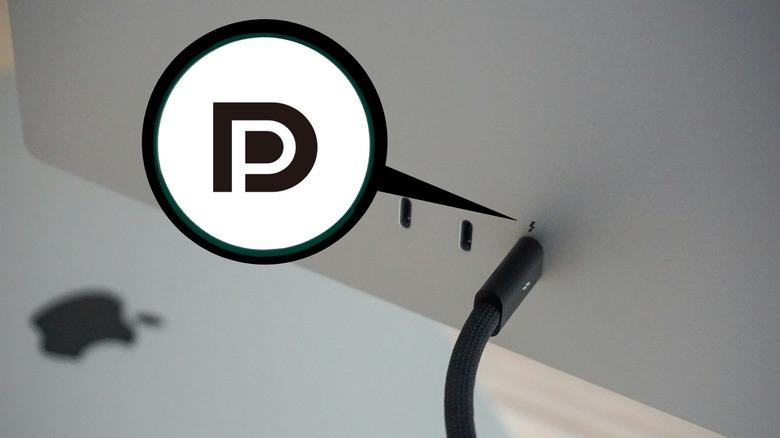
From a laptop to a smartphone, devices with a USB port that support DisplayPort Alt Mode, or more specifically, a USB Type-C port with that compatibility, allow you to connect audio and video equipment using the appropriate cable.
Let's say you're working out of a coffee shop. You can use a USB-C with DP port to connect an external monitor to your laptop so you have more screen real estate. But the benefit is you only ever have to carry one cable for the connection, which handles power delivery, video, and audio altogether. There's less to lug around when you leave your home or office, and that also means less to forget potentially. USB-C with DP might also allow you to connect your device to bigger screens, like a big TV in a conference room for a presentation, or your living room TV to share photos and media.
Now, the important distinction to make here is that both devices you're connecting must support all of the standards you want to use. If you want to connect an external display and charge your device, or keep it powered up, the monitor's USB ports have to support Power Delivery PD in addition to the DP functionality. You should be able to check for this easily. The ports on the monitor will usually show either a lightning bolt or a "PD" next to them. If they have no symbols, you'll need to refer to your monitor or display's user manual or official documentation. If you're trying to decide between HDMI and USB-C, it's best to go with what's compatible. Alternatively, use DP with versatile setups, like a laptop or desktop, and HDMI with common applications, like in your living room.
How many USB types are there and how do you tell them apart?
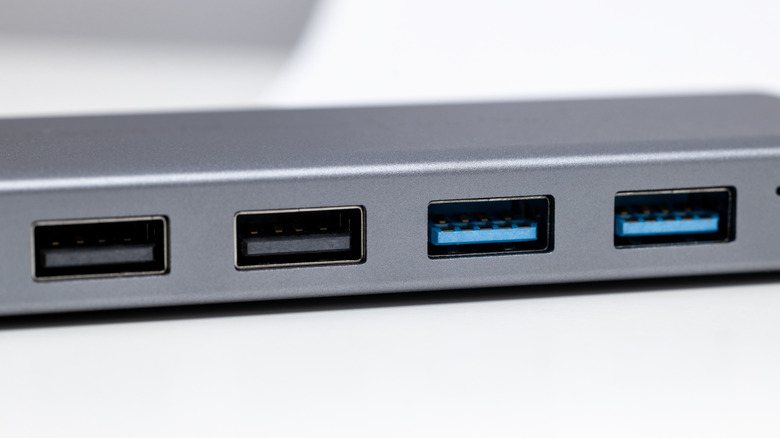
Since the USB 2.0 standard was released in 2000, there have been a few upgrades to improve speed, power delivery, and capabilities. USB 3.0, 3.1, 3.2, 4.0, and most recently, USB4 version 2, which launched in 2022, are all different standards. They also span several types of ports or formats, including USB Type-A, USB Type-B, USB Micro-B, USB Mini-B, and USB Type-C. What you will likely recognize out of those are USB Type-A ports, which have remained the standard for years, and USB Type-C, which most of your modern devices now have and use, including your smartphone. The port formats are mostly shaped differently, too. Type-A is a rectangle, whereas Type-C is smaller with an oval shape.
But when you're talking about ports with the same format, that's when things can get confusing. The best way to tell them apart is either to look at the color of the ports or the symbol next to them. When a USB Type-A port is blue, for example, you know it's the USB 3.0 standard and supports SuperSpeed bandwidth. There are actually a variety of colors used in this way, and knowing every different USB color, or at least the most common ones, can help you out considerably. Symbols, of course, are the next best thing, though they don't quite pop out visually as much as a bright color change.