

4 Pre-Installed Google Pixel Apps You Can Safely Delete
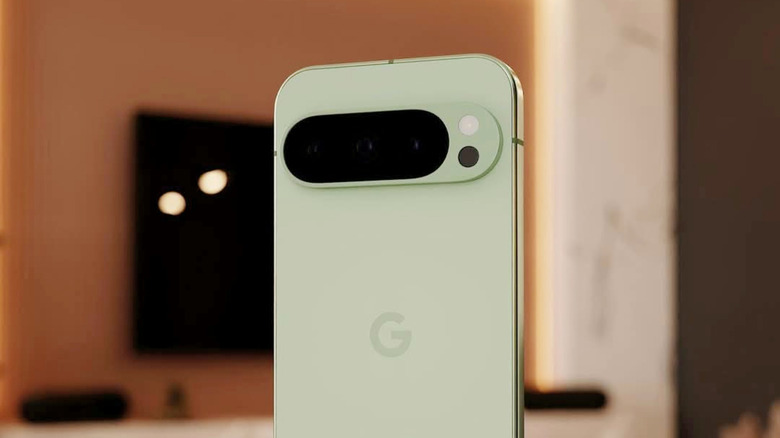
All Pixel phones come loaded with a suite of Google apps right out of the box before you even sign in. For the most part, that's actually a good thing. However, not all apps Google pre-installs on a Pixel stay on your home screen for good, and you may never need them at all. Depending on which version of the phone you purchased, this could be a bad thing for your phone's limited storage.
Fortunately, as with most of the "bloatware" found on smartphones, you can delete them. And, if Google has determined that the app is too important to delete — an unfortunate determination that users have no real control over — then you may even have to settle for just disabling the app. This can still be handy for managing storage, as it will help keep the app from updating and using more of your space.
Whether you've recently picked up the Google Pixel 10 or you're just looking to do some spring cleaning on your device, knowing the apps that you can and can't safely delete can be helpful. In fact, there are a few apps that you might want to delete purely out of principle, or because you already use something else instead. To help narrow down the list, we've put together four pre-installed Pixel apps that users may want to remove or disable as they take back control of their device's storage.
Google Chrome
With an estimated 69% of the browser market share held firmly in its grasp as of July 2026, it's no surprise that Google Chrome comes pre-installed on many Android phones. There's also the fact that Google owns Android, and since the Pixel is the company's device, it is understandably going to lean heavily into its own products. However, not everyone likes Chrome or wants to use it as their default browser. There are plenty of other great Chrome alternatives out there, and many come with both desktop and mobile versions.
Unfortunately, because Google considers Chrome a system application on Pixel phones, you can't just outright delete it. But you can disable it, which will hide the app's icon from your device and keep it from receiving any additional updates. This is helpful if you're not a fan of Google's continued push to integrate AI more deeply in Chrome, or if you want to use another browser as your default instead. To disable an app on your Pixel smartphone, you'll need to open the Settings menu and then navigate down to Applications. From here, find Chrome in the list, select it, then tap Disable. On some phones, you might get the option to delete the app entirely, but that's because Google has been relaxing its stranglehold a little following massive pushes by the European Union to open Android up.
Google Photos
Google Photos is probably one of Google's best apps, but not everyone wants or needs to sync their data to Google Drive, and if you take a lot of photos, it could bog down your free storage space if you haven't upgraded to a large plan. And while there are plenty of reasons to use Google Photos, there are also reasons you might want to avoid it, like the fact that Google trains AI using your photos unless you change a setting.
While it does come pre-installed on Google Pixels, there are plenty of other backup options out there. Since Google discontinued the unlimited photo storage function that used to come with Pixel devices, making good use of your online Google storage is vital to ensuring you never run into issues receiving emails or even making documents in Google Docs.
The big thing to keep in mind with disabling or deleting Google Photos is that a connection to Photos is built into the camera app on Pixels, so you might run into issues viewing photos after you take them. Of course, you can also reinstall or re-enable Google Photos later if you decide you do want to use it or if you're having too many issues. Google is constantly adding new features to Photos, and while many are AI-related, these features might eventually be tempting enough to lure you back.
Google Books
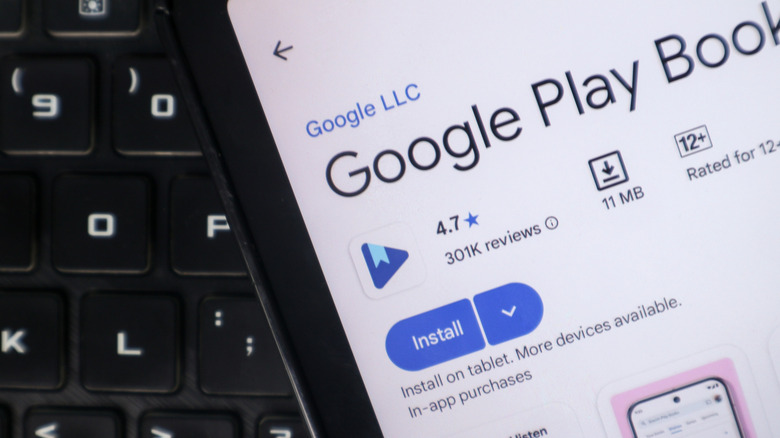
Nobody would fault you for not knowing about Google Books, Google's attempt to break into the ebook market. Integrated directly into the Pixel as the Play Books app, Google Books allows you to purchase and listen to or read ebooks and audiobooks via the Play Store. However, for many Pixel users, this app is just useless bloatware.
If you already have the Kindle app, a real Kindle, or even a library app like Libby, then Google Books is a reading app that you've probably never even opened since the day you set up your phone. Where Chrome and Photos are considered more integral to Google's Android experience on Pixel devices, most Pixels will allow you to remove Play Books entirely. To remove it, all you need to do is head to Settings, then navigate down to Apps and locate the Google Play Books application. You should then see an Uninstall option instead of just the Disable option that Chrome and Google Photos offer.
It is important to note, though, that if you have purchased ebooks or audiobooks in the Google Play Store, then you may want to hold off on deleting this application, at least until you've listened to or read those books. That's because the moment you remove Play Books from your device, you won't be able to access those books. They won't be lost forever, of course, but they will be harder to access, as you'll need to reinstall the app and then redownload the books, too. If you're already invested in a different ebook system, though, there's really not much reason to keep Google Books on your phone.
YouTube Music
Since Google merged Google Play Music into YouTube Music in 2020, it's become a preloaded application on Pixel phones and even some other Android devices. Google has continued to make a strong bid for it to become a user's one-stop shop for music and, even podcasts, over the past couple of years. While it has received some major upgrades over the past few years, and there are definitely reasons to switch to YouTube Music, users may already be deeply ingrained in other services such as Spotify, Apple Music, or even Amazon Music.
If YouTube Music is doing nothing but gathering dust on your phone and eating up storage space while also sometimes showing you notifications, then it is worth disabling or deleting it. Depending on how old your Pixel is, you may only be able to disable the application. However, newer devices should let you delete it entirely. The only real way to tell is to check your phone's app settings, though you could always delete any app completely using Android's ADB application. This is not recommended for most users, as you can potentially brick your device if you aren't careful and remove something overly vital to your phone's stability.
Google now considers it more of a "normal" application than a fundamental system component, so if you can delete it, just go to your application settings and do so from there. YouTube Music has become the de facto app for all audio in Google's ecosystem, especially since the company merged the Google Podcast app directly into YouTube Music in 2024.