

The Easiest Way To Test Your Windows Laptop's Battery Health
Learning more about your Windows laptop's battery health gives you a decent idea of what kind of shape it's in. Generally, the worse the health, the less time you can use it unplugged because it drains faster than it otherwise should. Plus, when a laptop's battery health state is poor, it can sometimes have adverse effects like performance problems or random shutdowns at specified percentages. In the worst-case scenario, a laptop battery showing rapid health problems is also a sign that it is dying, thus needs replacing.
If you depend on your laptop at work or school without access to an outlet, you don't want to end up in these situations without some warning. So a decent way to check is by running the battery test in Windows. It requires Windows PowerShell or, if you're still using the legacy program, Command Prompt, with the "Run as Administrator" option — thankfully, this process doesn't take long, and it doesn't require much knowledge of command lines to make full use of it. Plus, you can also cross-check with built-in software that might provide similar info; major manufacturers like HP, Dell, Lenovo, and Asus should have their own diagnostics software that can measure or check your device's battery health and optimize it.
How to run the battery test in Windows
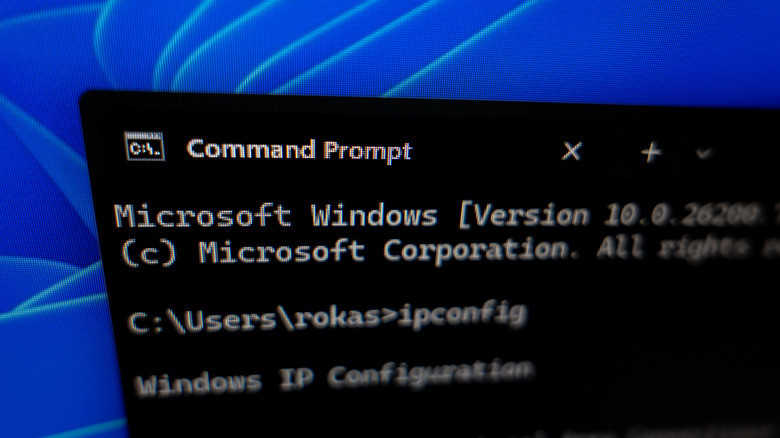
You can start the test by selecting Windows PowerShell or Command Prompt. Before opening the program, right-click to choose "Run as Administrator." In Windows PowerShell (the regular version, not the x86 one) or Command Prompt, enter "powercfg /batteryreport /output "C:battery-report.html" (remove the quotation marks). Now navigate to your C: Drive through File Explorer; the directory should be C:UsersYourUsernamebattery-report.html, or you can search for "battery-report.html" using the search bar in the top-right of File Explorer.
Once you find the HTML file, double-click to open it; the file should contain the device name, system product name, OS build, platform, and report time. The report breaks down your usage, including start time, state, source, and capacity. Scrolling down should also show you a graph of battery drain — though if you keep your laptop perpetually plugged in, it may stay blank since you are sitting at 100% for the seven days it takes to measure.
The usage history is a log for times when you are using the battery. While it's charging, that doesn't tell you the whole picture for your battery health; what you ideally want to pay attention to is the current capacity versus the one shown in the history when the device was manufactured. The more often you charge and drain your device, the battery capacity eventually diminishes — so if you have had your laptop for over two years, and it remains at around 85%, then your battery is healthy — some laptops drop only around 5% to 10% each year depending on temperature and charge storage. At the end of the report, you'll also find details on battery life in hours and minutes, based on timestamps that show battery drain.
What to do if the battery in your laptop isn't great
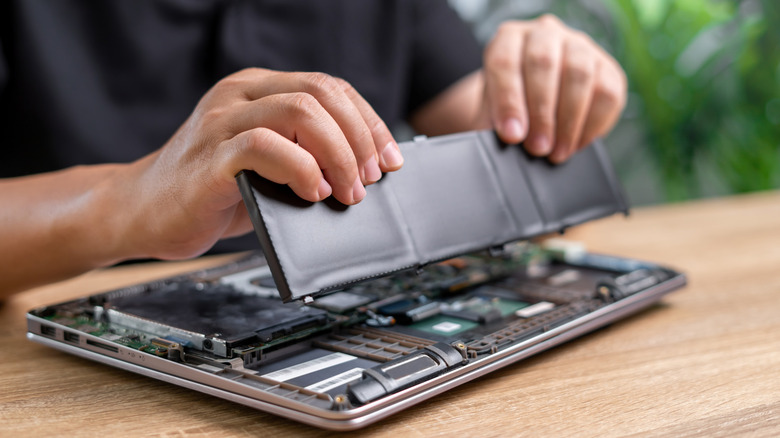
If you find that the battery capacity has been diminishing much more than it should, that likely means two things: one, you've been charging and discharging your laptop more frequently because you might be a heavy user or have left it idle without a power source for too long, or two, your laptop battery has seen some physical damage. If you suspect physical issues — for example, swelling on your computer (the frame gets warped) — be very careful handling it; this is a sign of swelling. Turn it off immediately, as this could become a fire hazard.
If you don't have the technical know-how to remove a swelling battery or don't have the means to safely dispose of it, seek professional assistance from a local repair shop. In most cases, the battery health is likely influenced by usage. The only way to overcome poor battery health is to change some daily habits, like charging your device routinely, storing your laptop in mild-temperature environments, and ensuring that the screen stays off while it is not in use. You'll want to lower your laptop display's brightness, which, on its own, can dramatically extend your laptop's battery life.