

5 Of The Most Common TP-Link Router Problems And How To Fix Them
We may receive a commission on purchases made from links.
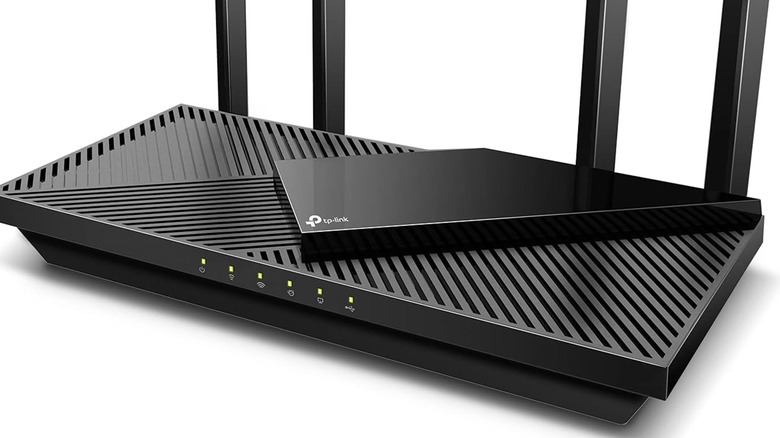
TP-Link is a regular face in the Wi-Fi router business, offering a variety of different routers and router-adjacent devices like mesh systems, range extenders, and access points. Generally, TP-Link's routers are fairly reliable, and one of its routers is rated higher on Amazon than routers from Netgear or Eero. Of course, no product is perfect, and TP-Link's routers have been known to exhibit occasional problems, such as unstable connections or suboptimal Wi-Fi range.
The good news is that these kinds of problems are not exclusive to TP-Link routers, but rather to routers as a whole. Since they're fairly common problems, most of them have straightforward, common-sense solutions, whether it's tweaking your router's settings, upgrading it with additional hardware like a mesh system, using physical connections where possible, or taking more creative approaches like incorporating smart plugs into your router setup. If you're experiencing any of the following issues with your TP-Link router, try these solutions before you start shopping for a replacement.
Generally slow or unstable connection
One of the most common frustrations with any internet router, TP-Link or otherwise, is a connection that doesn't meet your personal standards of quality. Assuming you're paying for a decent package from your ISP, it's fair to expect internet that's both high-speed and consistently stable, so if your router isn't providing either of those qualities, that's naturally quite annoying.
Before anything else, check in with your ISP to see if there are any outages or service interruptions you weren't aware of. The problem may not actually be on your router's side. If your network status is good, the next step is to open your router's settings on your PC and try a few tweaks. You can manually set your router's bandwidth, switch to a different Wi-Fi channel, or enter a different DNS server address. For that last solution, you can access your DNS settings in the Advanced, Network, and Internet tabs, in that order. TP-Link recommends using 8.8.8.8 as the Primary DNS and 1.1.1.1 as the Secondary DNS for a reliable connection. Don't forget to keep your router's firmware updated as well, as outdated firmware can cause connection issues.
Network congestion

The internet's old moniker, the "information superhighway," is surprisingly apt, because using it is often made more difficult by traffic and congestion. Whether you're sharing your router with roommates or family members, or live in a crowded neighborhood with a lot of people connecting at once, network congestion is an unfortunately consistent annoyance.
The first thing you should do to deal with congested networks is, if you can, connect your devices directly to your TP-Link router via an Ethernet cable. You don't need to worry as much about sharing the Wi-Fi if you're not actually connected to it. Besides that, you should also endeavor to power down any internet-connected devices you're not actively using throughout your home, as leaving them connected all day can drain bandwidth. If disconnecting devices isn't an option or, in the case of housemates, isn't up to you, a more tangible solution would be to install a reliable mesh Wi-Fi system, which TP-Link also sells. Mesh systems both broaden and reinforce your Wi-Fi signal, allowing more devices to connect at once without hampering the signal's overall strength.
Wi-Fi doesn't reach your whole home
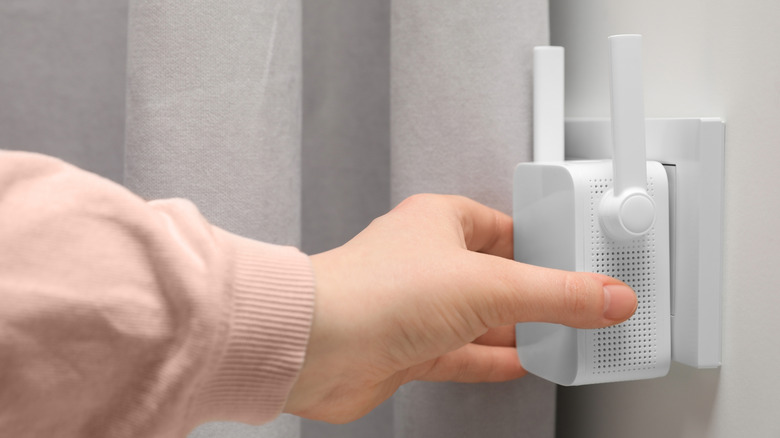
If you live in a larger home, and especially if your personal devices or PC setup is in a basement or attic, you might not be getting the best possible Wi-Fi signal from your TP-Link router. The best practice is to place your router in a central location in your home where all your devices can reach it, but it might not reach every nook and cranny, especially if the signal needs to penetrate multiple walls and floors.
Unfortunately, in this particular case, there isn't much you can do with the router itself beyond finding a better physical location and, if possible, removing any potential obstructions. Obviously, this is not realistic if you want your Wi-Fi to reach every room in your house. If your signal is falling short, you should consider investing in hardware upgrades, such as a signal extender, a powerline adapter, or a mesh Wi-Fi system. A signal extender is the most economical option, optimal for extending your signal's reach just a bit further to a single point, whereas a mesh system is a better approach if you need to extend the signal to multiple spots in your home. Alternatively, a powerline adapter would allow you to extend your router's signal through your home's electrical wiring, which is a good option for reaching those tricky far-off spots.
Unsecure Wi-Fi

Depending on the precise TP-Link router model you purchase or receive from your ISP, it may or may not have security protocols preloaded. If it does, great, but if it doesn't, using the Wi-Fi through that router could put your personal information at risk, with bad actors able to spy on your daily activity. If you're purchasing a TP-Link router, it's ideal to choose one with security features such as a built-in antivirus and WPA3 encryption. That's only half the equation, though.
The first thing you should do after purchasing and setting up a TP-Link router is to set a password for its network, which you can do through the router settings. It's a baseline security measure, but every one helps. You should also know how to do this in the event the router becomes compromised and you need to change the password. For more advanced solutions, you can disable features like universal plug-and-play to make it harder for some types of malware to reach you, and hide your network name (SSID) from local devices, which makes it harder for anyone who doesn't know the name to connect. In the same vein as slow and unstable connections, you should also remember to keep your router's firmware up to date, as new updates may include improved security measures.
Router needs constant rebooting
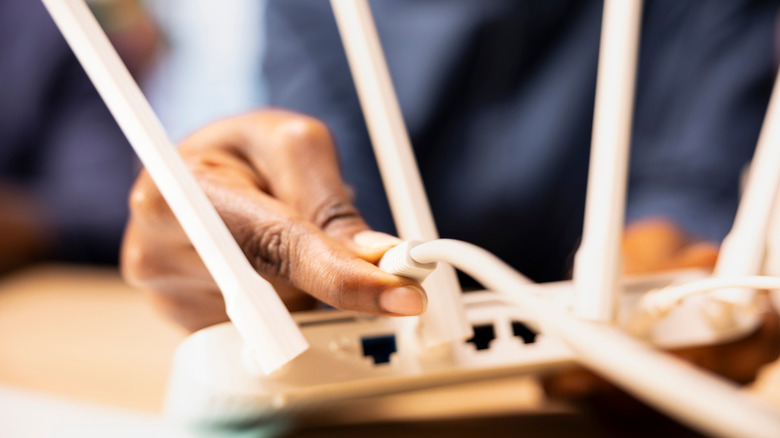
Another classic frustration with all routers, TP-Link included, is having your connection suddenly drop out for no apparent reason, and the only way to get it back is to unplug it and plug it back in. This particular problem seems to plague just about every router at least once in its lifespan, but if your TP-Link router has reached the point where you're rebooting it multiple times in a single day, that's more of a concern.
Because this problem is so random and unclear, there isn't much you can do in your router's settings to remedy it. The problem is most likely either with the router itself or with your home's network infrastructure. You should try calling a network repair person to take a look at your home's setup if you can, but in the worst case, it might simply be time to replace your router with a new one. If you're not willing or able to replace your router, TP-Link suggests a stopgap in its FAQ: using a smart plug. By plugging your router into a smart plug, you can schedule it to power-cycle on a consistent daily basis, which can help reduce random reboots throughout the day. This is only a short-term solution, though, and you should consult with TP-Link support and your ISP as soon as you can.