

This Logitech Feature Can Connect Your Laptop And Computer Seamlessly

We may receive a commission on purchases made from links.
If you've ever set up a dual-computer workstation before, then you already know how much of a hassle it is to juggle peripherals and transfer files between the two. You constantly have to switch your mouse and keyboard's connection and upload and download files to cloud storage just to access them on the other computer. This inconvenience is exactly what Logitech's nifty solution, called Flow, aims to solve.
Flow offers two main features. First, it lets you use the same Logitech keyboard and mouse on both of your computers. Transferring the connection is as easy as moving the cursor from one screen to the next. Once the cursor crosses over, your Flow-compatible keyboard follows suit. Flow also serves as a file and text sharing service. Whenever you need a file or text from the current computer, just copy it to your clipboard, then move your mouse and paste it anywhere on the other computer. Easy peasy.
Logitech Flow works exclusively on Logitech devices, though, and it's only available on select mice, touchpads, and keyboards. This includes Logitech MX Master 4, Lift, Casa Touch, and Casa Keys. You can use Flow on two PCs, two Macs, or one PC and one Mac. As long as the computers are updated to at least Windows 10 or macOS 14, you shouldn't have any problem. If you already have a Flow-compatible mouse or touchpad and want to try out Flow, we'll walk you through how to get it up and running on your computers.
How to set up Logitech Flow on your computers
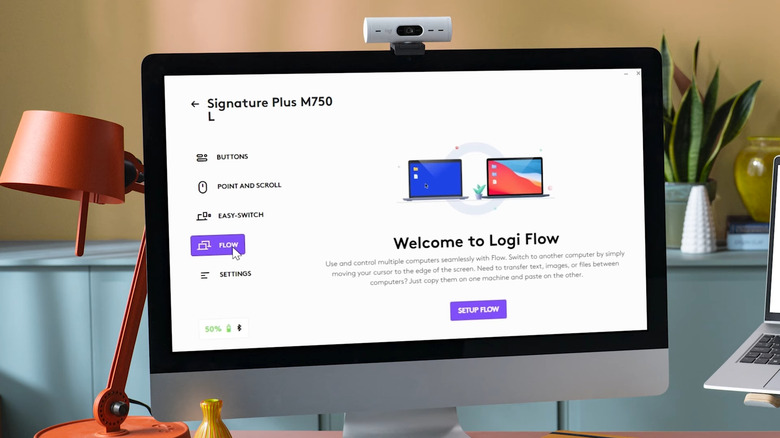
To configure your desktop and laptop with Logitech Flow, you need to have the Logi Options+ app installed on both computers and connect the devices to the same Wi-Fi or Ethernet network. Once that's in place, follow these next steps:
- Pair your Logitech Flow-supported mouse or touchpad and keyboard to both devices, each on a different channel (e.g., laptop on Channel 1, desktop on Channel 2).
- Launch Logi Options+.
- Select your Logitech mouse or touchpad from the home screen.
- Click on Flow from the side panel.
- Hit Setup Flow.
- Press Continue.
- Wait for Logi Options+ to find your other computer.
Once connected, click on Continue to proceed to the Flow screen. Here, you can drag the panels around to mirror how your physical computers are arranged. If your mouse and keyboard support three channels, you can also connect a third computer by clicking on Add Computer at the bottom.
If you need to share your keyboard between your computers, go to More Settings in the top-right corner of the Flow screen, toggle on Link keyboard, and pick your keyboard from the dropdown menu. There's also a setting here to change how you want to switch computers: "Move cursor to edge" or "Hold CTRL and move cursor to edge." The latter comes in handy when you don't want to accidentally transfer your mouse whenever you drag it to the edge.
How to use Logitech Flow to manage the connected computers
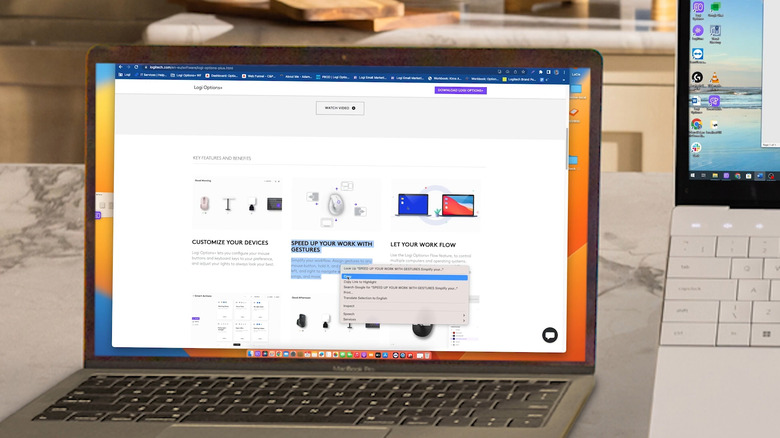
Logitech Flow helps you get the most out of your handy desk gadgets, and thankfully, using it on your laptop and desktop is pretty straightforward. When you want to move the mouse and keyboard over, simply drag the cursor to the side of the monitor that's closest to the other computer. You should see the cursor cross over. That means it's ready for use on that other computer. Feel free to start browsing and typing away.
If you need to copy files and text, select or highlight the item, right-click on your mouse, and choose Copy. Then, drag your mouse to the other computer, right-click again, and hit Paste. Unfortunately, you can't just drag and drop files between computers to transfer them. The transfer also isn't instant for large files, as it depends on how fast your network is.
Other than switching peripherals between computers and sharing files, Flow also makes it easy to manage the connected computers from Logi Options+. Open the Flow screen from the shared mouse and press the three dots on the computer you want to manage. From the pop-up menu, you can opt to disable the computer to temporarily stop your mouse and keyboard from transferring to it. If you prefer to completely unpair the computer from Flow, select Remove instead. Doing so won't unpair your mouse and keyboard from the device, though. When you're ready to stop using Flow, open the Flow screen from Logi Options+ and toggle off Flow from the top. Your settings and computer setup will still be saved and ready for use when you turn on Flow again.