

How To Get The Best Video Quality With Your Logitech Webcam
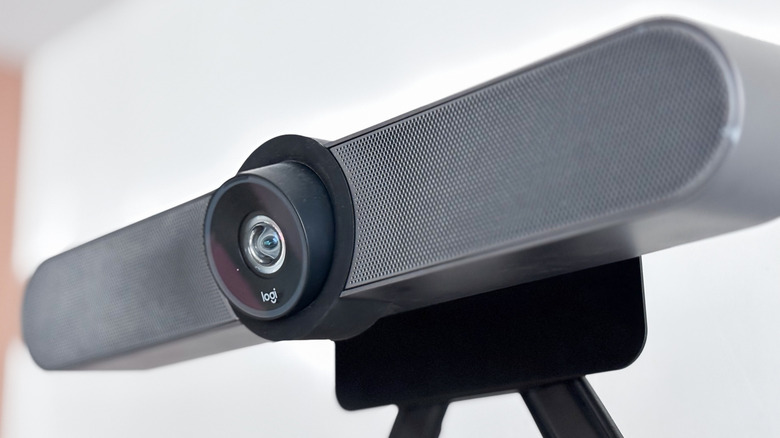
While there's an argument that webcams are no longer a necessity at all, Logitech's webcams remain some of the most popular and ubiquitous on the market (among other, cheaper options that are great replacements for your laptop cam). If you want the best possible image from a Logitech webcam, start with the part many people overlook: lighting. Logitech's own support guidance and webcam-optimization tips both point to the same core truth, that a webcam can only work with the light it gets. Face a window if you can, add soft front lighting if you can't, and avoid sitting with a bright light behind you, which forces the camera to darken your face.
Next, connect the webcam directly to your computer instead of through a hub or dock, and make sure you're using the latest driver or camera software. In Logitech G Hub, Options+, or Logi Tune, set the exposure, focus, and white balance manually, rather than leaving everything on automatic. Auto settings can be convenient, but they often hunt for focus or shift colors when lighting changes, which makes the image look unstable on video calls.
Resolution matters, too, but only within the limits of the hardware. A 1080p webcam can look very good at 1080p, but it will never become a 4K camera. That means models like the C930e are capped at full HD, while Logitech's better 4K options, like the Brio 4K and MX Brio, have more headroom for sharper detail if your computer can handle it.
Know what each model can and can't do
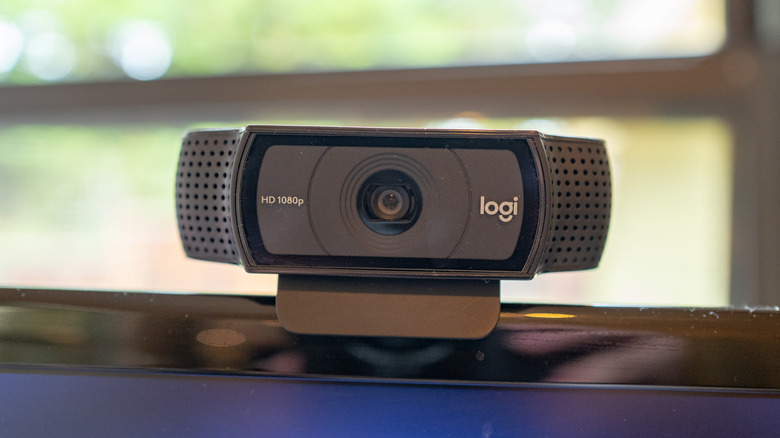
For older or mainstream Logitech models, expectations are everything. The C920 class of webcams is still popular because it delivers solid 1080p video, but it is not a low-light monster, and it cannot match the crispness or cropping flexibility of a true 4K model. The C930e adds a wider business-focused view and solid 1080p output, but it is still fundamentally a 1080p camera, so users should not expect fine-detail 4K clarity from it.
The StreamCam is optimized more for smooth 1080p content than ultra-high resolution, making it a good fit for creators who value clean 1080p video over raw pixel count. At the top end, the Brio 4K and MX Brio are some of the best Logitech choices if you want the most detail, but even those still depend heavily on lighting and setup — 4K won't rescue a dim room or a noisy video feed.
The bottom line is simple. Pick the highest-resolution Logitech webcam that fits your needs, then maximize it with good light, direct USB connection, and manual tuning. The camera cannot exceed its native resolution, but the right setup can make even a midrange model look noticeably better. Also, if you have privacy concerns, regardless of make or model, consider these tips on how to check if your webcam is spying on you.