

How To Control Your LG TV Without A Remote
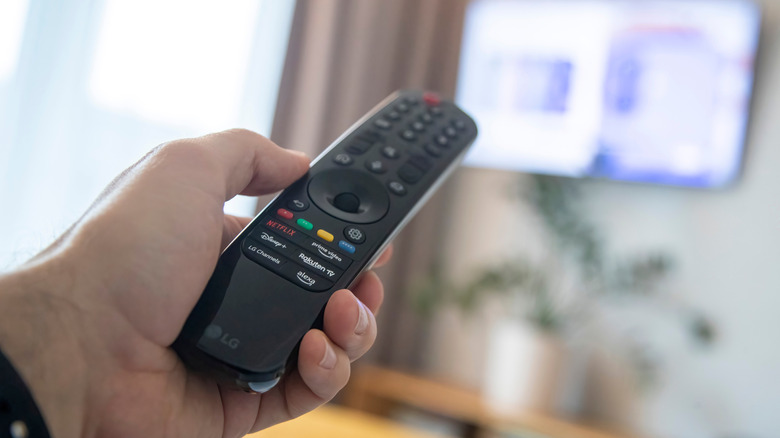
Your LG TV remote always seems to go missing at the most random times. You know you left it in one spot, but somehow, it's never there when you need it. And when you do have it on hand, you encounter another common problem with the LG TV remote — its intermittent performance. It sometimes loses connection with the TV, refuses to respond to button presses, or stops working altogether.
But just because you have a missing or malfunctioning remote doesn't mean you can no longer use your TV. While it's a natural reflex to reach for the remote, it's actually not your only option.
There are two ways to control your LG TV without a remote. For one, you can use the physical button built into the TV. Or two, you can install a remote app on your phone, then pair it with your TV. We'll walk you through how to use both methods, so you can finally stop worrying about where the remote is.
Method 1: Press the button on the TV itself
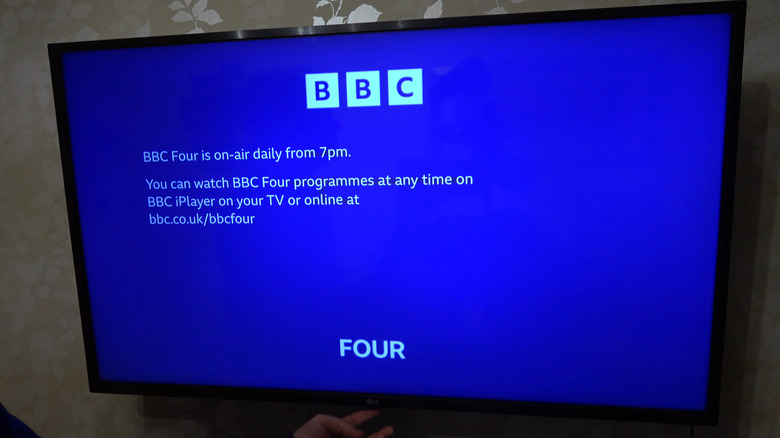
Many major smart TV brands still include physical buttons either on the underside or back of the device, and LG is no exception. Naturally, these physical buttons aren't as complete and convenient to use as the remote, but they should do the trick for basic tasks. On most LG TVs, you'll find just one physical button, usually located on the underside. It looks like a simple power button, but actually comes in two variants that support performing more than one action.
The first one is Type A, which you can press or press and hold. Press it once to turn the TV on, press it again to open the menu and browse the options, press and hold to select an option from the menu, and press and hold for two or more seconds to shut down the TV. Unfortunately, it doesn't do anything else outside of these four functions.
The second variant, Type B, offers a bit more control, as it can be moved left, right, up, and down. To turn on the TV, press the button. Once it's up and running, press it again to go to the onscreen menu and move it to choose an option. Outside of the menu, you can move the button left or right to adjust the volume and up or down to change the channel. To turn the TV off, press and hold the button.
Method 2: Pair your LG TV to the remote app on your phone
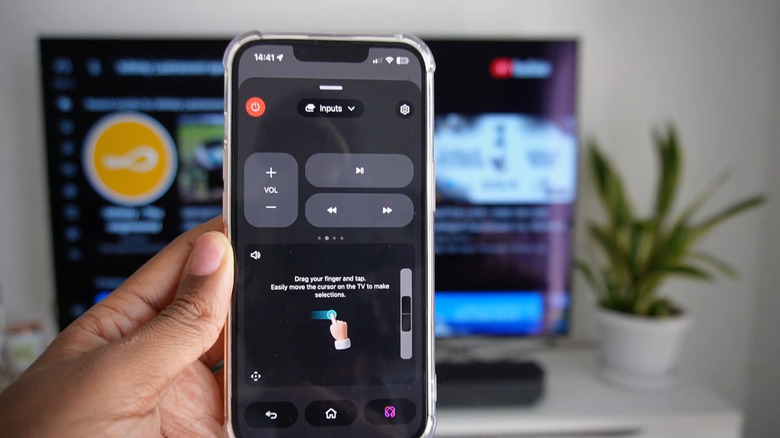
The physical button on your LG TV can get you by in a pinch. But to get the full remote experience, you need a free alternative to control your smart TV: your phone. Here's how you can set yours up to turn it into a remote for your LG TV :
- Turn your TV on.
- Connect your TV and phone to the same Wi-Fi network.
- Download the LG ThinQ app.
- Hit the plus sign in the top-right corner.
- Go to Add devices.
- Choose TV.
- Press "Turned on" if you've already powered on the TV.
- On the "Connect to same Wi-Fi" screen, select Done.
- Wait for a few seconds until your phone detects your TV.
- Tap on the TV from the available devices.
- Type the PIN code displayed on the big screen.
- On the login page, select Skip.
- Click OK to proceed.
You can now open the remote control and choose the mode to use. By default, it's set to trackpad mode. This lets you navigate the interface with a cursor. If you prefer clicking on the menus instead, you can switch to D-pad mode. For hands-free control, there's a voice assistant mode available too. Other than these controls, the ThinQ remote app comes complete with the usual volume rockers, media controls, power button, home button, and Settings icon. And just like on a regular LG TV remote, you can quickly open apps straight from the remote as well. Simply swipe left on the panel with the media buttons.