

5 Common Problems With LG TVs
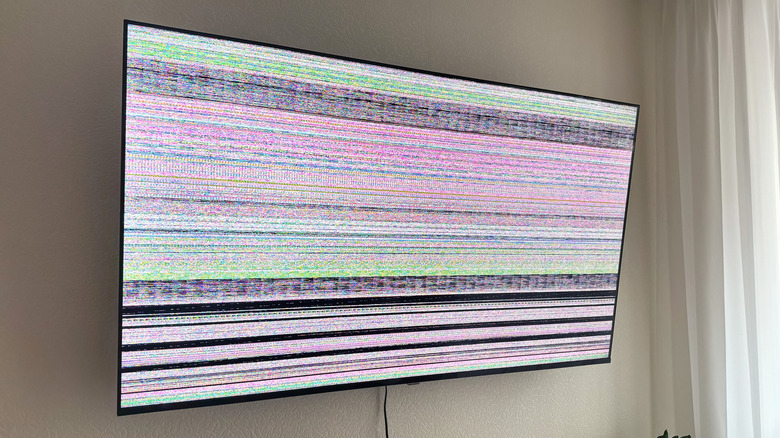
LG is among the top major smart TV brands based on customer satisfaction, so it's easy to assume that they'll run more smoothly and reliably than most competitors. But while that's generally true, there's no such thing as a perfect smart TV, and like others, LG TVs have their own set of weaknesses. These are problems that users commonly run into and typically affect the usability, convenience, and the overall viewing experience. Common problems associated with LG TVs include audio or video issues, having a blue tint on the screen, or having trouble running certain apps.
If your LG TV suddenly stops working as expected, one of the very first things you can do is reboot it. Just unplug it from the wall outlet, leave it disconnected for five minutes or so, then plug it back in and power it on again. More often than not, this simple trick is all it takes. If a reboot doesn't solve your LG TV problem, proceed with the other troubleshooting techniques we've outlined below, each specific to the issue at hand.
There's no audio from the LG TV

Issues with the TV's audio are arguably at the top of the most common smart TV problems, and for LG TV owners, that can happen whether or not they're using an external speaker. If there's no sound output from either your TV's built-in speakers or external audio devices connected to it, the first thing you need to check is the volume on both devices. Verify that they aren't on mute and have the volume set to a decent level, say about 50%.
If you still can't hear anything, conduct a sound diagnosis on the LG TV to see whether its internal speakers are actually operational. To do so, follow these steps:
- Hit the Settings button on your TV remote control.
- Open All Settings.
- Click on Support.
- Select Sound Self-diagnosis.
- Listen to the test sound playing.
If you can hear it, there might be an issue with the input source settings. In Settings, click on Sound and go to Sound Out. For speakers connected to the TV via a cable, set it to Use Wired Speaker and choose your specific device from the list. For wireless speakers, select Use Wireless Speaker and your device. When combining both TV and external speaker, go with Use External Speakers with TV Speaker and your configuration of choice. It's also a good idea to replace the cables used in case they might be faulty.
If all else fails, you can do an AV Reset to revert the audio settings back to factory defaults. This also resets your picture settings, though, so make sure you remember your configurations before proceeding. To access AV Reset, click the mute button on your remote control thrice, then go to AV Reset on the menu that pops up.
The screen shows a blue tint
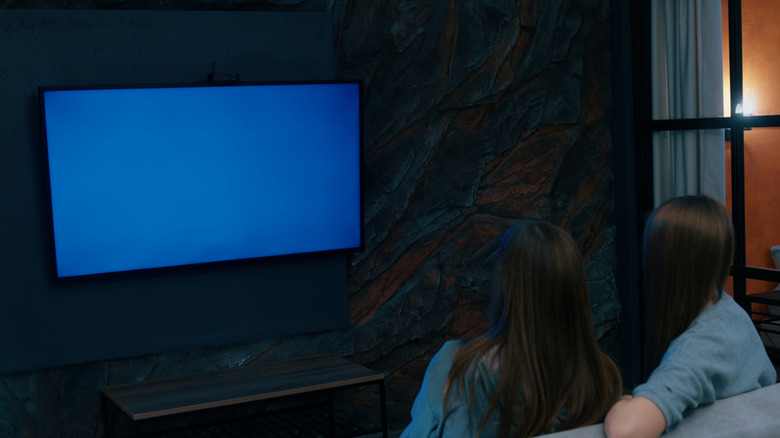
In some instances, your LG TV suddenly appears bluer than normal, with a blue tint ruining the picture underneath. The TV still turns on and loads the OS normally, but you can't see the picture clearly because of the blue tint. This is one of the more common display issues with LG TVs, and it might be caused by unstable input or faulty or loose cable/port. To fix your LG TV's blue tint, first run a Screen Self-diagnosis. This helps determine if the TV screen itself is functional. Here's how to perform the diagnosis on your LG TV updated to webOS 24 or later:
- Press the Settings button on your remote control.
- Click on All settings in the upper left corner.
- Go to Support.
- Choose Screen Self-diagnosis from the menu.
- Check if the displayed image doesn't show a blue tint.
- If it still does, select No and take note of the Model Name, Software Version, and Serial Number displayed on screen.
If the test image looks normal, the blue tint on your LG TV is likely an input issue. Power off your TV and unplug all the HDMI cables connected to it. Then, use another working HDMI cable and plug it into a different HDMI port on your TV. You can also try a different input source.
If you've done everything you can and your LG TV is still blue, it might be a hardware problem, specifically a faulty backlight on non-OLED TVs. While some users have replaced the backlight themselves, the process is a bit technical and you might be better off taking your TV to a nearby service center.
The TV turns black but has sound on
There are a couple of reasons why your LG TV shows a black screen but still produces sound with no problem. For one, it could be a defective cable running from the TV to your input source. Unplug the HDMI cable, replace it with a new one, and connect it to a different HDMI input on your TV. Once done, long-press on the Input button on your remote. In the menu that pops up, click the HDMI input where you plugged in the source.
If you're not using any external input source, test the TV display instead. If you already have content playing with sound on, use a flashlight and inspect the TV closely to check for any movement or images. Your LG TV might have a backlight problem if you see some images, but if you don't, the black screen might be due to the display panel or mainboard malfunctioning. In both cases, your LG TV might still have audio output even when the screen is black. You can schedule a repair for your TV, or take help from some YouTube tutorials if you want to try fixing the TV yourself. Of course, do this at your own risk.
If you can't test the TV via flashlight, try your remote instead. First, unplug the TV from power. Then, hold down the physical power button on the TV for ten seconds. It's usually located on the back or right in the middle of the TV, beneath the screen. Turn on your LG TV afterwards. Press the volume buttons on the remote or the joystick button on the TV to see if anything will show up. If nothing appears, take your TV in for repair.
The LG TV remote isn't working
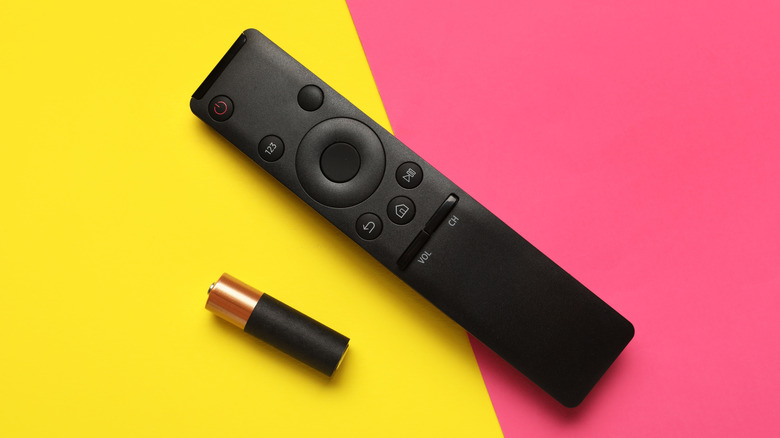
Imagine you're getting ready to start a movie, then realize your LG TV doesn't respond to any remote press. Remote controls can be quite finicky, so users often encounter this issue. While common, though, they're pretty easy to troubleshoot. The quickest way to fix an unresponsive LG TV remote is to replace the batteries. To check whether they're empty, press any random button and see if the light on the power button turns on. If not, remove the batteries and put in new ones. You'll usually need two AA batteries.
Sometimes, your LG TV remote also doesn't work because it was somehow disconnected from the TV. If you have an LG Magic Remote, try giving it a few shakes. A pointer on the TV should pop up at the same time. If you don't see any pointer, de-register and re-register the remote. Here are the steps to follow:
- De-register the remote by long-pressing on both the home and back buttons for five seconds.
- Turn off the TV.
- Remove it from the wall outlet.
- Take out the remote batteries.
- Wait a while.
- Plug the TV back in.
- Place the remote batteries back.
- Turn on your TV.
- Register the remote with a simple press on the scroll wheel.
If your LG TV remote is still unresponsive after all these steps, check whether its Bluetooth signal is working. To do so, de-register the remote again and power off the TV. Then, hold the OK button on the remote and use your phone's Bluetooth settings to search for it. You should see an "LGE MRXX" device on your Bluetooth list. If it isn't there, the remote is likely defective. Thankfully, you can always buy a replacement from the LG Shop.
Netflix isn't working on your LG TV
Being one of the major streaming platforms, Netflix is probably the one app you use all the time on your LG TV. It works with no hiccups for the most part, but occasionally, it can suddenly stop working. Maybe it starts lagging, crashing as soon as you open it, or not launching at the first click at all. Lucky for you, the fixes for this common LG TV problem are pretty simple.
To start, make sure your internet connection is up and running. Power cycle both the TV and the router and check your TV's network status. If possible, connect your TV to the internet via Ethernet for a more stable connection. If your TV has no internet issues, try updating your LG TV to the latest firmware. In your Settings, go to Support and click on Software Update. You should be able to see a Download and Install button if there's a new firmware version. Sometimes, your TV might say that it doesn't have any updates, even when there are updates pending. In this case, you need to manually update your LG TV using a USB drive. If upgrading your TV's firmware doesn't help, another trick is to uninstall and reinstall Netflix. You'd have to log in to your account again, though.