

Is It Safe To Skip Backup When Erasing Your iPhone?
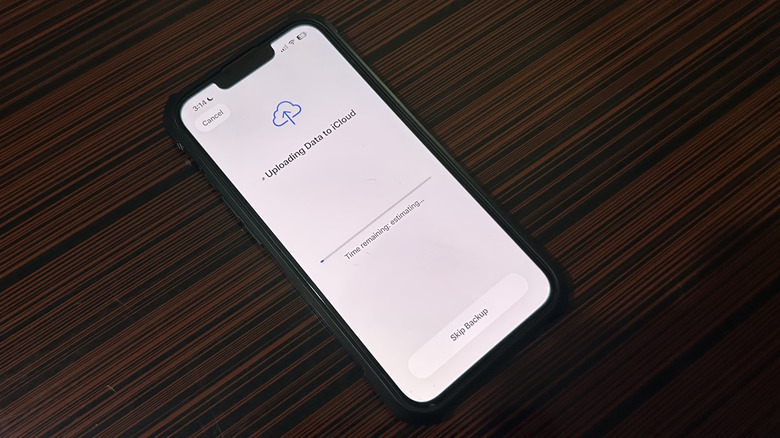
When erasing your iPhone, you'll come across a step asking if you want to create a backup or skip it. But before you tap that Skip Backup button, it's worth considering your situation. If you are switching to a new iPhone and have already transferred your data to it from the old iPhone, then yes, it's probably safe to skip the backup since the data already exists in the new iPhone. If you're factory resetting the phone because you're selling it, trading it in, or fixing a major software bug, and there is no backup on iCloud or your computer, then it's not safe to skip a backup because that will mean your data will be gone forever. If your phone gets stolen and you don't have a backup, you should still remotely erase it through iCloud to protect your data, but you won't be able to restore your photos, messages, and other information afterward.
The backup you create will include your iPhone's configurations, home screen layout, photos, videos, messages, and even your Apple Watch backups. If you're backing up on your iPhone, it will go to iCloud, so ensure your phone is connected to a stable Wi-Fi network. If you're creating the backup on a computer, you will need a compatible USB cable for your iPhone. On Mac, you will do the backup in Finder, which is the built-in file manager in macOS, but on Windows, you will need to download the Apple Devices application. These backups tend to be large, so make sure there's enough storage on both iCloud and your computer.
How to back up your iPhone regularly
The best way to back up your phone is to automate the process via iCloud daily backups, but you'll most likely need to pay for more storage if you do that. Your iCloud account gets 5 gigabytes (GB) of free cloud storage, which may not be enough, especially if you've been using your iPhone for a while. You can increase the storage to 50 GB, 200 GB, or 2 terabytes for $0.99, $2.99, or $9.99 per month, respectively. These aren't all the plans, but they'll do for most people. You can turn off iCloud backups when you need to free some space on iCloud, but the ones you've already made will automatically be deleted in 180 days.
To back up your iPhone to iCloud, follow the steps below:
-
Open Settings.
-
Tap [Your Name] at the top.
-
Tap iCloud.
-
Tap iCloud Backup.
-
Toggle on Back Up This iPhone.
-
Tap Back Up Now if you want to do it right away.
On macOS and Windows 11, you can store the backup on your computer's drive. If you can, make extra copies by transferring it to an external drive or a free cloud service like Google Drive and OneDrive. To back up your iPhone on your Mac, follow the steps below:
-
Open Finder on your Mac or Apple Devices on Windows.
-
Select your iPhone.
-
Select General.
-
Select Back up all of the data in your iPhone to this Mac or computer (on Windows).
-
Click Back Up Now.