

iPhone Accessory 'Uses Too Much Power'? This Could Be The Fix
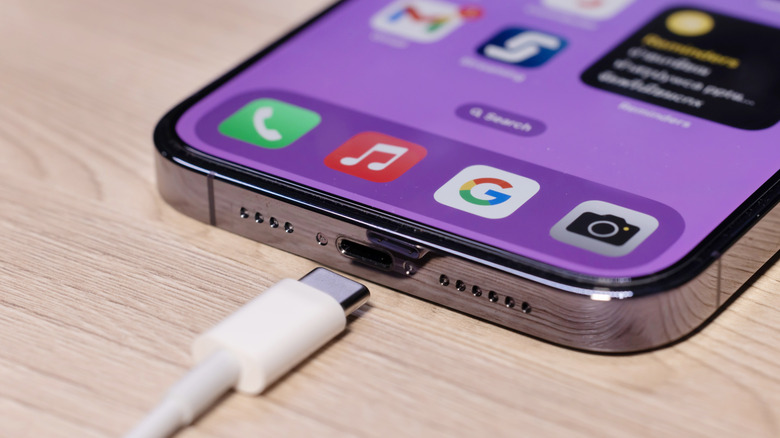
Modern iPhones can power various devices via USB-C or Lightning, a feature that can be useful if you want to quickly top up an Apple Watch or AirPods case on the go. That's a feature Apple advertises for iPhone 15 and later models, which can recharge gadgets that support USB Power Delivery (up to 4.5 W). However, using the iPhone to power other devices may lead to error messages that tell the user an attached "accessory uses too much power." That's normal behavior for the iPhone, a built-in mechanism that ensures the handset works as intended. That said, there are ways to fix the problem and prevent similar error messages from appearing on the screen when using the handset to charge a different device or accessory.
iPhones aren't the only Apple devices that may show the same "uses too much power" error message. iPads may also display the same error. That's because Apple introduced support for providing power to other devices in 2010 with iOS 4. Specifically, Apple let users connect cameras to the first-generation iPad at the time, which also meant the iPad could provide power to some devices. In 2015, iOS 9.2 brought support for the Lightning USB Camera Adapter to iPhone 5 and later models. The iPhone 15 series introduced the USB-C port in 2023, enabling reverse wired charging support for the Apple Watch and AirPods.
Before connecting a camera, microphone, external drive, keyboard, and other accessories that may require power from the iPhone or iPad, users should ensure these devices can work with the 4.5 W output the handset can offer. This is the simplest way to prevent power errors, though the prompts may still appear on the screen for other reasons.
How to fix the 'accessory uses too much power' error
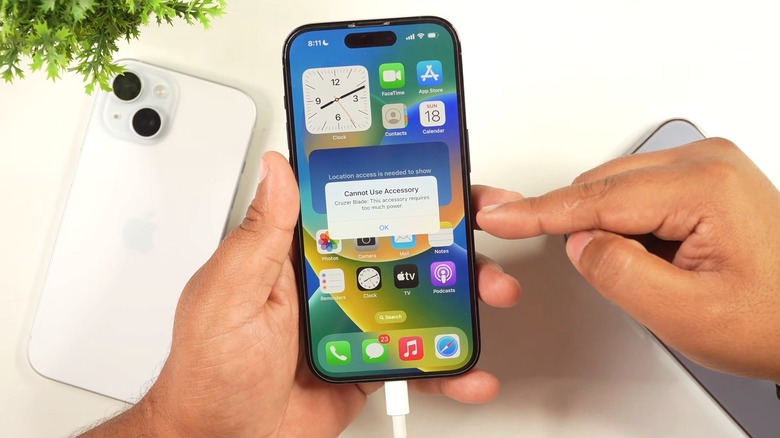
If you encounter the error message on your iPhone or iPad, you should attempt to diagnose the problem. First, go for the "turn it off and back on again" fix. Unplug the accessory and the cables, wait a few seconds, and reconnect them to see if everything works. You can even try restarting the iPhone or iPad while you wait. After that, you should see if your mobile device runs the latest software version. Oftentimes, the newest iOS and iPadOS releases come with bug fixes that may solve problems you were not aware of, including the "too much power" issue. Update your device to the latest software version and try again.
You should also ensure that the handset or tablet has enough power. If the battery is low, the iPhone or iPad may not charge other devices or power accessories. You should recharge the iPhone or iPad first, and then retry. You should also look at the USB-C or Lightning cable you're using to connect the accessory to the iPhone or iPad. A cable that's damaged, or a poor-quality cable, may affect power transmission and could be responsible for the error. You should replace it with a cable in good condition, preferably one that's made by Apple or certified for use with iPhones and iPads.
If the error still shows up after updating the software and replacing the cable, you should inspect the USB-C or Lightning port and ensure it's clean. We've already explained how to thoroughly clean your iPhone, which includes the charging port. Lint and other debris can accumulate and prevent a proper connection.
This might be the best fix
If you have access to a second iOS or iPadOS device, you can try connecting the accessory to the second iPhone or iPad and see if it displays the same error message. A second error may indicate that the accessory needs to draw more than the supported 4.5 W of power. If you've tried everything and the iPhone or iPad still shows the "too much power" error, you may also want to have the device inspected by a professional.
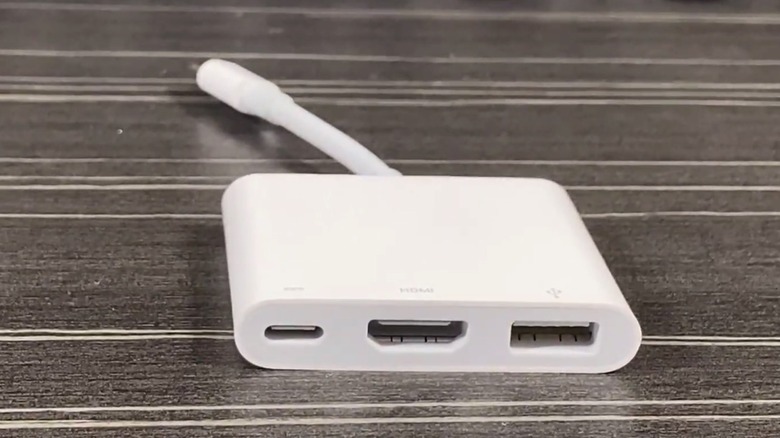
The best fix might be using a USB hub that can connect to an independent power source to establish the connection between the iPhone or iPad and that specific accessory. The USB hub should feature the ports you need for your accessory, but also a USB-C port that lets you connect the hub to a power source. That way, the independent power source can provide power to both the iPhone or iPad and the accessory. You may want to use a power bank if you need to be mobile while this particular connection needs to be established. A wall charger may be even better, as you would not depend on a power bank.
If you routinely need to use the iPhone to connect to other gadgets while on the go, you should ensure you have the proper setup with you to reduce the risk of dealing with the "too much power" error. Consider bringing a USB hub with you and buying a power bank. On that note, you should also know how fast an iPhone can recharge, whether it's the latest generation or an older model, so you know exactly how long you have to wait to replenish the handset's battery after it has been used to power other gadgets.