

5 Google Pixel Settings You Should Always Change On A New Phone
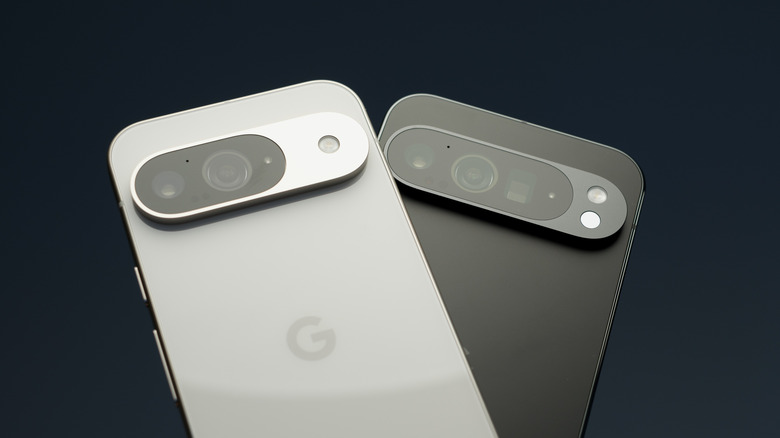
Getting a new Google Pixel phone is a genuinely exciting experience, whether you're unboxing the line's latest and greatest flagship or simply setting up a refurbished older generation model. Out of the box, Google's blend of hardware and software offers a fantastically clean Android user experience that anyone can enjoy. But to get the absolute most out of these devices, however, you shouldn't just stick with the default out-of-the-box configuration. By enabling a handful of features, you can make your Pixel a more useful and powerful phone.
If you're new to the company's line of Pixel smartphones, you may not know that Google leaves several of its most powerful and convenient features turned off right from the start. Why? It likely comes down to conserving battery life, but it might also be a way to avoid stressing out new users with too many options at once. However, Google choosing to have these features turned off by default means everyone misses out on the phone's powerful features and, hands down, some of the smartest quality-of-life improvements any phone could ever hope to have. In short, all of the things that make owning a Pixel so special.
So instead of digging through endless submenus, we put together a list of a few essential settings you should consider toggling on for your new Pixel right away. Taking a few minutes to set these up will immediately make your phone easier (and more enjoyable) to use every day, especially with Pixel settings that speed it up.
Unlock ultra-fast screen speeds with Smooth Display
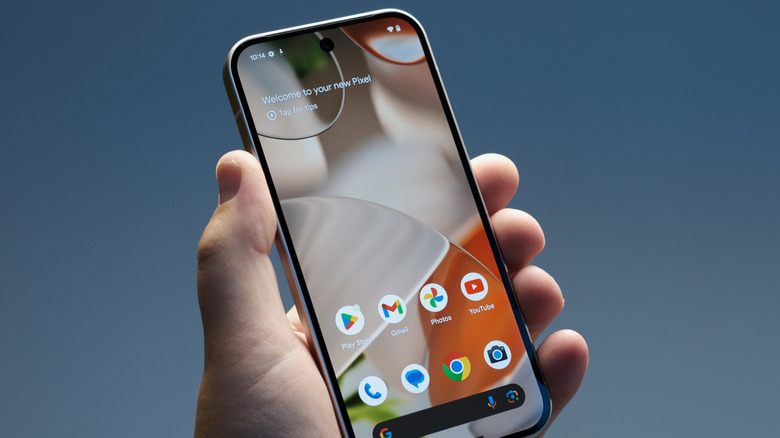
Google's newer Pixel phones all have pretty vibrant screens, but if you want to make full use of the high refresh rate abilities on these displays, you'll have to dig into the menus. By default, many Pixel devices are locked to a standard 60Hz refresh rate out of the box to help your phone squeak out a little more battery life. While this default setting is totally fine for all manner of basic tasks, it completely ignores the premium hardware you paid for.
One of the best tips for setting up your new Google Pixel phone is to turn on the Pixel's Smooth Display feature, which automatically adjusts your phone's display to 90Hz or 120Hz, depending on your specific model. Toggling this single setting on will make the operating system (and anything you run on it) feel fast and fluid. It's nice to have, whether you're scrolling through long articles or playing large, graphics-intensive phone games; this boosted frame rate delivers a buttery-smooth visual experience that feels way more responsive to your touch and looks great to the eye. And best of all? Because the refresh rate is adaptive, the Pixel is smart enough to dial things back when you're looking at a static image, helping balance silky performance with energy savings, which we love. To turn this on, open your Settings app, tap Display, then toggle the switch for Smooth Display into the on position.
Magically see what song you're hearing with Now Playing
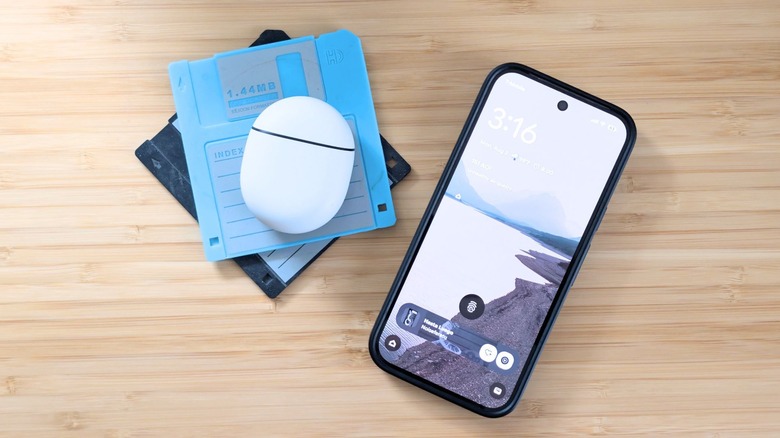
Have you ever been walking around the aisles of a store or chilling at a brewery when a catchy song starts playing in the background? You desperately want to know the name of the song and who sings it, but by the time you unlock your phone, open Shazam, and wait for it to start playing, the song is already over. Google solved this frustration years ago with a handy Pixel-exclusive feature called Now Playing, but it's inexplicably turned off by default.
With this feature, whenever it detects a song, it instantly shows the song name and artist right on your lock screen. The audio matching for this happens locally on your phone using a downloaded database; it doesn't send your private audio recordings to the cloud, helping protect your privacy while saving data.
For your convenience, Now Playing even keeps a running history of the songs it's identified, so you can easily go back anytime to look through it and even add any you like to your favorite playlists. To enable this surprisingly useful feature, open your Settings, tap on Sound & Vibration, select Now Playing, and flip the toggle.
Catch alerts you swiped away with Notification History
Who among us hasn't had that sudden moment of panic when you swipe away a cluster of new notifications, only to realize a second later that one was actually an important message you need? Whether it was an urgent email from your boss, a chat reply from your sister, a fleeting calendar reminder, or a time-sensitive security code, watching a crucial notification vanish into the digital void is a total bummer.
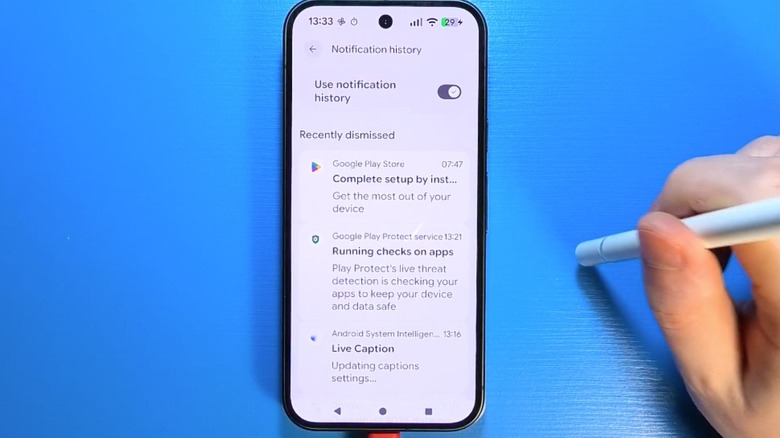
Thankfully, however, your Google Pixel has a built-in safety net designed to prevent this exact problem; you'll need to take a moment to turn it on before disaster strikes, though. This low-key life-saving feature is called Notification History, and it acts as a chronological log of every notification that has appeared on your phone over the past 24 hours, ranging from emails and alerts to chat messages. It keeps your dismissed alerts all tidy and organized, so nothing important ever gets permanently lost from a hasty swipe of your thumb. Notification History lets you interact with your accidentally swiped notifications as you normally would, too.
Because logging this data requires a tiny extra bit of system overhead, Google leaves it disabled by default on new devices. To use it, swipe down from the top of your screen and look for the clock symbol with the counter-clockwise circle around it, underneath all your notifications on the left side. Tap it to view and interact with your notifications. To give yourself that much-needed peace of mind, open Settings, tap Notifications, tap Notification History, and toggle this clever feature on.
Get some much-needed silence while working with Flip to Shh

The world we live in today is hyper-connected. Because of that, it can be super difficult to disconnect from our phones and actually be present and focus during important moments. This can happen in any kind of situation, from work meetings to date-night dinners, and all of us deserve better. While you can technically tweak your phone's volume rockers or fumble through the quick settings panel to turn on Do Not Disturb mode, Google has a much more elegant and intuitive solution only for Pixel users that might just blow your mind. It's a gesture-based control called Flip to Shh, and it's an absolute must-have for anyone who values effortless silence.
To activate it, all you'll need to do is set your Pixel phone face down on a flat surface, such as a desk or table. Then you'll feel a subtle vibration confirming your Pixel has entered Do Not Disturb mode. The mode completely silences all incoming calls, texts, and app notifications (except for any exceptions you opt to set up) without requiring anything else on your end. When you're ready to jump back into things, simply pick the phone back up and life goes back to normal. To activate this peaceful shortcut, head into Settings, choose System, select Gestures, tap Flip to Shh, and toggle it on.
Help protect your Pixel's battery with Adaptive Charging
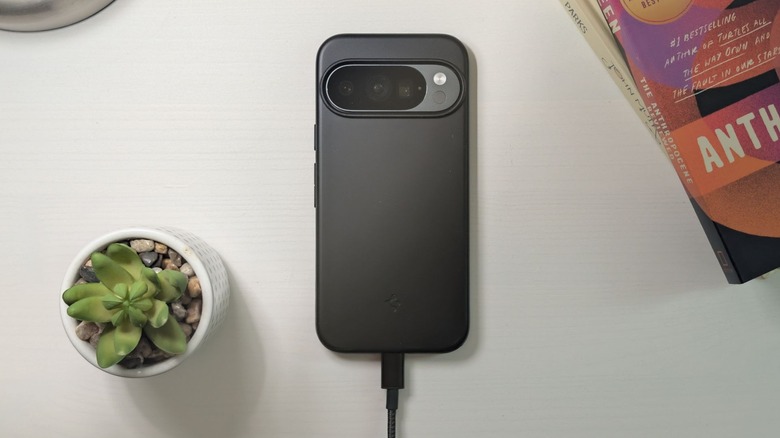
We want our smartphones to last as long as possible, but one of the quickest ways to degrade a modern lithium-ion battery is to leave it plugged into a charger at 100% capacity, especially for long periods. And when you plug in your phone right before going to bed, it likely reaches its full capacity within an hour or two, meaning it spends the rest of the night slightly draining and being continuously trickle-charged back up to 100%; this can wear down the battery. Google developed a good solution for this common problem called Adaptive Charging, and it is, without a doubt, a feature you should make sure is turned on for your new Pixel phone.
Adaptive Charging intelligently learns your daily routine, paying close attention to your typical phone usage. Then, instead of rushing to charge your phone up to 100% as soon as you plug it in, Adaptive Charging only charges your smartphone to 80% (which is the top of the healthy lithium-ion battery charging limit) and pauses the charging process until just before your first alarm is scheduled to finish topping off the remaining 20%. This brilliant background process ensures you wake up with a fully charged phone and that its battery stays healthy. To get it set up, go to your Settings, tap Battery, select Battery Saver & charging, and ensure Adaptive Charging is turned on. Now that you've got this (and all of these other great features) enabled, it's time to check out some useful accessories that work best with Google Pixel phones.