

5 Tips For Setting Up Your New Google Pixel Phone
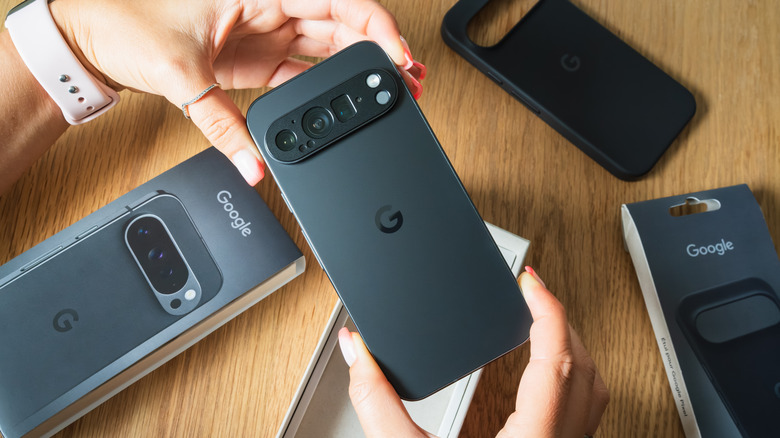
Having a brand new smartphone in your hands can be a satisfying feeling, but some may accidentally use the moment to realize they're not at all familiar with their new device. There's more than one reason for people to choose a Google Pixel over other phones, but those having little experience with the Android operating system may feel overwhelmed by all of the available options and features. Fortunately, it's not difficult to get things going.
If you're new to the world of the Google Pixel and don't know where to begin, we've got tips that can help defend you from spam, access important emergency and accessibility features, and more. We'll go through the steps for each item on this list, because having something like the Pixel 10 with its 6.3-inch screen, 120Hz display, and Google Tenor G5 processor is worth getting the most you possibly can from it. We did our best to tailor this list toward those with little Android experience, though some suggestions may still be helpful to more experienced users.
Of course, if this is your first time with a Pixel device, then making sure it's running the latest version of Android is paramount for bug fixes and security patches. Open Settings on the device, select System, and then tap Software updates. Follow the on-screen instructions if an update is available. There are also some additional settings you may want to change ASAP whenever you get a new Android.
Transfer data from your old device
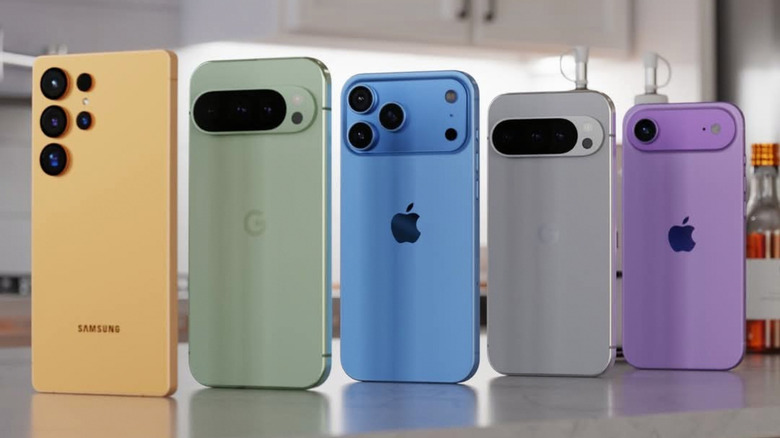
If the new Google Pixel you have isn't your first smartphone, then you likely have plenty of data that needs to be moved from your old device, including contacts, certain settings, photos, and videos. Transferring data used to be a complicated process — especially between iPhone and Android — but both Google and Apple have made the process easier for first-timers. In fact, Apple made it easier to switch to Android in February 2026.
Getting started with a completely fresh Pixel is easy, but you need to make sure you have the right items, such as your old phone, your new Pixel, an appropriate USB charging cable, and a SIM card if you have one. If you're switching from an old iPhone to an Android, just sign into your Google account on the Pixel, move the Pixel close to your old phone, or connect them with a USB cable. You'll get a menu asking what data you want to keep, and then you can start the transfer.
Old Androids follow a similar process. If you're moving from an old Android to a new Pixel, you just need to sign into your Google account on the Pixel, choose what content you want to transfer, and Google will take care of the rest. Be sure to have a strong Wi-Fi signal, and make sure both devices are fully charged. Be sure to back up the data on your old device if you can.
Set up Emergency SOS
Things happen, and a Pixel smartphone has some emergency features in place should you need them. For example, you can use satellite messaging to send texts on Android even without cell service. However, it's Google's Emergency SOS feature that can be really important, as it can call 911 for users if things go south. Once activated, users just need to press the power button five times to engage Emergency SOS. Follow these steps to set it up:
-
Open Settings on your phone.
-
Select Safety and emergency.
-
Choose Emergency SOS.
-
Tap Start setup from the bottom.
Google will take you through a setup process to get this emergency feature working properly. This includes having the option to change the emergency number, enable assisted calling so that you can share your location with emergency services, and even add contacts and edit which information to share with them. When asked, be sure to set the Personal Safety app to While using the app so you can share your location.
Additionally, Google will also ask you if you want to enable emergency recordings during the setup process — including the ability to share videos automatically after a backup. Finally, Google will ask you to choose how to start Emergency SOS actions, including the options to use touch & hold to start actions or start actions immediately after a countdown. The latter includes an option to play an alarm. Finally, tap Done when finished. It may not be something everyone needs, but those who do are likely to find it a potential lifesaver.
Enable Call Assist and Scam Detection
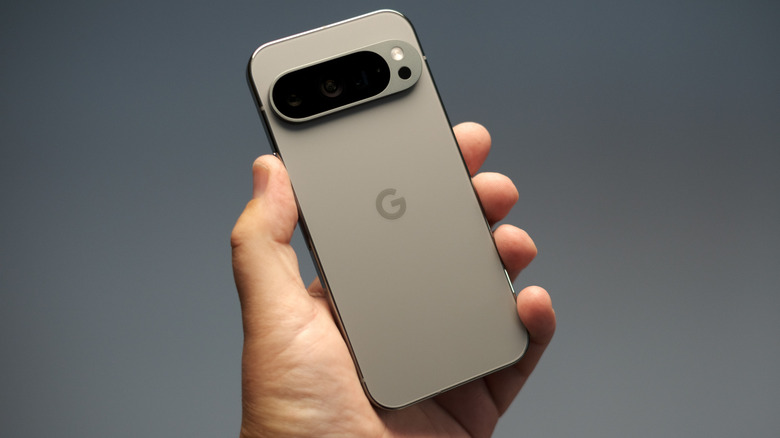
First-time Pixel owners may not know many of the device's capabilities, with Call Screen being a rather nifty feature for saving users from the headaches of spam calls. With automatic call screening, users get a notification stating the Pixel is screening the call. You can tap Screening unknown number or Screening suspicious calls to get a transcript of the conversation between Call Assist and the caller, and your Pixel will send the call through if it determines it isn't spam. To set up automatic call screening:
-
Open the Phone app on your Pixel.
-
Select More (three vertical dots).
-
Tap Settings.
-
Select Spam and Call Screen or Call Screen.
-
Choose Call Screen.
For manual call screening, users can tap Screen call when the phone rings to have Call Assist see who is on the other end. Once the person gives their reason for calling, there's the option to hang up, answer the call, or choose from a number of predetermined responses. Users can also enable Respond with AI replies under the Call Screen options to have an AI assistant respond to phone calls. Automatic and manual screen calling is available in the U.S., and manual screening is available in regions such as Canada, France, Germany, and others.
Additionally, Pixel devices also have a Scam Detection feature you can enable by opening the Phone app, tapping More, selecting Settings, tapping Scam Detection, and making sure it's enabled. This feature runs automatically, and those on the other end will receive an audible beep to know the feature is active.
Enable the Accessibility Menu
Though not all accessibility settings are going to be necessary for every user, the right ones can be crucial for those who need them. On a Pixel, there can be plenty of accessibility features users haven't tried, but the Accessibility menu option may be especially beneficial for those needing constant access to certain features and controls. This menu helps users control their devices, including operating the phone's buttons, navigating the screen, or even interacting with it. To enable it:
-
Open the Settings app.
-
Select Accessibility.
-
Choose Accessibility Menu.
-
Enable the Accessibility Menu shortcut and tap Got it to give the app permissions.
From here, users can open the menu by swiping up on the screen with two fingers (three if using Talkback). Then, you can tap the Accessibility icon that's floating on the screen and choose the options you want from the available menu. You can also move between screens to find additional selections. If you want the buttons larger, navigate back to the Pixel's Settings for the Accessibility menu, tap Settings, and then select Large buttons.
For what it's worth, those needing a larger font size on their device for easier readability won't find the option from the Accessibility menu. Instead, open Settings, search and select Font size, and then change the size with the slider. You can also open Settings and find Display size to change the size of the display. Your friends with vision issues may thank you for knowing this one.
Get started with widgets
Setting up your Pixel so that it can block unwanted calls or contact someone in an emergency can be essential when setting up your new device, but having a bit of fun and personalizing your device so that it's tailored specifically to you can also be important. One of the ways to customize your screen is through widgets.
With widgets, users can have quick access to certain information from apps, or they can create a gallery of images they want to see on their Home screen. Certain widgets can also control certain settings, or you can set them up to easily control smart home devices. Third-party apps can also have their own widgets, so knowing where to find them and how to use them can be important for a more complete Pixel experience. Here are the steps:
-
Touch and hold an empty space on your Home screen.
-
Select widgets.
-
Choose an app that has widgets that appeal to you.
-
You can also tap an app to see a list of widgets for it.
-
Touch and hold a widget. This will give you images of your Home screen(s).
-
Move the widget to where you want it, then lift your finger.
Certain widgets can be resized when you touch, hold it, and then let go of it. You'll see a line of dots around the widget, and then just drag the dots to resize it. Tap somewhere outside the widget when you're done. Though a bit more advanced, there's also ways to make your own custom widgets on Android.