

How To Get E-Books On An Xteink E-Reader
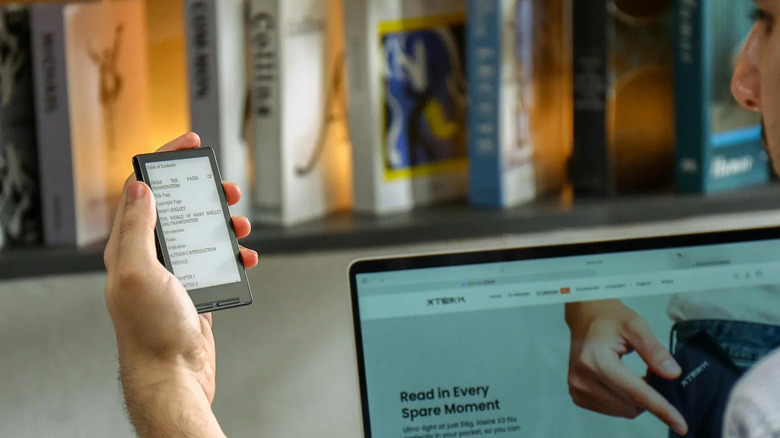
The Xteink e-reader is relatively new to the market, but it has quickly won over bookworms with its cute size. The X3 model features a 3.7" display, while the X4 and X4 Pro come with a 4.3" screen. To put that into perspective, picture this: you can attach any of the Xteink e-readers to the back of your iPhone, below the camera. That's how small the device actually is. It's one of those smartphone-sized e-readers that gives you the option to put your books in your pocket, literally.
But while the Xteink is undeniably adorable, it has one downside: the lack of a built-in e-book store. It's unlike the Kindle, where you can simply hop on the Kindle Store, buy your favorite titles directly from the device, and find them right in your library. Instead, you need to buy the EPUBs elsewhere before you can get your e-books on the Xteink. We'll walk you through how to do so on both the stock firmware and the custom firmware, Crosspoint.
Method 1: Transfer e-books to your Xteink running the stock firmware via microSD card or Xteink app
To get e-books on your Xteink e-reader, there are generally two ways to choose from. The first method, which works across models, is by using the microSD card. Simply take out the microSD card, insert it into your computer using an SD card reader, and transfer the EPUB files like you normally do to any external storage. When you insert the card into your e-ink gadget, the books should be ready to read.
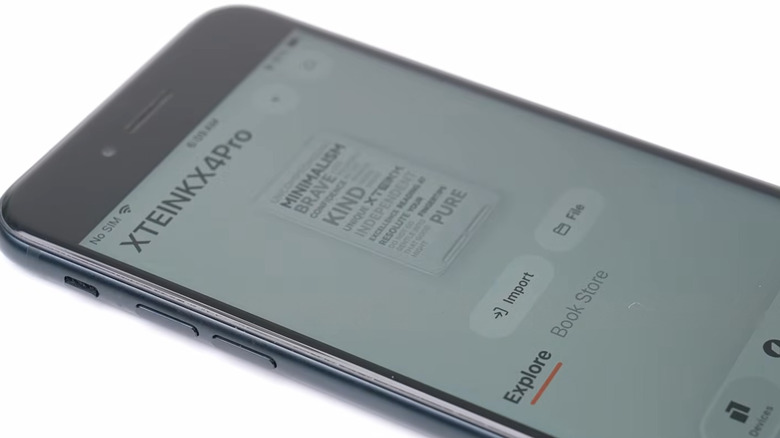
For the Xteink X4 Pro, the latest model in the lineup, the process is much simpler as you only need the Xteink app. Follow these steps:
- Turn on Bluetooth on your phone.
- Install Xteink.
- Set up the Xteink app by signing up and allowing the necessary permissions.
- On your Xteink X4 Pro, tap the hamburger menu.
- Go to Settings.
- Press Sign in to bind the e-reader to the app.
- On the Xteink app, tap on Bind device.
- Scan the QR code displayed on the e-reader.
- Connect the X4 Pro to a Wi-Fi network.
- Add a name for your e-reader.
- Hit Done.
From here, you can now import books to your Xteink using the Import button. To access them on the e-reader, go to the hamburger menu again and select Cloud Sync. The books will then download to your device. If you see formatting issues when you open your EPUBs, you can try converting them first to XTC (Xteink's proprietary file format) via x4converter.rho.sh before transferring them over.
For the X4 and X3 models, you can also bind them to the app, but their interface is much clunkier to use. The Chinese and global versions offer different features too, so depending on what firmware you're on, you might not be able to use the app at all.
Method 2: Transfer EPUBs to your Xteink with Crosspoint firmware
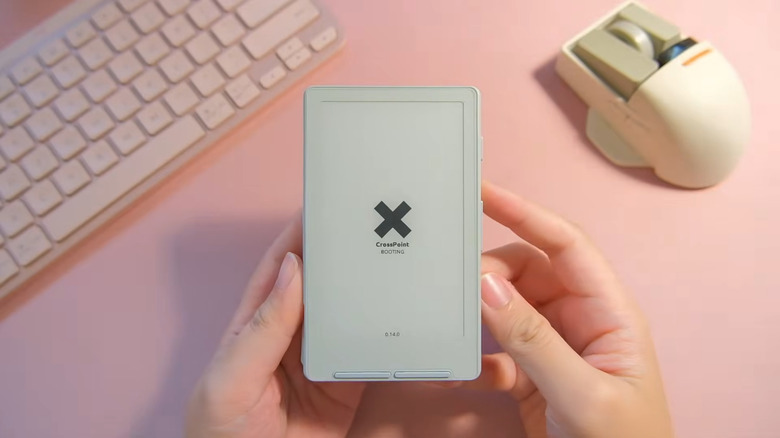
Out of the box, the Xteink firmware isn't as enticing and user-friendly as the interface on other popular e-readers. That's why plenty of users immediately switch to custom firmware like Crosspoint. It offers some nifty customization options you won't find on the stock firmware, such as more font sizes, focus reading, which makes the first few letters of each word bold for easier reading, and status bar edits. Plus, the interface is consistent across all three Xteink models, and the EPUB formatting is dramatically more polished.
If you're running Crosspoint on your Xteink e-reader, here's how you can transfer books to it from either your phone or computer:
- On your Xteink, go to File Transfer.
- Select Create Hotspot.
- On your phone or desktop, connect to the CrossPoint-Reader hotspot.
- Open a browser.
- Type the URL displayed on the Xteink.
- In the CrossPoint Reader page that opens, click on File Manager.
- Hit Upload.
- Choose your EPUBs.
After the files are done uploading, they should be accessible from the Browse Files menu on your e-reader. If you have an Xteink X4, you can also use the Crosspoint Sync app. Its interface looks much more intuitive, and it is available for both Android and iOS. The drawback, though, is that both devices must be connected to the same Wi-Fi, unlike the hotspot method where you don't need any external network. The old-fashioned microSD card method works with Crosspoint too, if you prefer using that.