

5 TCL TV Features You Have To Enable Yourself
We may receive a commission on purchases made from links.
If you own a TCL TV, there may be some features you haven't experienced. As far as televisions go, the company is known for producing solid displays with prices that are rather approachable. Users should also be aware that getting the best mileage out of these displays may take a little more than unpacking one and plugging it in. For those that have never explored the Settings menu, here are some TCL features you have to enable yourself.
From setting up smart home functionalities to potentially getting a better picture from your TV, TCL displays can include a variety of features that may not be immediately apparent. We can tell you where these options are located and why you may even want them in the first place. Fortunately, most of these features simply involve navigating to specific Settings menus and ensuring your devices have the right connections (home features will require the appropriate accessories, of course).
Remember that you may need to do some additional research to ensure your TV actually supports these features, and some steps may be approximations. Knowing this, here are some ways to get more out of your TCL television.
Enable and adjust HDR settings
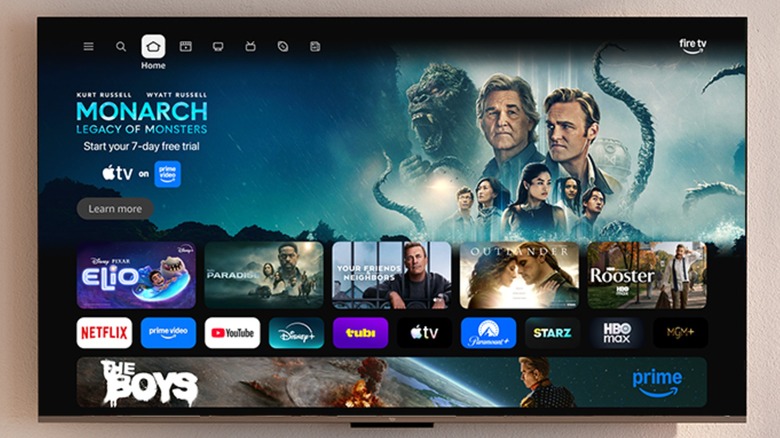
A TCL TV may have a crisp display, but there are certain settings you can enable to give it a dash of zest. One thing users should try is enabling the High Dynamic Range (HDR) setting. If you're not familiar, it helps improve the contrast and colors on your TV, ultimately providing more details.
Here's how to enable HDR on your TCL TV:
-
Start a streaming video on your TV, such as something from the YouTube app.
-
Press Settings on your TV remote.
-
Select Picture from the Settings menu.
-
Choose Smart HDR.
-
Select Apply all picture mode.
-
Choose All sources.
Note that there are several options you can tweak or adjust to your own liking. For example, when selecting Smart HDR, you may see additional options such as Sport, Movie, or Game modes. After selecting a specific mode, it may also have additional parameters, such as adjusting brightness or color saturation.
It's worth noting that you can set the Apply all picture mode to current source, as well. This allows you to have different Picture settings for the different input sources connected to your TV. Certain TVs may also have additional settings that boost picture quality, such as adjusting the gamma or another feature we'll be looking at more closely below. However, if you're the type that really likes to tweak and tinker, the Picture menu can really be something worth exploring.
Turn on LED Motion Clear and Gradation Clear
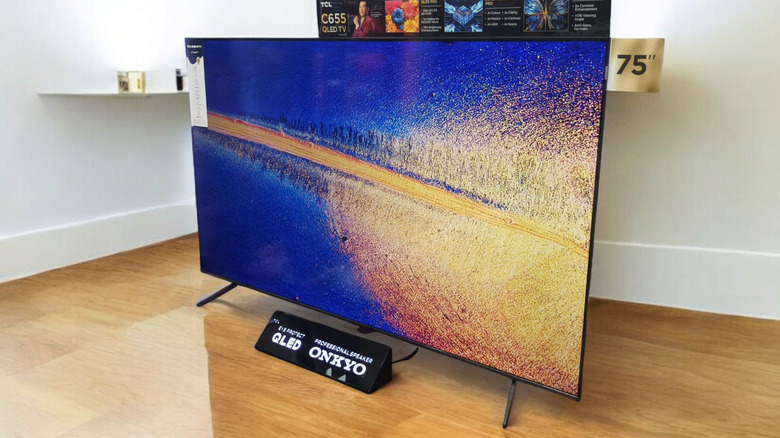
If you have an interest in potentially improving the look of your TCL display, then give LED Motion Clear a try. On some brands, this feature can also be known as black frame insertion (BFI), and it can inject a single black frame in between the regular ones in video. It may make the image a bit darker (or cause flickering), but it can also help sharpen the motion of footage. Motion Clear may not be something for everybody, but it's worth knowing about and giving a try.
Here are the steps:
-
Open Settings.
-
Select Picture settings or Picture.
-
Select Advanced Picture Settings.
-
Toggle LED Motion Clear (or Clear LED Motion) to On.
You may find that LED Motion Clear looks best for sports or other quick-moving footage. Additionally, certain TCL TVs may also have the Gradation Clear option. This feature can automatically reduce color banding (posterization) to help improve color gradients. Gradation Clear will also be found under the Advanced Picture Settings menu.
Lastly, there may be additional options under Advanced Picture Settings worth exploring. For example, if you find that certain footage is far too smooth and gives a "soap opera" effect, try disabling Action Smoothing or setting it to Low. Getting the best picture can really be based on preference, so be sure to experiment — and remember what you did so you can revert any changes.
Add Amazon Alexa support
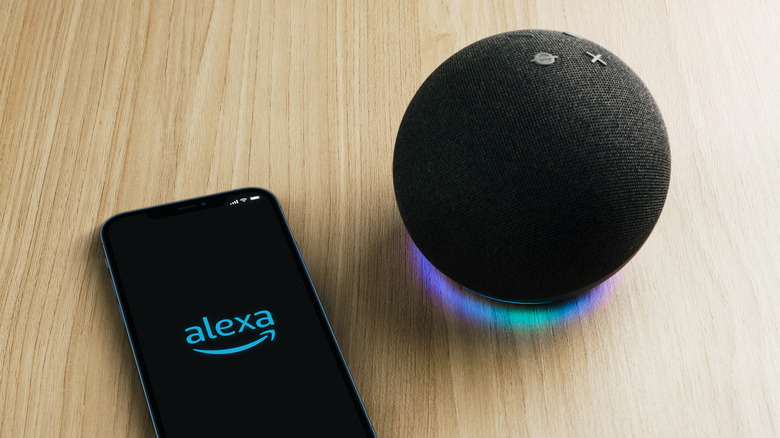
Alexa can be useful for controlling your TV with just the power of your voice, and properly setting it up can offer you a hands-free experience when using your display. With an Alexa device paired with the TV, users can search for specific media based on a number of attributes like genre or even who directed the project, and they can even access sports scores in real time. There are various tips and tricks to use Amazon Alexa with your TV, but you'll first need to set it up.
Users will need a couple of things to get started. First, be sure to download the mobile Alexa app from the Google Play Store or Apple App Store depending on your smartphone model. If you don't have one, you'll also need an active Amazon account, and your TV and smartphone will need to be connected to the same Wi-Fi network. It's also a good idea to ensure both devices are running the latest firmware.
Once you have everything ready, follow these steps:
-
Open the Amazon Alexa app.
-
Select Skills & Games.
-
Tap Smart Home.
-
Choose Connected Devices and enable the Smart TV skill.
-
Once enabled, select Link Your Device from the dropdown menu. Follow the instructions on the app.
From here, you'll be able to use Amazon Alexa commands to control your TV. You can say phrases like "Alexa, Turn on the TV," or "Alexa, change the channel to The Food Network."
Enable Apple AirPlay and HomeKit support
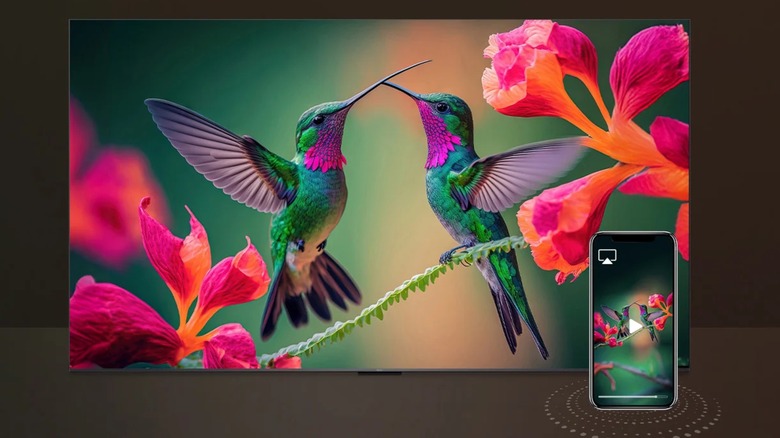
For Apple users, your TCL TV may include both AirPlay and HomeKit support, depending on the model. AirPlay is rather useful for casting the screen of your Apple device to the TV to more easily stream content, whereas HomeKit is Apple's smart home framework that controls certain accessories through Siri. You'll need to make sure your TV and Apple devices are on the same network to get the features to work.
To set up AirPlay, follow these steps:
-
Open Settings on your TCL TV.
-
Select Apple AirPlay and HomeKit.
-
Set AirPlay to On.
-
Now, on your iPhone, open Control Center by swiping down from the top-right corner of your screen.
-
Select the Screen Mirroring icon (looks like two rectangles).
-
You may be shown a code on your device that you need to verify on your TV.
From here, you should now see the screen of your Apple device on your TV. In certain streaming apps, you'll be able to just use the SharePlay icon to cast media to your TV.
For enabling HomeKit:
-
Open the Settings app on your TCL TV.
-
Select Apple AirPlay and HomeKit Settings.
-
Go to HomeKit and select Set Up.
-
Use the camera on your Apple device to scan the QR code displayed on the TV.
-
Follow the on-screen instructions.
You can also add an accessory from the Home app on your Apple device. Just tap the Add (plus sign) button in the Home app and choose Add Accessory. Your Apple device will walk you through the rest.
Enable Google Home support
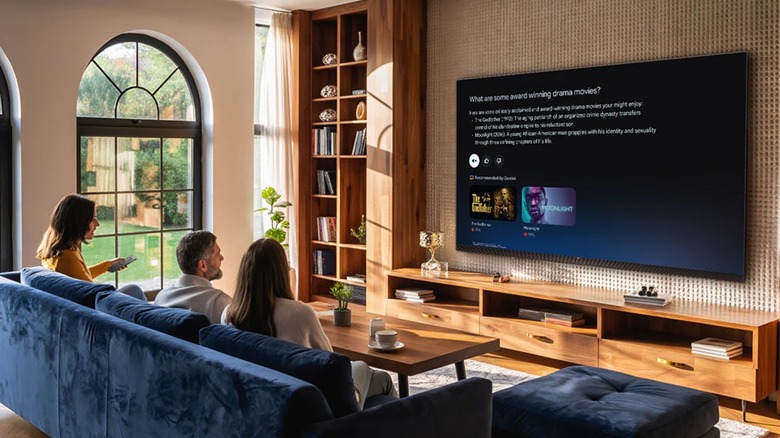
Like HomeKit and Amazon Alexa, Google also offers Google Home for controlling smart home products. Google Home received a major update recently with various new features. Enabling it allows you to control your TCL display, use voice commands, and even remote control options through the Google Home app.
Here are the steps:
-
Open the Google Home app.
-
Select Add from the bottom-right corner.
-
Choose Device.
-
Select Works with Google Home.
-
On the next page, search for TCL and then select TCL Home.
-
Select Agree and link.
You can then navigate back to Google Home and select the TV. You should see TV volume controls, but you can also tap Remote to use the app as a remote for your TV. You may need to input a code that your TV gives you to ensure they're paired. The button for voice controls will be in the bottom-right corner of the remote option.
For what it's worth, some TCL TVs also have the option to link your Google Photos account to use its images as screensavers. You can find Ambient mode under Settings > System > Ambient mode. Select Google Photos from the list, enter your Google account information, and choose your Photos album. It's not the biggest feature in the world, but it's a cool customization option nonetheless.