

How To Enable Right Click On Your Mac Trackpad Or Magic Mouse
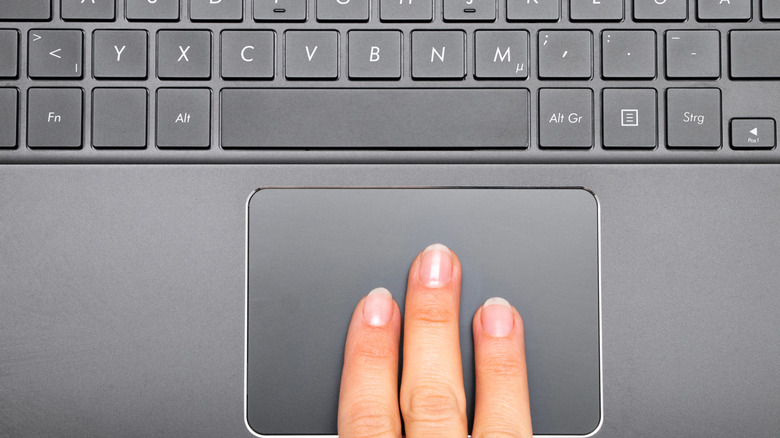
It can be a daunting experience when you switch from Windows to Mac. It takes some getting used to, particularly because so many keyboard commands are different. Even if you're already a Mac user with one of the best MacBooks, there still might be shortcuts you don't know. For the longest time, I didn't realize that I could hold down a letter key to get a pop-up menu for accents. When it comes to the Mac trackpad or the Magic Mouse, there's one function new users often miss. It's when they look down and see the smooth rectangular or angular surface where their hand goes and notice a missing right button. This function is a crucial way to perform tasks like saving images from the web, accessing file options, copy-paste, and more.
There are two ways you can do this from both a MacBook's trackpad or a Magic Mouse. The first is by pressing the Control (Ctrl) key on the keyboard while simultaneously clicking the trackpad or mouse. The second is in the Mac's software settings, where you can tell the machine to respond differently depending on which fingers you place down. Either way, it's a handy function and one you probably use more than you realize that can be made easier or more comfortable.
Enabling right-click is simple
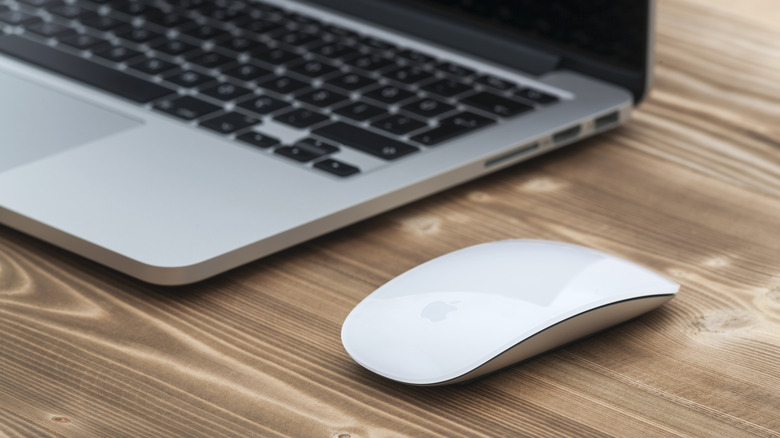
If you don't want to adjust settings for the trackpad or mouse, maybe because it's a shared computer, you can hold the Ctrl key while clicking the cursor over the item in question, and you'll get that familiar popup menu. If you're using a Magic Keyboard with Touch ID and Numeric Keyboard, you can also press and hold the Contextual Menu key, which you'll find under the F13 button.
One of the most essential MacBook trackpad features and the one I use myself is to leverage the trackpad only. You can also exclusively use the love it or hate it Magic Mouse without a keyboard key. In both cases, this requires adjusting settings. When using the Mac trackpad, as I do, go to System Settings, select Trackpad, then Secondary click. From there, choose to click with two fingers, bottom right, or bottom left corner to right-click. I use the click with two fingers option and find that it works well. If you're using a Magic Mouse, visit the same System Settings app on your Mac, select Mouse, and choose Secondary click. From here, decide if you want the right or left side of the trackpad surface to activate right-clicking.
Easiest option when converting from Windows

If you're a Windows user converting to Mac, your best bet is to select the right side click for the Magic Mouse, which is the identical action to a Windows PC mouse. Many of the latest Windows PCs, meanwhile, have added right-click by clicking a trackpad's bottom right corner or tapping with two fingers. So, if you adjust settings on the Mac to match whatever setting you were using with the PC, you can enjoy the familiar experience.
Secondary click, or contextual click as it's also called, is a very useful tool. It can help you see details of a photo, as well as more easily save and share it through email or a message. Typically, right-clicking on any type of file reveals details like offering to open the file in a specific app you choose.
Copying and pasting text can be done with a right-click as well. Keep in mind that there are alternative keyboard shortcuts for some programs if preferred. In Microsoft Word on a Mac, for example, Command + C is to copy and Command + V is to paste.