

5 Powerful Features To Enable On Your Chromebook
Chromebooks carry a reputation as simple, budget-friendly laptops, which is well earned as they cost a fraction of what a comparable Windows machine goes for. This is largely because the reasons behind those low prices down to cloud-based storage and lighter hardware. But the affordable price point hides a far more capable operating system than most take the time to explore.
So what cool things can a Chromebook do? More than some people realize. Chrome OS has matured beyond a browser machine, and plenty of users pick one up for school or light web browsing without touching many of the tools Google built into it.
The real surprise is how much the software has evolved. Google dramatically improved and added productivity tools in recent years, and the constant stream of updates keeps adding more. The catch is that several of the best ones sit buried in the settings menu or tucked away on the desktop, so they're very easy to miss. Enabling the right tools transformed the Chromebook from a cheap stopgap into a proper workhorse. Best of all, none of them require an expensive upgrade or scrolling through the Google Play Store, just a few clicks in the right places. This guide walks through the five features worth switching on first, starting with one that ties the whole Android ecosystem together.
Phone Hub puts Android phones on Chromebook screens
The Phone Hub is the flagship feature of Chrome OS's Android integration, and it's the feature that most clearly shows how far the platform has come. It lives in the shelf, and once a phone is paired, users get a dashboard that shows the handset's battery level, signal strength, and recent notifications without picking it up. The hub can also silence the phone, toggle its mobile hotspot, or make it ring to find it if the phone goes missing. Setup is straightforward, just requiring users to sign into the same Google account on both devices. From there the two stay paired in sync, so there's no re-pairing friction on every boot.
The hub really earns its keep with browsing continuity. Chrome tabs that were open on the phone show up in the hub, which makes it easy to pick up where a user left off on the larger display. Recent photos taken on the phone appear in the hub as well, so there's no need to email images to their own address to get them on the Chromebook, for example. For anyone who lives in Google's apps, Phone Hub removes a surprising amount of friction while making Chromebooks feel far less isolated thanks to the phone no longer being a separate gadget but part of the same workflow.
Virtual Desks give every project its own workspace
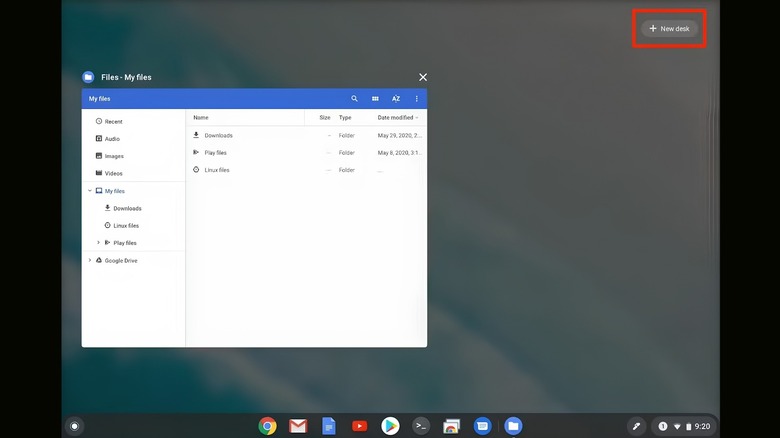
Digital clutter can kill focus just as much as a messy desk. Virtual Desks offer an answer by allowing users to split the Chromebook screen into seperate workspaces, each with its own set of windows and apps. A user might keep one desk for work with email and documents, a second for research with all the reference tabs, and a third for entertainment with a music player or streaming app. Naming each desk keeps the system clear, and switching between them takes a simple four-finger swipe across the trackpad.
This feature gives users a clear picture of the task at hand, allowing them to compartmentalize workloads without being distracted by other tasks while working on another. Chrome OS even lets users right-click an open window and send it to a different desk, which makes organizing a breeze without dragging anything. For anyone who lives with a permanently overloaded browser, Virtual Desks is a great way to split tabs into relevant groups without adding friction to a workflow. It's included with Chrome OS, takes a few minutes to set up, and brings a multi monitor experience to a single screen without needing extra hardware.
Google Play Store turns a Chromebook into a tablet hybrid
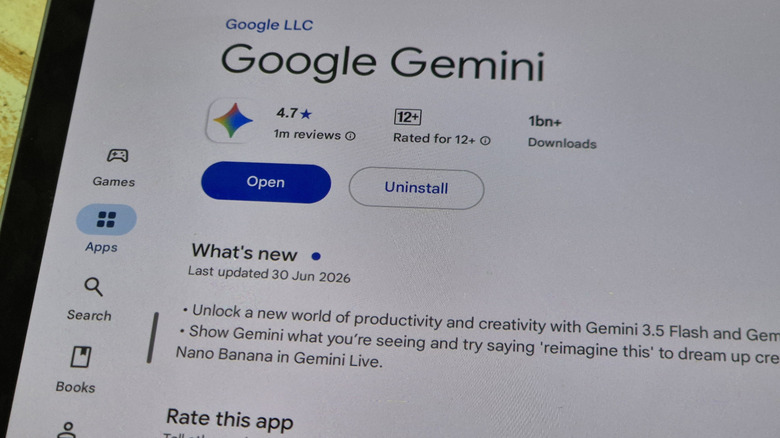
The arrival of the Google Play Store was one of the biggest upgrades in Chromebook history, because it handed the laptop access to the enormous library of Android apps. Users can run mobile versions of tools like Microsoft Office and Adobe Lightroom Mobile, along with streaming apps such as Netflix and Disney+ that allow content to be downloaded for later. That offline capability is worth emphasizing, since a Chromebook is far more useful without a connection than many owners assume. Downloading movies or documents ahead of a trip is one of the smartest ways to use it.
Gaming is a pleasant surprise on modern Chromebooks too. Popular titles like "Minecraft" and "Stardew Valley" run well on current hardware, and the touchscreens found on many models make navigation in apps feel natural. In effect, the Play Store turns a Chromebook into a large-screen Android tablet, giving users the best of both desktop and mobile worlds. Between the app library, offline downloads, and the games, this single feature does more than any other to expand what a Chromebook can handle on a daily basis. The Play Store also fills gaps that web apps still struggle with, from lightweight photo editors to note-taking tools that feel at home on a touchscreen. It's a feature that makes a Chromebook feel like a complete computer for many.
Nearby Share moves files wirelessly between devices
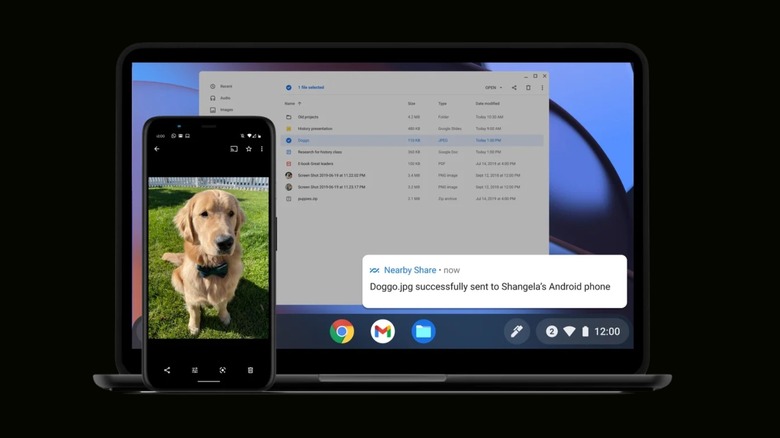
Transferring files between devices used to mean emailing copies to yourself or digging out a USB drive. Nearby Share removes that friction by letting users send photos, videos, links, and documents between Chromebooks and Android devices over Bluetooth and Wi-Fi. It works like Apple's AirDrop but inside Google's ecosystem, which makes it a natural fit for owners already using another Android device. To send something, users pick a file and choose Nearby Share from the share menu, and the device scans for other hardware in the area.
Once the recipient accepts the transfer, the file moves over quickly and without messy cables. Visibility settings let users control who can see the device, with options for everyone, contacts only, or just the user's own hardware. The tool is exceptionally useful for students collaborating on a project or colleagues passing reports around a meeting room, and it's one of those features that feels indispensable after a few uses. It's a small thing on paper, but it quietly removes one of the most annoying parts of everyday computing. There's no cloud upload involved either, so files move directly between devices, which keeps the process fast and keeps sensitive documents from lingering on a server.
Linux apps unlock desktop-class software for power users
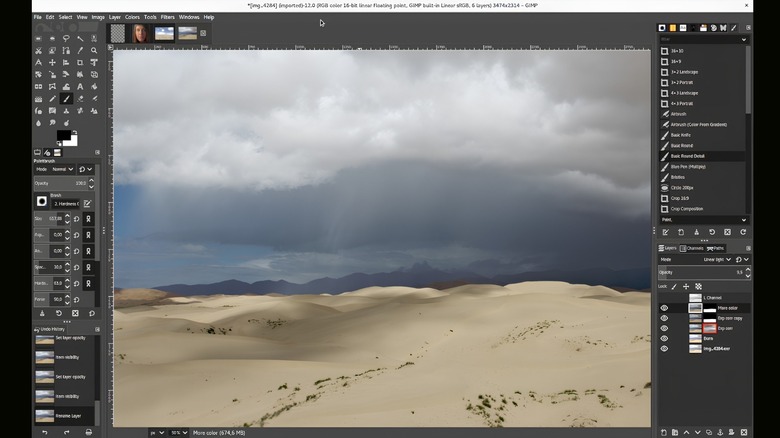
A common misconception is that Chromebooks can only run web apps. That stopped being true when Chrome OS added support for a full Linux development environment. By enabling Linux in the settings, users gain access to a command-line terminal and can install desktop-class software that web browsers can't handle. That includes powerful code editors, graphic design tools like GIMP, and alternative office suites such as LibreOffice.It's a bigger step up in technical know-how than installing an app from the Play Store, but the payoff is a budget laptop that can handle demanding software.
This matters most to developers and power users who have historically written Chromebooks off as too limited. Students learning to code can use one as a legitimate development machine, and creatives can tap open-source tools that rival expensive proprietary software. This flexibility does a long way toward addressing some of the platform's known downsides for demanding tasks, pushing hardware well beyond its browser-centric roots. Combined with everything else in this article, Linux support is what turns a modest, affordable laptop into something genuinely powerful. It takes a little patience to get comfortable with a terminal, but it pays off quickly for anyone who needs real software rather than a browser tab. With Linux enabled, the Chromebook stops being a secondary machine and becomes a primary one.