

5 Things You Can Do On A Chromebook Even When It's Offline
Over the years, Chromebooks have been associated with online tasks and services. That's why many users believe that Chromebooks, though cost-effective, are largely useless offline. And while ChromeOS does rely on online services, Chromebooks, like other laptops, can be used offline for a number of different things, and it's not that complicated either. Some offline work on Chromebooks, like checking and drafting emails or using Google Drive, requires a bit of pre-configuration, while watching movies without internet connectivity is largely seamless. Much like any other device, you simply need to download the content using an app that offers offline capabilities.
In the past few years, more and more ChromeOS apps have gained support for offline functionality, expanding the device's offline use case. Keep in mind that some of the Chromebook's offline capabilities are not inherently apparent and require a bit of effort. But it's all a one-time setup. After that, things start to work offline and will be synced once your Chromebook is connected to the internet. So, if you travel frequently or are simply looking for ways to get more out of your Chromebook, its offline use cases are worth considering.
Check emails
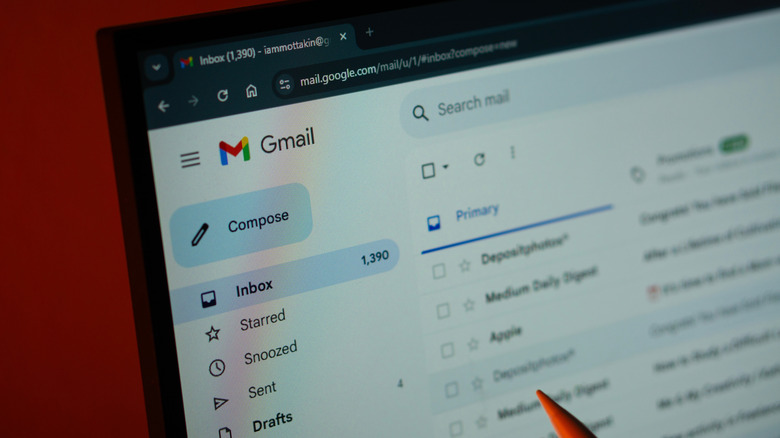
One of the most practical things you can do on Chromebooks without internet connectivity is check and draft emails, provided you use Gmail as your email service. Using Gmail offline isn't nearly the same as when it's online, and there are some limitations, but it's still worth considering, especially if you just want to check recent emails or draft a non-time-sensitive reply. Remember, Gmail won't send emails as long as you are offline. Instead, the emails will be stored in the "Outbox" folder and will be sent as soon as your Chromebook is connected to the internet. All of this requires a one-time setup, though.
To set up Gmail for offline use on your Chromebook, open Google Chrome and head to Gmail. Click the gear icon near the top-right corner and select 'See all settings'. Here, navigate to the 'Offline' tab, tick the 'Enable offline email' checkbox, configure the storage, sync, and privacy settings underneath, and finally click on 'Save changes'.
Once done, Gmail will continue syncing your emails when your Chromebook is connected to the internet, keeping your offline mailbox up-to-date. One of the best parts about using Gmail offline is that you can also download attachments from emails to your Chromebook. However, you can't preview attachments without internet connectivity.
Play games

While you require an active and high-speed internet connection for many titles, not every game needs one on a Chromebook or any other laptop. There are plenty of popular games you can play offline. With modern Chromebooks supporting Android apps, you get two sources for games: Chrome Web Store and Google Play Store. However, since the former is largely reserved for extensions and themes, you are better off with the Google Play Store if you are looking for engaging games.
Open either and search for games that work offline. The game's description should mention whether it supports offline gameplay. On the Chrome Web Store, you will see 'Runs offline' listed for apps that work without an internet connection. Popular options for Chromebooks include Cut the Rope and Cute Slam. The Google Play Store offers even more games, expanding your available options. So, if you enjoy playing simpler titles, this is a smart offline use of your Chromebook. Keep in mind that you will need an internet connection to download games and complete the initial setup, if any. Additionally, many multiplayer games need an active internet connection and may not work without one.
Watch your favorite shows
Your Chromebook can also serve as a viable entertainment device, allowing you to watch your favorite shows and movies offline, even when you are not connected to the internet. As was the case earlier, you have several options here as well. The first is Google TV, previously called Google Play Movies. It hosts a vast collection of shows and movies, and once downloaded, you can watch them offline without an internet connection. Open the Google TV app, search for your favorite show or movie, and click the 'Download' button near the bottom-right corner.
Apart from Google TV, you can also download content on streaming services like Netflix, YouTube, and Hulu. The idea remains the same: download entire shows, individual episodes, or movies. For an even better streaming experience, connect your Chromebook to a top-rated external monitor or a smart TV and watch your favorite content on a bigger screen. Remember, downloaded content will take up space on your Chromebook's storage drive. So, you will need to plan your downloads accordingly, depending on the available storage space.
Edit photos and videos

Your Chromebook's offline use cases are not limited to simple, everyday tasks. You can even edit photos and videos. Of course, you won't be able to use internet-based editing tools while your Chromebook is offline, but there are countless apps that don't require an internet connection. Much like any internet-based solution, they offer similar functionality and feature sets. Just as with playing games, you can rely on the Google Play Store to download video and photo editing applications. Before downloading one, make sure to check the app's description and verify that it works offline.
If you don't want to download a third-party app, even the built-in photo viewer on ChromeOS — Gallery – offers a wide array of editing options, including AI capabilities, and most of these features work offline. While you don't need an internet connection to edit photos, you will need it to share photos or upload them to social media.
Draft notes and read eBooks
You can draft documents, make presentations, create spreadsheets, and a lot more, all while your Chromebook is offline. There's no need for an internet connection since Google's suite of productivity apps, including Google Docs, Google Slides, and Google Sheets, offers offline capabilities. In offline mode, you can create new documents, spreadsheets, and slides, and even edit the ones that were created previously. Any changes you make will be synced once your Chromebook is connected to the internet. You do need to enable offline use, though.
To do that, open Google Drive's settings and within the 'General' tab, tick the checkbox under 'Offline'. If prompted to install the Google Docs Offline extension, confirm the change. If you are working with individual files, you can also right-click on any of them and select 'Available offline'. This will save the file locally.
Apart from this, you can read eBooks offline on your Chromebook. It's not limited to downloading PDFs. Even Kindle supports offline reading. You can download your favorite books to the Chromebook using the Kindle Android app and read them when the device is offline. It's fast and straightforward, just like the other offline use cases for your Chromebook.