

How To Use TTY Mode On Your Google Pixel
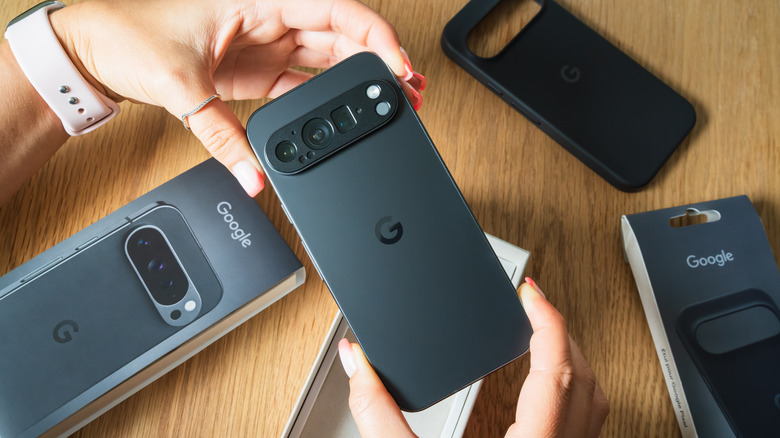
TTY mode, also known as "Teletypewriter" or "Text Telephone" mode, is a specific accessibility setting in your Google Pixel's Phone app. It's used to facilitate text-to-audio communication by those who are hard of hearing or have a speech impairment by sending and displaying typed text on the screen of a TTY-compatible device. Still, despite the intended function of this mode, it's not the same as RTT (or "real-time text") mode, which transmits text character-by-character during an active call. TTY is somewhat of a legacy function, one of those Pixel features you have to manually enable in the Google Phone app and on external hardware. But if you have the hardware to make it work, modern phones like the Google Pixel 10 or 10 Pro can support it, instead of relying on a landline.
Unless your TTY hardware supports Bluetooth, you'll likely need an adapter to connect your phone to the system. Thankfully, since a USB-C headphone jack dongle is generally all you need, the adapter shouldn't cost you much more than $10, maybe $15 at most. But buying a TTY device for the first time can be pricey. If you already have these prerequisites and everything is connected directly to your phone, all you need to do to enable TTY mode is open the default Phone app, tap the hamburger button (three horizontal lines) next to the search bar, and then head to Settings > Accessibility. From there, tap TTY mode and select one of the radio options to turn it on.
How does TTY mode work, and which setting should you select?
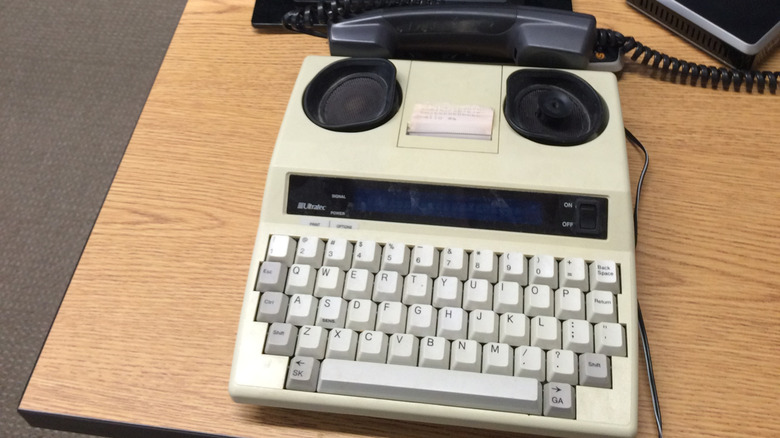
Once you have it TTY enabled, you can begin using your TTY device to communicate; the connected display should show the text contents of your call. The other person may use TTY mode, or TTY users can place calls to standard phone users via telecommunications relay services to access a communication assistant that relays text to voice or vice versa.
TTY in the Google Pixel's Phone app gives four options to select from: TTY Full, TTY HCO, TTY VCO, and TTY Off. TTY Full means both the caller and recipient intend to text-communicate with each other, either through a TTY device or via a telecommunications relay service operator. TTY HCO refers to "hearing carry over," which means the recipient will likely use audio to communicate. The TTY user listens directly to the natural voice, but is also using the TTY setup to reply via text. TTY VCO stands for "voice carry over," essentially the opposite of HCO, where you plan to use audio, and then the recipient responds in text (requiring you to read the incoming text on your display). Lastly, TTY Off, the default option, disables TTY mode and treats a call as one where both parties are set up to communicate via audio.
TTY HCO suits users who have difficulty speaking but can hear properly, while TTY VCO suits those who can speak but have difficulty hearing. So you'll want to select the option that complements the impairment level. If there's difficulty with both hearing and speaking, TTY Full should be considered, since it relies on full text to facilitate the conversation.
Alternatives to TTY mode for Android phones

If you're looking for options that promote easier communication but don't necessarily have a supported TTY device, you should consider other avenues on your device. The right one depends on what exactly you're trying to accomplish, but a more common digital replacement is RTT. This feature works similarly to TTY, but instead of using the TTY device's display, it operates solely on your phone's screen and also uses your cellular data. The audio is also simultaneous, so you can talk, listen, or mute the microphone when needed. Plus, you can do all of this without using an operator unless you call a line that doesn't support text. RTT can be enabled before a call and swapped mid-call, so it's a little more flexible.
IP relay service is another alternative that uses the internet to communicate while connecting to an operator. This can be done through the web or even through an app. It doesn't need any setup, except for being connected to stable internet, and then accessing an operator to facilitate the call.
Video relay services are also a good option. But this method does require downloading an app like Ntouch by Sorenson for a subsidized experience. The app does assume that the user will primarily use sign language to communicate, but each call you make through the platform remains encrypted.