

Why Apple Maps Is Taking Up So Much Storage – And How To Free Up Space
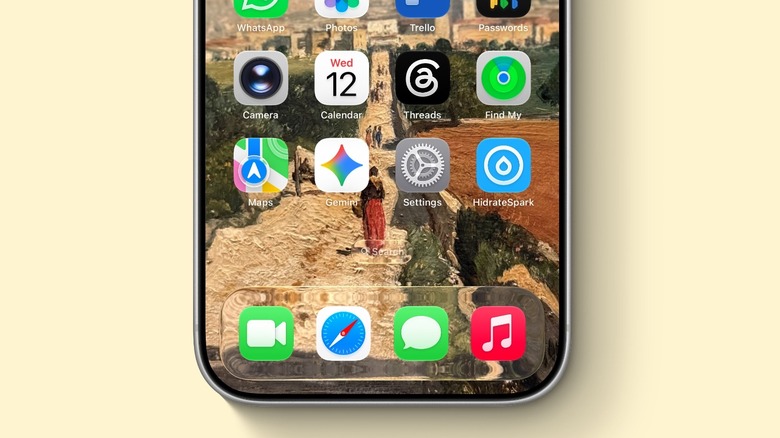
If you have an iPhone with 64GB of storage or even 128GB, you might find yourself without a lot of space to store your photos, music, and apps. It's important to have some spare storage on your device so you can continue to take photos, download content, and update your device to the latest operating system. While there are a number of reasons why your iPhone storage is almost full, such as your iPhone cache, which you can clear, there are times that Apple Maps could be taking up more storage than you realize. There are two possibilities for this. You may be storing more data on your Maps app than you realized, or you're facing a very common bug that's been plaguing users in iOS 26 and previous iOS versions.
For both cases, going over your iPhone Settings and Apple Maps options might help you deal with this issue. Sometimes, just a factory reset can actually help in situations like this. After all, whether you use Apple Maps or not, it's still one of those core iPhone apps. While you might be able to delete it from your Home Screen and App Library, it may continue to be hard-written in iOS. Here's what you can do to avoid Apple Maps taking so much space, so you can use your iPhone properly again.
How to free up iPhone storage by removing Apple Maps data
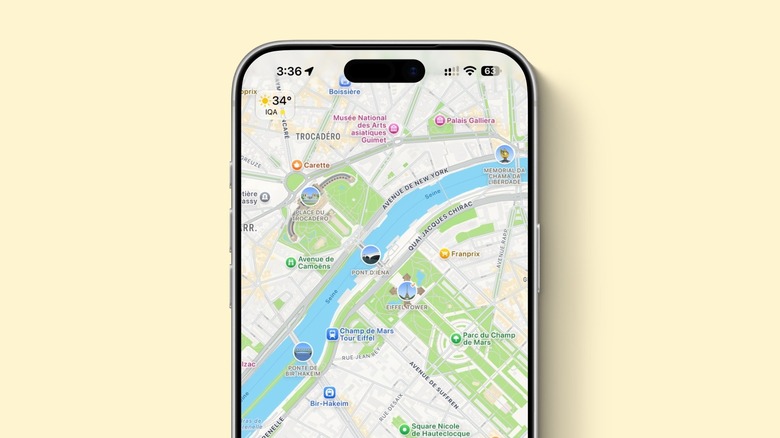
If Apple Maps is your go-to map app, then it makes sense why it's taking up so much storage. The app stores your favorite places, visited addresses, and any downloaded maps you may have used and forgotten to delete. To delete those you don't need anymore, open Apple Maps, tap on the icon of your face, and go to Offline Maps. If you then tap on Places, you can delete personalized routes, guides, and more. After all, the more data you have stored, the more of your iPhone storage it occupies.
However, you may not actually use Apple Maps, as Google Maps can be superior in some ways. In this case, then there's a possibility you're dealing with phantom iPhone storage. If you go to your iPhone Settings app, tap General, and then Storage, you may see that Apple Maps is taking up a lot of space. You can try to offload the app, which frees up storage used by the app but keeps the data, or delete it. If that still doesn't do anything, you can try going to Privacy & Security in the Settings app, choosing Location Services, and then System Services. Turn off Routing & Traffic, Improve Maps, and Significant Locations. Also in Settings, go to your Apple Account, iCloud, Storage, and Backups; select your device, and toggle off Apple Maps. After that, go back to your iPhone storage and delete Apple Maps once again, as this should solve your issues once and for all.
What if none of this was enough?
If following those steps still leaves you with storage being occupied by Apple Maps, you can try to update your iPhone to the latest version, or you can factory reset your iPhone and restore your backup to see if reinstalling everything solved the issue. After all, whenever we perform a factory reset, an iPhone also cleans the cache from its system data and other parts of the system that are no longer necessary, but may remain there after software updates. If you're struggling with little space on your iPhone, eventually, the best recommendation may be to update your device to a new one, especially now that all iPhone models introduced in late 2025 and beyond offer at least 256GB of storage.
If you can't upgrade your phone, then checking the iPhone Storage tab might be your best bet. You can try to save as many photos as possible in the cloud, or delete media from message apps like iMessage, WhatsApp, Facebook Messenger, and Telegram. Besides that, deleting heavy social media apps and then redownloading them might be a good alternative to reclaim a few extra gigabytes. That said, if none of these solutions work, you may have to wait until Apple addresses this situation in an upcoming software update.