

This Free Windows Feature Turns One Monitor Into As Many As You Need

Very rarely do you have just one window open on your PC. Most of the time, you're probably juggling at least three, switching between them with either Alt + Tab or the Taskbar. While this works fine for general use cases, it isn't the most effective approach for power users or multitaskers with too many active windows. You'll likely end up pressing Alt + Tab multiple times just to get to the window you need. And even finding that one window on your Taskbar becomes an unnecessarily time-consuming task.
To solve this, you'd normally need to use a second monitor. The extended screen option lets you separate your active apps into two different and more manageable spaces. However, setting up a dual-monitor workspace isn't always doable, especially if you don't have the budget or space for another monitor.
Thankfully, Windows offers a nifty alternative in the form of multiple desktops. Yes, Windows 11 has virtual desktops that allow you to have two or more workspaces on just one monitor. This comes in handy when you want to create a dedicated desktop for different purposes. For instance, you can set up one desktop with all your work-related communication apps, another desktop specifically for your work tasks, and a third desktop for your personal apps like YouTube, Reddit, and your daily journal in Notion. Multiple desktops on Windows essentially let you declutter your original desktop and help boost your productivity. We'll walk you through how to set up, use, and manage your multiple desktops.
How to create and use multiple desktops on your PC
Adding a new desktop on Windows is really quick and easy. Simply press Win + Tab and click on New Desktop. You're free to add as many as you need. Once you have your desktops, switch between them by pressing Win + Tab and selecting your preferred desktop from the bottom. Each desktop looks and works just like the main desktop, so you won't have to worry about learning a new interface. Just start launching and arranging the apps like you normally do.
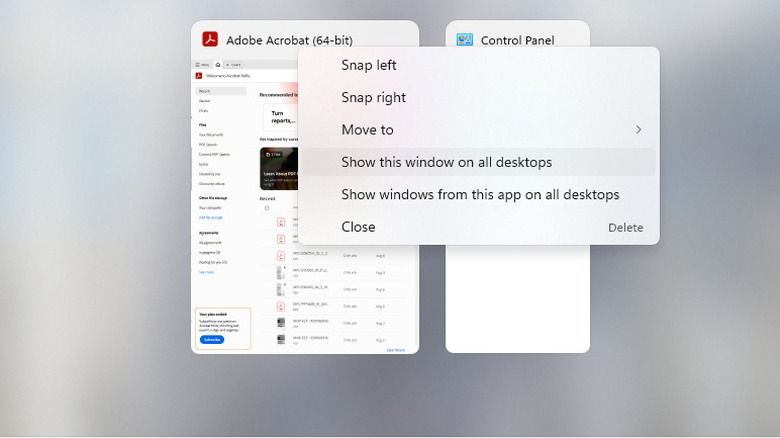
It's important to note, though, that some Windows apps don't support multiple instances across different desktops. This means if you already have a window open in Desktop 1, you can't launch a new window for that same app in Desktop 2. If you try doing so, that window will automatically move to the current desktop and close on all other desktops. If you want to display it on both desktops, here's what you need to do:
- Press Win + Tab.
- Right-click on the window.
- Select "Show this window on all desktops."
The app will then appear on all your desktops and will automatically stay in sync as you use it. For instance, if you go to the Personalization menu in Settings while on Desktop 1, the Settings window in Desktop 2 will display the same menu. This makes it easier to continue what you're doing in the app even after switching desktops. The same synchronization applies when you close the app, though. If you close it on one desktop, it will also close on the others. When you shut down or restart your PC, all your desktops will still be there at bootup.
How to manage multiple desktops on your PC
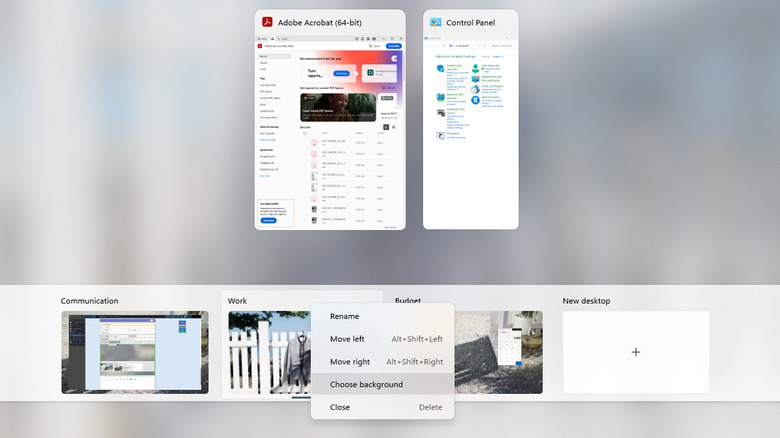
Using multiple desktops on your Windows computer can get messy real quick without proper management. To avoid confusion and make each desktop stand out better, you can opt to change their names and backgrounds. Here's how:
- Press Win + Tab.
- Right-click on the specific desktop at the bottom.
- Select Rename.
- Type your name of choice. Make sure it's easy to tell apart from the other names.
- Right-click on the desktop again.
- Go to Choose background.
- Set "Personalize your background" to Picture. You can't use any other type of background (e.g., solid color, slideshow, Windows spotlight) as these will apply to all the desktops instead of just one.
- Click Browse photos.
- Select a wallpaper from your saved files.
- Rinse and repeat for the rest of your desktops.
Besides renaming and adding distinct backgrounds to the desktops, you can also rearrange them how you see fit. Simply drag and drop the desktops to your preferred spot.
Windows lets you further customize how the multiple desktops work via Settings. In the Settings app, open System and go to Multitasking. Then, expand the Desktops option. Here, you can have the Taskbar display all your windows from all the desktops. This way, switching between desktops is as easy as clicking on the window on the Taskbar instead of pressing Win + Tab every time. You can do the same with Alt + Tab too. It can be set to show the windows from all your desktops rather than just the current one. Another quick way to switch desktops is to enable Task view in the Taskbar. In the Settings app, go to Personalization > Taskbar and toggle on Task view.