

This One Setting Could Be Ruining Your YouTube Music Playlists
Curating the perfect playlist is practically an artform, requiring serious time and dedication. You meticulously arrange tracks to build a specific mood, only to have the vibe totally harshed when your last song ends and YouTube Music shifts into its algorithmic radio (an autoplay feature that's supposed to keep playing similar songs it thinks you'll like). Now, that perfect mood from your favorite post-rock-slash-shoegaze mix is gone, and you're stuck listening to what Google figures is more of the same. Thankfully, wresting control back from this often tone-deaf algorithm is a cinch, regardless of whether you're in the app or on your desktop.
To switch off this relentless feature in the YouTube Music mobile app, start by playing any song or playlist. Tap the player at the bottom of your screen to open the "Now Playing" view. From there, swipe up to see your queue and the "Up Next" tab. Scroll all the way down to the bottom of your current queue and you should spot the "Autoplay" toggle. Just switch it off. Like other settings, the app will remember this preference.
The process is almost identical for desktop listeners. Open YouTube Music in your browser and expand the media player from the bottom. Make sure you have the "Up Next" tab selected (next to lyrics and related). Right at the top of your queue, you'll find that same Autoplay switch. Turn it off and your future listening sessions will finally end right when your playlist ends, keeping the vibe perfectly intact. This, along with making sure you have the best audio quality on YouTube Music, is really how to enjoy music.
How to make Autoplay work for you, not against you
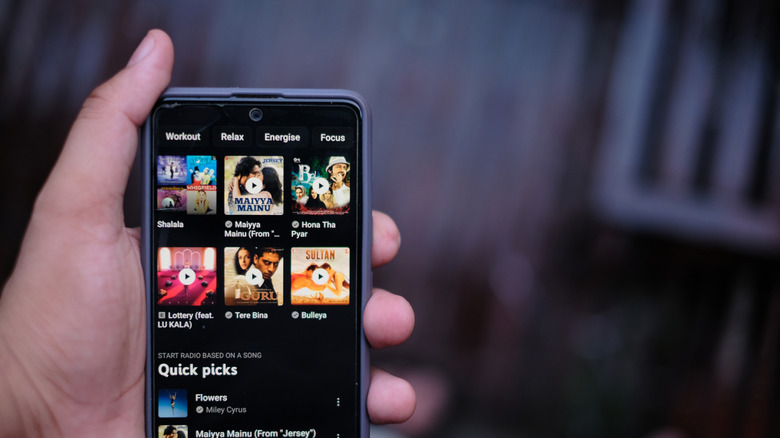
Turning off autoplay is a great defense mechanism if you're not looking to add to a playlist. Nevertheless, the feature is not inherently bad. In fact, if you give it a little guidance, YouTube Music's algorithm is actually pretty dang brilliant at surfacing new artists you might like and wonderful deep cuts. The key here, if you decide you ever want to leave the app's endless radio feature enabled, is simply not to leave it on default. Use the app's dynamic queue filter buttons to improve your next listening experience. Thankfully, this isn't one of the hidden YouTube Premium features put behind a paywall.
To do this, let the algorithm take over and then open the "Up Next" tab in the player. At the top of the screen, you'll notice several little filter buttons, including Familiar, Popular, Discover, Deep cuts, as well as different decades and genres. Filter buttons are your best tools for steering the algorithmic radio in a direction you'll like more. As you'd guess, tapping "Familiar" is good if you only want to hear tracks you already know and love; likewise, tapping "Discover" tells the algorithm to play artists you've never streamed before. The best and most fun option by far, though, is "Deep Cuts," which skips popular mainstream singles in favor of lesser-known tracks from any artist's back catalog. By actively using these filters, you won't have to worry about a potentially vibe-killing autoplay song creeping up. These filters are hands-down one thing that makes YouTube Music one of the best music streaming services.