

5 Things To Stop Doing If You Have An External SSD
The current memory crisis has been pushing tech component prices up and several gadgets are facing this price increase. If you are planning to upgrade your external SSD, then you've definitely discovered that prices for these devices have skyrocketed. With that in mind, the best you can do is to take extra care of your current external SSD, so it can last as long as possible. And to do that, there are several steps you can take.
Since external SSDs behave differently from traditional HDDs, there are a few different recommendations on how to use and prolong the lifetime of your drive. For example, if you want to assess its health and endurance, you'll need to use third-party tools, like CrystalDiskInfo for Windows or DriveDx for macOS. These programs can read the drive's SMART attributes, monitor total bytes written, spare blocks availability, temperature history, and overall percentage of remaining drive life. With this data and a few other practices to better handle and care for your external drive, you might be able to survive the current memory crisis. Here's what you need to stop doing with your external SSD starting now.
Disconnecting the cable without safely ejecting the SSD
Who never forgot to eject the disk properly before unplugging the cable? Well, probably everybody did that at least once and everything was fine. While most people get luckier than in trouble, unplugging an external SSD mid-use is one of the quickest ways to corrupt a file system. So even when a progress bar disappears, there's always the possibility that there's a background operation in the works, which an abrupt disconnection could plague you with half-written data, file fragments or damaged partition headers. In a worst-case scenario, the entire drive can get into a read-only state.
However, if you didn't cause the disconnection, and the drive disconnected unexpectedly, you shouldn't try to write new data to it. Instead, connect it to your computer once again and run native file-system repair utilities like Windows Check Disk or macOS' Disk Utility's First Aid to scan and repair dirty bit markers or broken directory structures before regular use. Besides that, you should always trigger the os unmount command (right-click and hit "Safely Remove Hardware" in Windows, or click the eject symbol next to the drive in macOS Finder). Once the drive completely disappears, then you can pull the physical connector. That said, if you use Windows and frequently swap drives on the go, ensure the device's removal policy is explicitly set to "Quick Removal," in Device Manager to disable write caching, though safe ejection remains the gold standard to take care of your external SSD.
Using more than 85% of the drive's capacity
If your new SSD already feels slow, the reason can be that it barely has space for new data. SSDs usually write data in pages of 4KB to 16KB but can only erase data in entire blocks — often 2MB to 8MB. When a drive has enough space, it adds new data and pre-erased empty blocks with ease. However, when it's close to its total limit, it's forced to perform constant "read-modify-write" cycles, which ends up triggering an extreme write amplification, degrading sustained transfer speeds, and causing NAND flash cells to underperform. That said, you should always free up room whenever you cross the 85% threshold.
By offloading non-essential data, removing leftover cache directories, and deleting temporary project files, you'll ensure that sustained transfer speeds remain strong for longer. Still, if transfer speeds are already bad, you should clear out space and leave the drive connected idle for an hour to let the internal controller's background garbage collection clean up abandoned pages. You should always leave at least 10% of the total capacity of your external SSD completely unallocated or empty, so this part can function as a manual reserve. If you regularly transfer massive media files or video project bundles, choose a larger capacity tier than your current needs, so the SSD always has enough working room to manage these block cleanups efficiently.
Running traditional disk defragmentation
Defragmentanting a disk is a tool invented for old-school mechanical hard drives with spinning disks and moving parts to help the HDD read data faster. SSDs, on the other hand, have zero moving parts and they access any memory cell with near-instant speeds. With that, defragmentation gives the exact opposite result you would expect from this tool on an HDD, as on an SSD, it moves gigabytes of data back and forth across flash memory, burning through limited program/erase cycles and unnecessarily degrading the lifespan of the NAND flash without providing any performance gain, and it could also be among the reasons someone could be killing their PC storage as well.
So if by any chance you start a defrag routine by mistake, you should cancel it immediately. After all, modern drives track wear through built-in wear-leveling algorithms, meaning that the more you write, delete, and write back information into the same spots, the quicker the drive will age. By checking SMART attributes from tools like CrystalDiskInfo or DriveDX can help you assess the remaining life and total bytes written in your SSD.
With that in mind, you should disable any scheduled defragmentation routines targeting external drives in Windows Defragment and Optimize Drives. Instead, you should focus on TRIM-based optimization commands, like Drive Optimization in Windows. This informs the SSD controller which data blocks are no longer considered in use, allowing it to wipe them during idle periods without needless data shifting.
Confining the SSD while in use
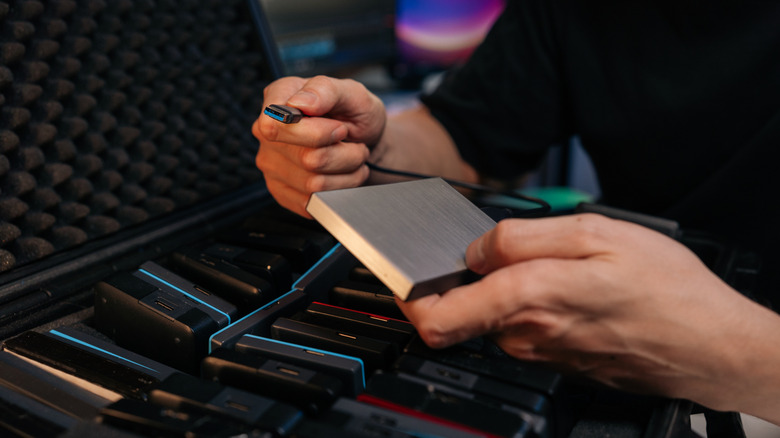
If you have one of the newest NVMe external SSDs, you should know that they generate a lot of heat, so they require great integrated cooling systems to ensure the controller chip and power management ICs can maintain sustained read and write tasks at a proper speed. However, if you keep the SSD trapped inside tight carrying cases, wrapped in protective silicone sleeves without ventilation, or even buried under desk clutter, heat will remain inside the drive, which could at first drop read and write speeds as thermal throttling kicks in, but greatly damage your drive in the long term.
If the drive feels really warm to the touch and transfer rates start to really slow down during a task, you should pause the read/write jobs immediately, disconnect the drive after letting it idle for a few minutes, and then take it off from what it's preventing it from ventilating: a protective case, a sleeve, or even papers on top of it. Finally, let its aluminum body cool down to room temperature before resuming intense tasks again.
To avoid newer, similar issues, you should always place the SSD on an open, hard surface during intensive jobs like video rendering or large multi-gigabyte transferring. You should also avoid stacking running drives on top of hot laptop power supplies, active hubs, or where it can't ventilate properly.
Using the SSD as a single cold-storage backup
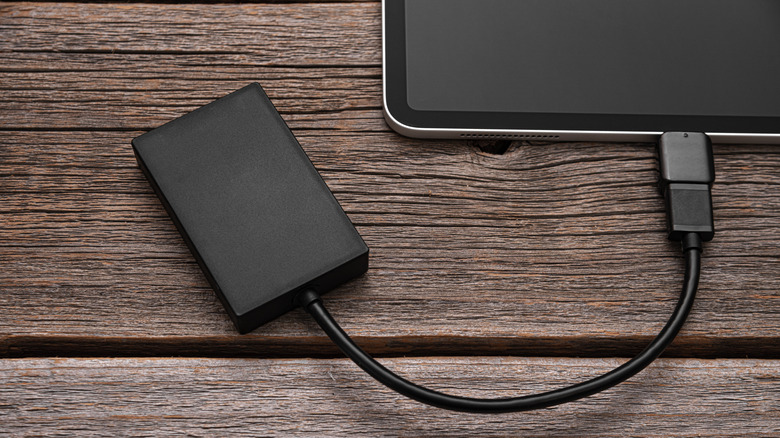
NAND flash memory stores data as electrical charges trapped inside of it. If you use an SSD as an external backup drive that you plug once every few months, you could be risking ruining it. Over extended periods without power, these electrical chargers can leak away, which can be accelerated by higher ambient storage temperatures. In that scenario, an unused SSD could easily lead to data corruption in no time. If that's your case, you should immediately plug the drive on your computer and run a complete file integrity check and transfer critical files off the drive.
That said, the golden tip for an external SSD is never to treat it as a cold archive. In this case, a Hard Disk Drive, besides being slower, can be a greater option for those long periods without using the drive, but the best approach would be following the 3-2-1 backup strategy, which is maintaining three copies of your data across two different media types, with one copy stored off-site or in the cloud, If you must use an SSD for offline backup, plug it into a powered machine at least once every few months to refresh the electrical chargers across its flash cells.