

Enable These Settings To Instantly Improve The Audio Quality On Your Samsung Phone
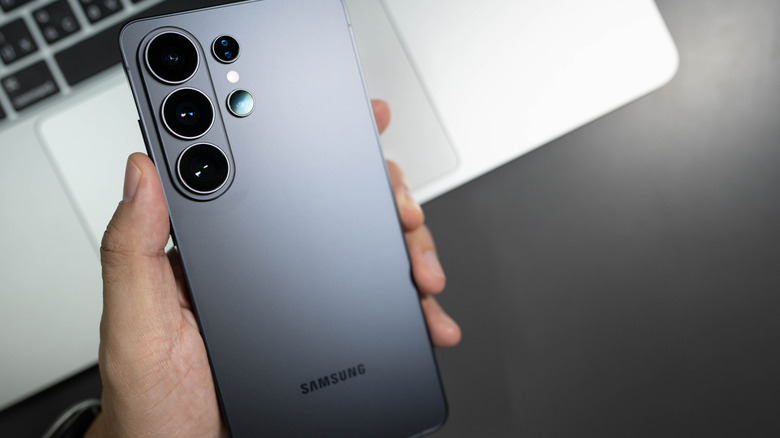
If you own a Samsung Galaxy, from the S24 up to the latest, the S26 models, and you've noticed spotty audio quality coming from your phone's speakers, there are a few adjustments you can make to fix the problem. The first thing you want to do, especially if you're watching movies or listening to music, is enable Dolby Atmos. Atmos provides more immersive, multi-dimensional sound and, thanks to Samsung phones, it works well even on smaller handheld device speakers.
There are a couple of ways to do this; you can enable Atmos via a quick icon in the drop-down quick access tray, for example, but if you want to customize additional audio settings, it's best to do it from your system settings screen. Navigate to Settings, then Sounds and vibration, then Sound quality and effects, and enable the toggle next to Dolby Atmos. You can also tap on the Dolby Atmos option to bring up a sub-menu where you can choose the audio profile you want: automatic, movie, music, or voice.
If you back up one menu to Sound quality and effects, you can enable other sound-related settings that might improve your experience. The system equalizer allows you to choose audio themes to match what you're listening to. Meanwhile, you can enable loudness normalization or enable adaptive sound tuned for your ears — it works best when wearing headphones — and access the UHQ (Ultra High Quality) upscaler. Do note the upscaler is only available when wearing compatible headphones, like Samsung's Galaxy Buds3, Buds3 Pro, or the new Samsung Galaxy Buds4 Pro.
Customize your equalizer to fine-tune the audio experience
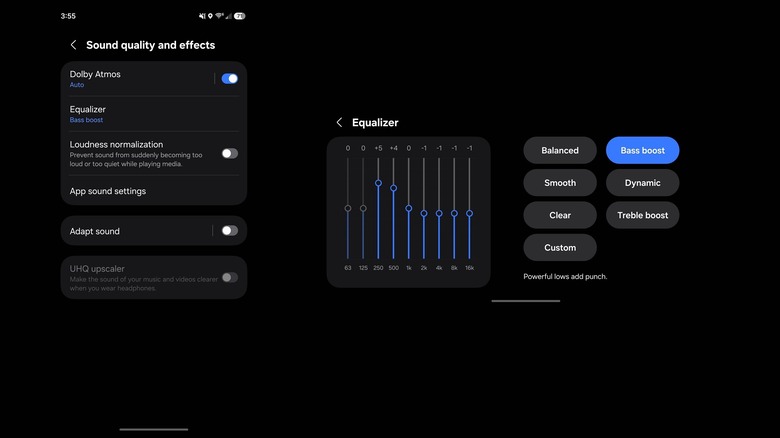
If you want more audio control, learn to customize the equalizer (EQ) yourself. An equalizer is a software tool that allows you to adjust the volume and tone of specific frequency ranges. Using it, you can boost select tones or reduce them, which effectively lets you improve ranges you want to hear while mitigating audio distortion and other volume issues. For example, you can boost a singer's voice frequency to hear them better over loud drums and bass. Or, crank the bass up to eleven to really feel the pounding in your soul. Honestly, the EQ can be a setting holding back your Android music-listening experience on all devices, not just Samsung.
Numerous users report improvements after reducing low to mid frequencies, between the 250-hertz and 500-hertz range. Others recommend reducing the gain of all frequencies by a couple of decibels. The only way to know what sounds better to your ears is to fiddle with the EQ. If you don't want to start fiddling with really granular controls right out of the box, you can first try various presets, like treble boost, bass boost, balanced, dynamic, and clear. Generally, low frequencies give the audio stream weight, mids help distinguish between various instruments and voices, and highs add detail. You'll learn what you like best as you adjust, always in minimal amounts, and over time.
Any settings you change apply to the audio output as a whole, whether it's going through a Bluetooth speaker, headphones, or your phone's built-in speakers. So, yes, adjusting the equalizer does change the experience of your phone's speaker playback. Future devices may take that to the next level now since Samsung owns several big audio brands — the company's next-gen phones might get a major audio upgrade because of it. Imagine Denon, Marantz, Polk, or Bowers & Wilkins speakers and audio tech inside the next Galaxies!